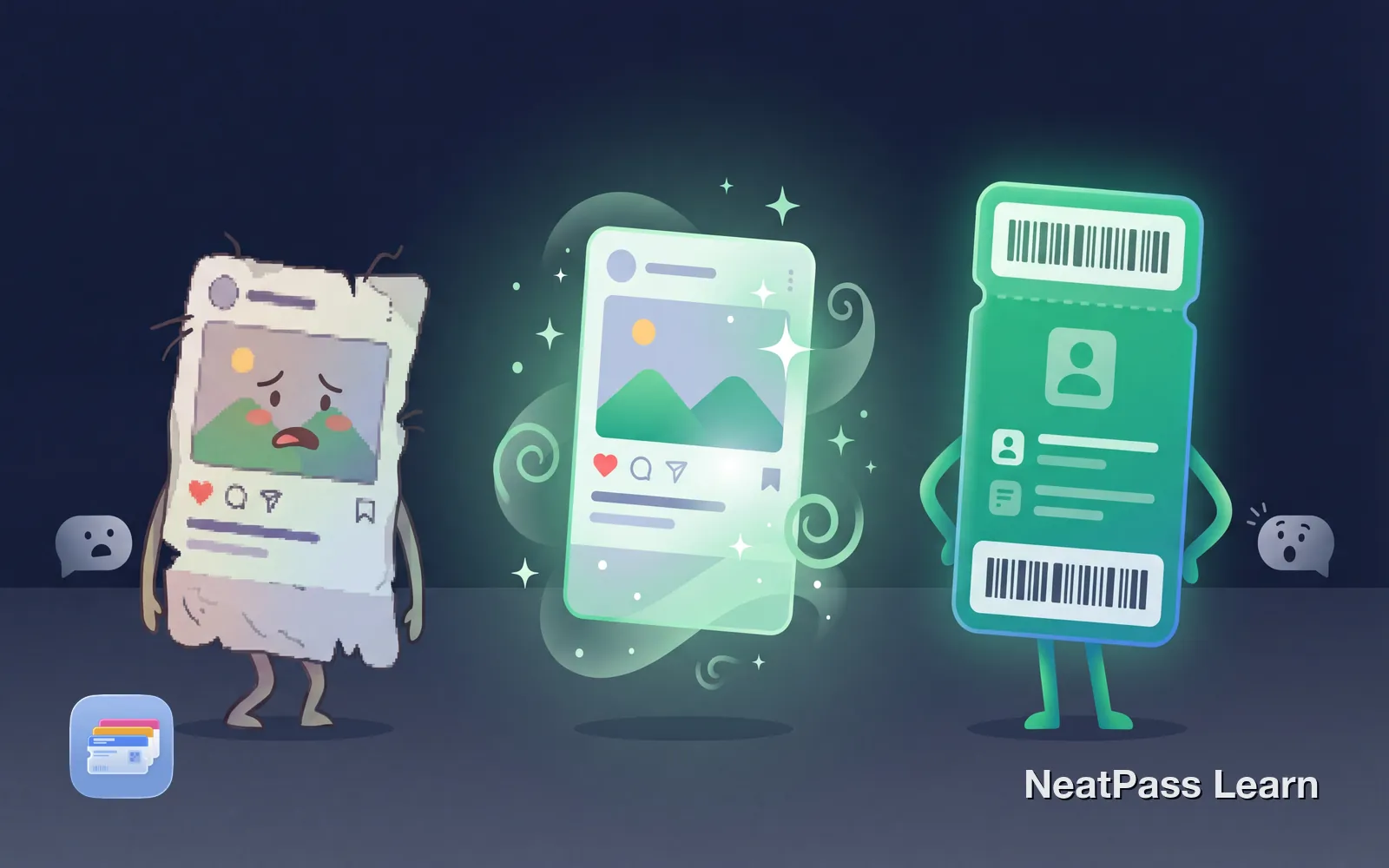
Apple Wallet doesn't accept screenshots directly, it only works with .pkpass files. But you can still get your screenshot barcode into Wallet by extracting the data and creating a native pass.
Why Wallet Doesn't Accept Screenshots
.pkpass Apple Wallet requires structured .pkpass files that contain barcode data, styling, and metadata. A screenshot is just pixels, Wallet has no way to interpret what's in the image.
The solution is to extract the barcode data from your screenshot and generate a proper .pkpass file. Third-party apps can bridge this gap.
Convert your screenshots
NeatPass makes it easy to convert any ticket, pass, or loyalty card to Apple Wallet.
How Screenshot Conversion Works
NeatPass NeatPass does exactly this. Its on-device AI reads your entire screenshot, detects the barcode, and auto-fills all pass details like title, date, and more. The result is a real .pkpass file ready for Apple Wallet.
How on-device AI works
Step-by-Step: Screenshot to Wallet
Open NeatPass
Select your screenshot
AI reads your image
Review and customize
Add to Apple Wallet
The entire process takes about 20 seconds. Your barcode now lives in Apple Wallet, accessible from your lock screen, auto-brightening for scanners, and synced across your devices.
Multiple import options
What If the Barcode Won't Scan?
Not every screenshot converts perfectly on the first try. Here are common issues and how to fix them.
Barcode is too blurry
Barcode is too small in the image
Multiple barcodes detected
Barcode partially cut off
Still having trouble? Check our full guide on import methods for alternative approaches.
Why This Is Better Than Screenshots
Converting your screenshot to a proper Wallet pass isn't just about convenience. It solves real problems you've probably experienced.
Auto-brightness
Screen maxes brightness for reliable scanning
Perfect rendering
Barcode displayed at optimal size and resolution
Works offline
No internet needed at the scanner
Lock screen access
Double-click to show pass instantly
Syncs across devices
Pass appears on all your Apple devices
Backed up automatically
Never lose your pass to accidental deletion
Raw screenshots often fail at checkout. Learn why in our article: Why Screenshot Tickets Don't Work.
Frequently Asked Questions
Convert your first screenshot
DownloadGet Your Screenshots Into Wallet
Converting screenshots to Wallet passes is straightforward with NeatPass. Extract the barcode, create a pass, and access it from your lock screen.