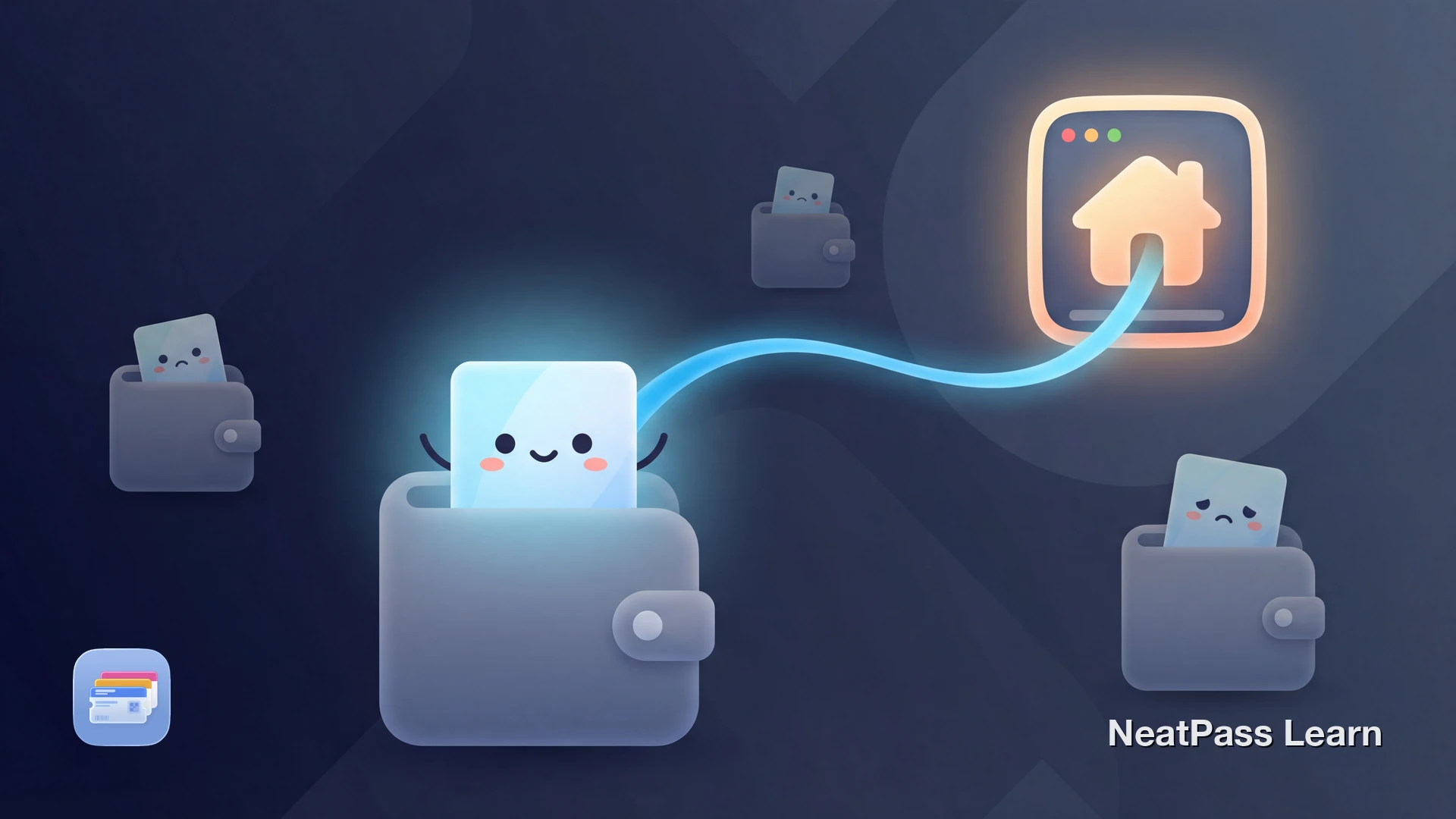
Apple Wallet is great for quick access to passes. Double-click the side button, scan your barcode, done. But what if you need to edit something or access features that Wallet does not support?
NeatPass solves this with deep links. Every pass you export to Apple Wallet includes an "Open in NeatPass" button that takes you straight back to the app with one tap.
What Is a Deep Link?
A deep link is a special URL embedded in your Apple Wallet pass that opens a specific screen in an app. When you tap it, instead of opening a website, your iPhone launches NeatPass and navigates directly to that pass.
This means your Wallet pass is not a dead end. It is connected to your full pass library in NeatPass, with all the editing and customization features intact. Learn more about adding passes to Apple Wallet.
How to Access the Deep Link
Finding the link is simple:
Open Apple Wallet
Tap the pass
Open the back of the pass
Tap "Open in NeatPass"
Quick access
What Can You Do After Opening in NeatPass?
Once you are back in NeatPass, you have access to everything the app offers:
Edit pass details
Change the title, add notes, update the barcode value, or correct any extracted information
View original document
Access the PDF, screenshot, or image you originally imported
Customize appearance
Change colors, logo, and layout options not available in Wallet
Access app features
Use widgets, search, organization tools, and other NeatPass features
See our guide on editing passes for detailed instructions.
Want passes that link back to full features?
NeatPass makes it easy to convert any ticket, pass, or loyalty card to Apple Wallet.
Why This Matters
Most wallet apps that export to Apple Wallet create passes with no way back. Once your pass is in Wallet, it is disconnected from the original app. If you need to make changes, you have to find the pass again in the app manually.
- One-tap return to full app
- Edit and re-export easily
- Access original documents
- Full feature access from Wallet
- No link back to app
- Must search manually to edit
- Original documents often lost
- Wallet pass is a dead end
Explore why Apple Wallet is the best home for your passes.
Common Use Cases
Update Pass Details
Noticed a typo in your pass title? Tap "Open in NeatPass," fix it, and re-export. The updated pass replaces the old one in Wallet. See customizing pass design.
View the Original Document
Need to check the fine print on your ticket? The original PDF or screenshot is stored in NeatPass and accessible anytime. Learn about viewing original documents.
Access Advanced Features
Want to change the pass type or barcode format? These options are available in NeatPass but not in Wallet. Read more about pass types.
Works offline too
Frequently Asked Questions
Ready to try smart Wallet passes?
DownloadYour Passes Stay Connected
Apple Wallet handles the quick-access part perfectly. But when you need more, the deep link brings you back to NeatPass instantly. No searching through your library, no remembering which pass is which.
This seamless connection is part of what makes NeatPass different. Your passes in Wallet are not orphaned files. They are part of a system that respects your time and keeps you in control. Learn more about how NeatPass protects your privacy.
Related reading