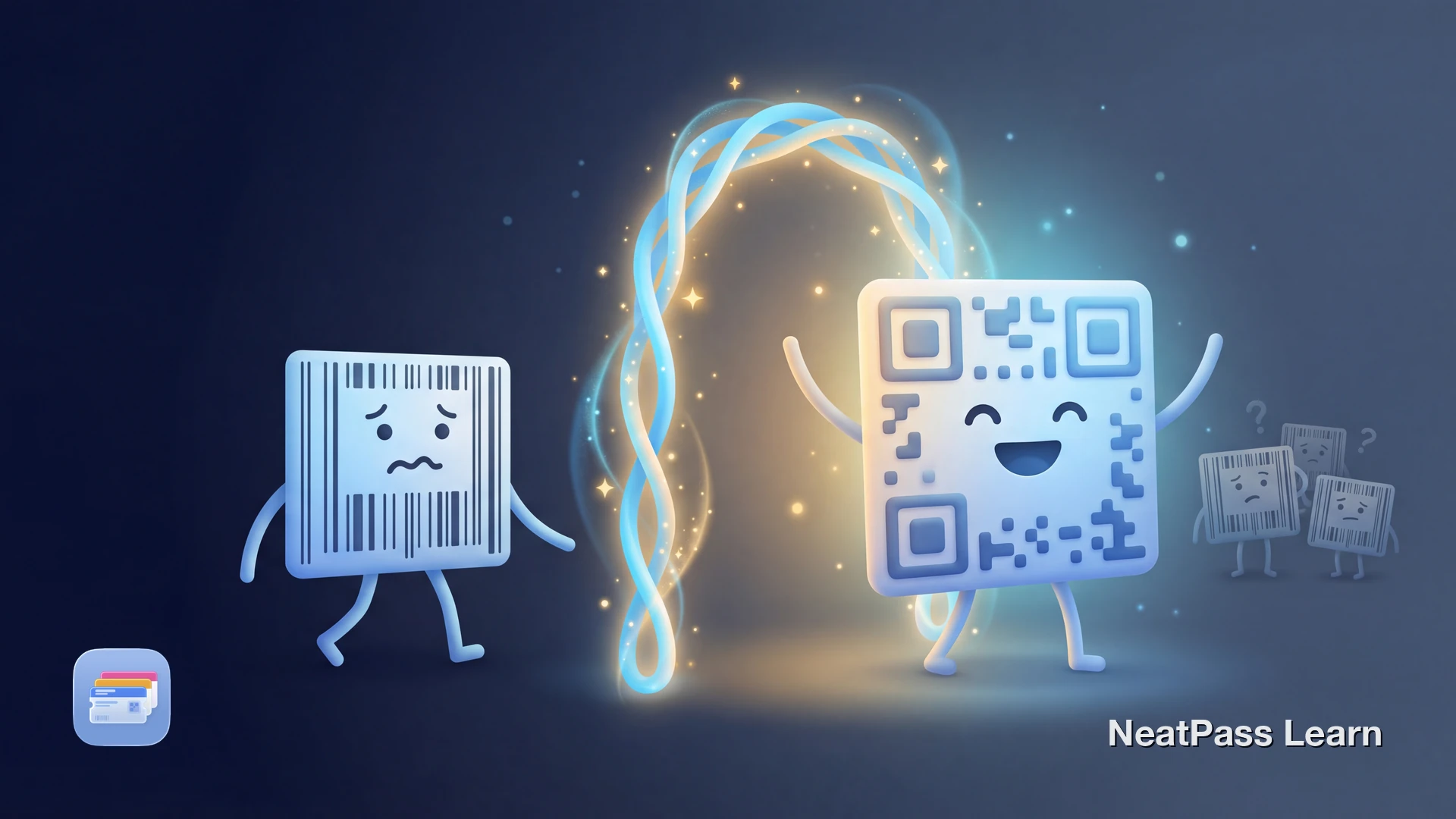
You have a coupon or retail card with a GS1 DataBar barcode. You want it in Apple Wallet. But when you try to add it, the barcode either disappears, looks wrong, or refuses to scan. Apple Wallet simply does not support GS1 DataBar natively.
This is not a bug or user error. Apple Wallet only renders four barcode formats: QR Code, PDF417, Aztec, and Code 128. GS1 DataBar is not one of them. If you try to force it, the pass creation fails or produces an unusable barcode.
What Is GS1 DataBar?
GS1 DataBar (formerly RSS, Reduced Space Symbology) is a compact barcode format designed for small items and retail applications. You will find it on:
- Grocery coupons and manufacturer discounts
- Fresh produce with variable weight pricing
- Small retail products where UPC would not fit
- Pharmacy items and healthcare products
The format can encode more data in less space than traditional UPC barcodes, making it popular for coupons that need to include offer codes, expiration dates, and redemption limits.
Why Apple Wallet Does Not Support GS1 DataBar
Apple Wallet was designed primarily for event tickets, boarding passes, and loyalty cards. These typically use QR codes or PDF417. The four supported formats cover most common use cases:
- QR Code - most event tickets
- PDF417 - boarding passes, IDs
- Aztec - airline tickets, transit
- Code 128 - retail, shipping
- GS1 DataBar - coupons, produce
- DataMatrix - industrial
- EAN-13/UPC - retail products
- Code 39 - older systems
GS1 DataBar is specialized for retail point-of-sale systems. Apple likely did not include it because their target use cases (tickets, passes, memberships) rarely need it. For a full list of what NeatPass can handle, see supported barcode formats.
Add Any Barcode to Apple Wallet
NeatPass makes it easy to convert any ticket, pass, or loyalty card to Apple Wallet.
The NeatPass Solution
NeatPass handles GS1 DataBar in two ways, depending on how you want to use your pass:
In-App Display
NeatPass displays your original GS1 DataBar barcode exactly as it appears on your source document. No conversion, full fidelity.
Wallet Export
When exporting to Apple Wallet, NeatPass converts GS1 DataBar to QR Code. The encoded data is preserved, just in a different visual format.
The conversion preserves your barcode data. The numbers, product codes, and coupon identifiers all remain intact. Only the visual representation changes. Learn more about how barcode conversion works.
Data Preservation
How to Add Your GS1 DataBar Card
Import Your Card
Review the Detection
Export to Wallet (Optional)
Verify at Checkout
For detailed import options, see all import methods.
Will the Converted Barcode Scan?
In most cases, yes. Modern point-of-sale systems can read multiple barcode formats. The scanner extracts the data, not the visual pattern. If your GS1 DataBar encoded "123456789", the QR Code will encode the same value.
However, some older or specialized systems may require the original GS1 DataBar format. In those cases:
- Use NeatPass directly at checkout (it displays the original format)
- Keep your original physical coupon as backup
- Ask the cashier to manually enter the code if scanning fails
If your barcode looks different after import, that is expected for converted formats. See why your barcode looks different for details.
Testing Tip
Common GS1 DataBar Use Cases
Manufacturer Coupons
Digital coupons from brands encode discount amounts, product identifiers, and expiration dates in GS1 DataBar format.
Store Loyalty Cards
Some retailers use GS1 DataBar for compact loyalty cards that fit on keychains or small cards.
Fresh Produce Labels
GS1 DataBar is used on produce stickers for items like fruit and vegetables, encoding weight and price in a compact format.
Healthcare Products
Pharmacy items and medical products use GS1 DataBar to encode batch numbers, expiry dates, and serial numbers on small packaging.
Frequently Asked Questions
NeatPass Barcode Support
NeatPass supports 18 barcode formats, including several that Apple Wallet cannot display natively:
- GS1 DataBar (all variants: Omnidirectional, Limited, Expanded)
- DataMatrix for industrial and healthcare
- EAN-13/EAN-8 for retail products
- UPC-A/UPC-E for US retail
- Code 39/Code 93 for legacy systems
- ITF/ITF-14 for shipping
- Codabar for libraries and blood banks
For the complete list, check supported barcode formats. All formats work offline once imported, with no internet connection required. Learn more about offline mode.
Your Coupons in Wallet
GS1 DataBar not working in Apple Wallet is a platform limitation, not a flaw in your coupon. NeatPass bridges this gap, displaying original barcodes in-app and converting to compatible formats for Wallet export.
Whether you use the Wallet pass or NeatPass directly, your barcode data remains intact. No more carrying paper coupons or fumbling with screenshots.
Ready to migrate your cards?
DownloadRelated Reading