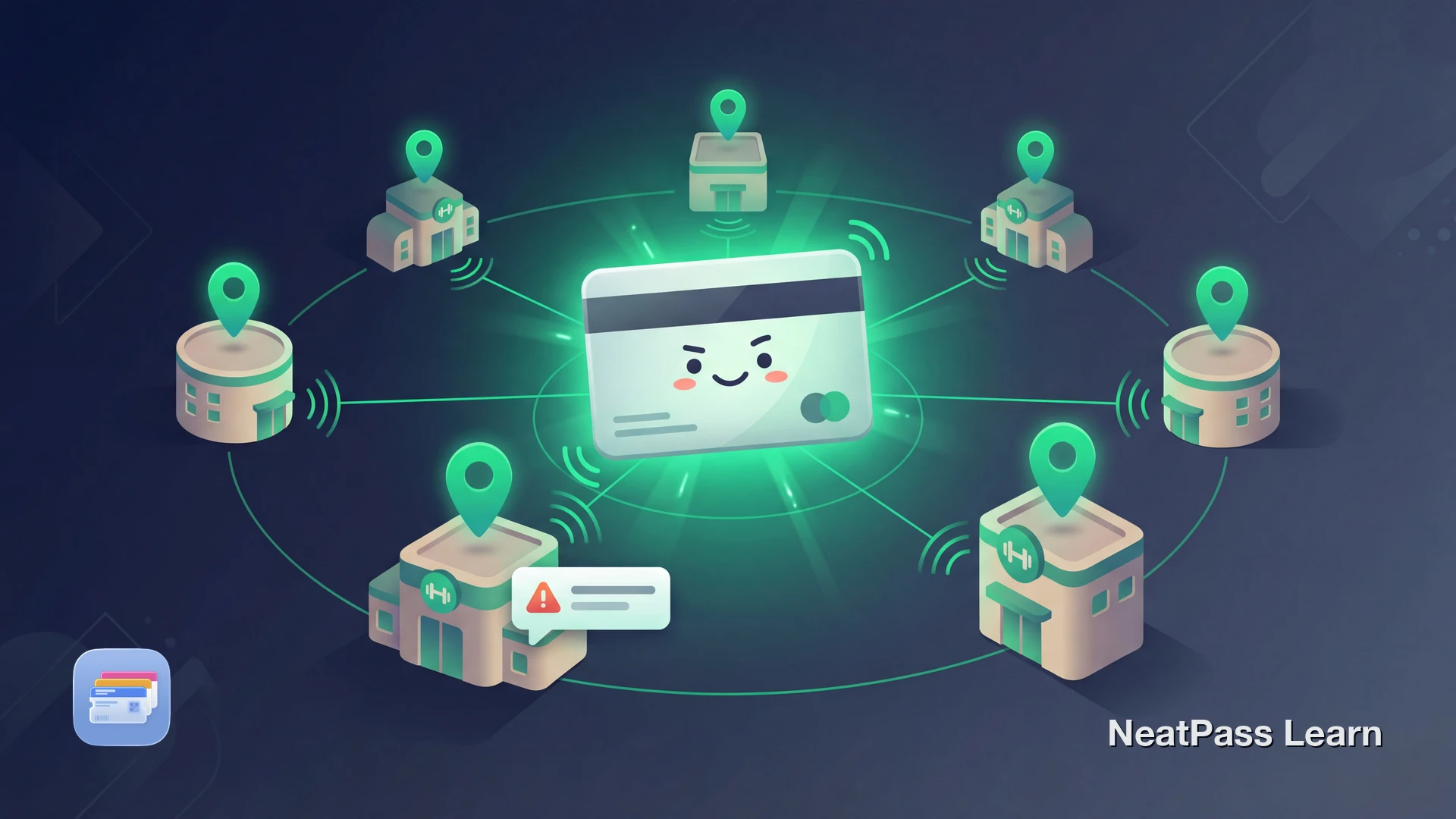
Chain gym members often visit multiple locations. Maybe you work out near the office during the week and at a different branch on weekends. Your membership works everywhere, but your Apple Wallet pass only knows about one location. There is a fix.
The Multi-Location Problem
Apple Wallet supports location-based notifications. When you arrive at a saved location, your pass appears on the lock screen automatically. No need to unlock your phone, open an app, or dig through Wallet.
But there is a catch. Most Wallet passes are created with only a single location. If you saved your home gym, you get lock screen access there. Visit any other location in your chain, and nothing happens. You are back to opening the app manually.
Usually one location
Most gym passes are set up with just one geofence
Chain gyms have dozens
Planet Fitness has 2,800+ locations
Manual access elsewhere
No lock screen convenience at other branches
Defeats the purpose
You wanted one-tap access everywhere
How Location Alerts Work
Apple Wallet uses geofencing to trigger lock screen notifications. When iOS detects you are within roughly 100-300 meters of a saved location, it displays the relevant pass on your lock screen.
This works using a combination of GPS, WiFi positioning, and cellular tower triangulation. It does not require constant GPS tracking or drain your battery. iOS handles the monitoring efficiently in the background.
About geofencing
Why Chain Gyms Are Different
If your gym chain had an official Apple Wallet pass, they could add multiple locations. But most gyms do not support Apple Wallet at all. They want you in their app, not Wallet.
Even gyms that offer Wallet passes often only include the single location where you signed up. They do not account for members who travel between branches. Your membership is chain-wide, but your digital pass is stuck at one gym.
Ready for alerts at every gym location?
NeatPass makes it easy to convert any ticket, pass, or loyalty card to Apple Wallet.
The NeatPass Solution
NeatPass lets you add up to 10 locations to any pass you create. One gym membership card, alerts at every location you actually visit.
Search for gym locations by name, address, or just browse on the map. Add your home gym, the one near work, the branch you hit when visiting family. Each location gets its own geofence.
Multiple locations
Step-by-Step: Multiple Gym Locations
Create your gym pass
Open the pass editor
Add your first location
Add additional locations
Save and sync
Test at your next visit
Your pass works offline at check-in even if you have no signal. Learn more about editing passes to customize colors, add text fields, or change the barcode.
Chain Gym Examples
Planet Fitness
With over 2,800 locations in the US, Planet Fitness members often visit multiple gyms. The PF app shows your barcode but offers no Wallet integration. Create your pass in NeatPass and add your frequently visited locations for lock screen alerts at each one.
LA Fitness
LA Fitness has nearly 700 locations across the US and Canada. Many members use clubs near both home and work. The LA Fitness app does not support Apple Wallet. Your NeatPass card can include up to 10 of your regular locations.
Anytime Fitness
Anytime Fitness has 5,700+ locations worldwide. Their 24/7 access model means members often drop in at different clubs. Some locations support NFC access through Wallet, but most use barcodes. Add your regular spots to your NeatPass card.
YMCA
YMCA memberships often include access to multiple branches. Each YMCA operates independently, so Wallet support varies. Your NeatPass card works at any location with a barcode scanner.
New to gym cards in Wallet?
Benefits of Multi-Location Alerts
Once you add multiple gym locations to your pass, you get convenience at every branch.
Automatic lock screen access
Your card appears when you arrive at any saved gym
No more manual searching
Skip opening apps or digging through Wallet
Works offline
Pass displays even without cell service
Faster check-in
Double-click side button and scan immediately
You can also add your gym card to lock screen widgets for even faster access. See our privacy FAQ to learn how NeatPass keeps your data local.
Frequently Asked Questions
Add your gym locations now
DownloadYour Card at Every Gym
Chain gym memberships are meant to be flexible. Work out anywhere in the network. But without multi-location support, your digital pass does not match that flexibility. You end up fumbling with apps at half the gyms you visit.
With NeatPass, one pass covers all your regular locations. Add up to 10 gyms, get lock screen alerts at each one, and check in faster everywhere you train.