Checking your airline app every few minutes for gate changes gets old fast. You unlock your phone, wait for the app to load, scroll to find your flight, and hope the information is current. Multiply that by every update during a layover.
iOS 26 changes this. Boarding passes in Apple Wallet now show live flight information directly on your Lock Screen. Gate changes, delays, boarding times, all visible at a glance without opening any app.
What is Live Flight Tracking?
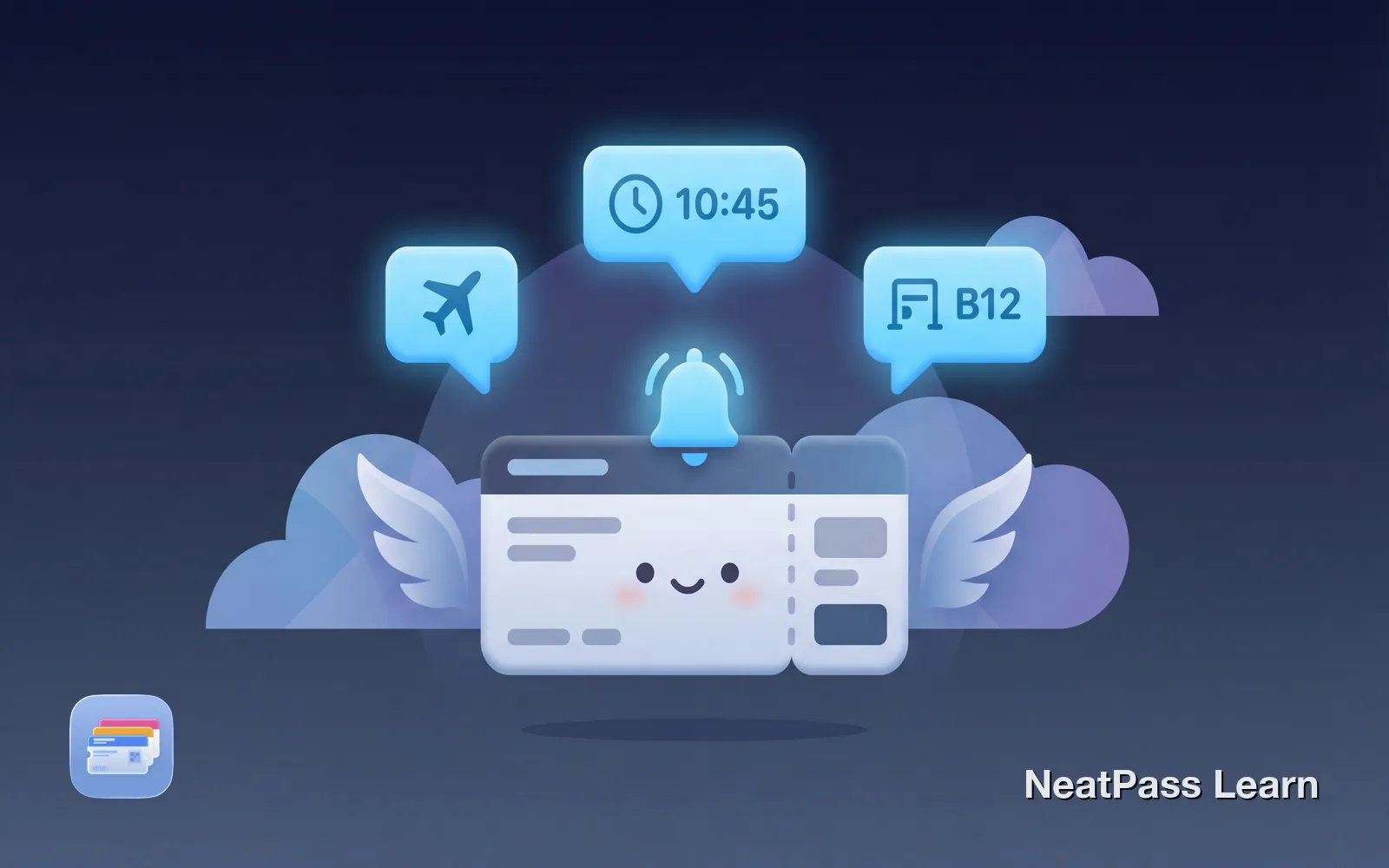
Live Flight Tracking uses iOS 26's Live Activities feature to display real-time flight information on your Lock Screen and Dynamic Island. Updates come to you automatically, no refreshing, no app switching.
Departure & arrival times
Real-time updates as schedules change
Gate information
Gate changes and terminal assignments
Delay alerts
Notifications when your flight is delayed
Time to boarding
Countdown to when boarding begins
Shareable status
Send flight updates to family via Messages
Dynamic Island
Compact view on supported iPhones
Requirements
To use Live Flight Tracking, you need:
- iOS 26 or later
- Boarding pass added to Apple Wallet
- Flight number and departure date on the pass
- Airline with data coverage (more on this below)
NeatPass boarding passes are compatible
Ready to try Live Flight Tracking?
NeatPass makes it easy to convert any ticket, pass, or loyalty card to Apple Wallet.
How It Works
Once your boarding pass is in Apple Wallet, the Live Activity appears automatically when Apple can match your flight details with airline data. No buttons to press, no settings to enable. The tracking just starts.
Import your boarding pass with NeatPass, add it to Apple Wallet, and the Live Activity shows up on your Lock Screen when your flight is recognized.
Flight number format matters
Sharing Flight Status
Picking someone up from the airport? They can share their flight status with you. Here's how it works:
- Open the boarding pass in Wallet
- Tap Share Flight Tracker
- Choose a recipient via Messages
- They tap Follow to start receiving updates
Privacy-first sharing
The recipient needs an iPhone with iOS 26. They don't need the airline app or NeatPass, just Messages.
Airline Support
Not all airlines support Live Flight Tracking yet. Live data availability depends on airline participation. Major carriers are supported, with more airlines adding support throughout 2026.
If your airline doesn't support live tracking yet, your boarding pass still works normally in Apple Wallet for scanning at security and boarding gates.
Major carriers supported
Many airlines supported, more being added
Some limitations
Codeshare, charter, and regional flights may not work
Internet required
Live updates need connectivity to receive data
When Tracking Ends
The Live Activity automatically ends when:
- Your flight lands
- The flight is cancelled
- You manually dismiss it
This is normal behavior. The tracker served its purpose once your journey ends.
Troubleshooting
If Live Flight Tracking isn't working, check these common issues:
- Live Activity not appearing: Verify your pass type is set to Boarding Pass (not Event Ticket) and the pass is in Apple Wallet
- No live updates: Check your flight number format (UA123, not 123) and verify departure date is correct
- Updates delayed: Data comes from airline systems. Airport monitors remain the authoritative source for gate info
For detailed troubleshooting, see our Live Flight Tracking help guide.
Frequently Asked Questions
Get your boarding pass in Wallet
DownloadYour Flight Info at a Glance
iOS 26 Live Flight Tracking turns your iPhone into a real-time flight monitor. No more checking apps constantly or missing gate changes. Once your boarding pass is in Apple Wallet, live updates come to you automatically.
NeatPass makes it easy to get any boarding pass into Apple Wallet. Works offline for scanning, accessible from your Lock Screen, and now with live tracking on iOS 26.