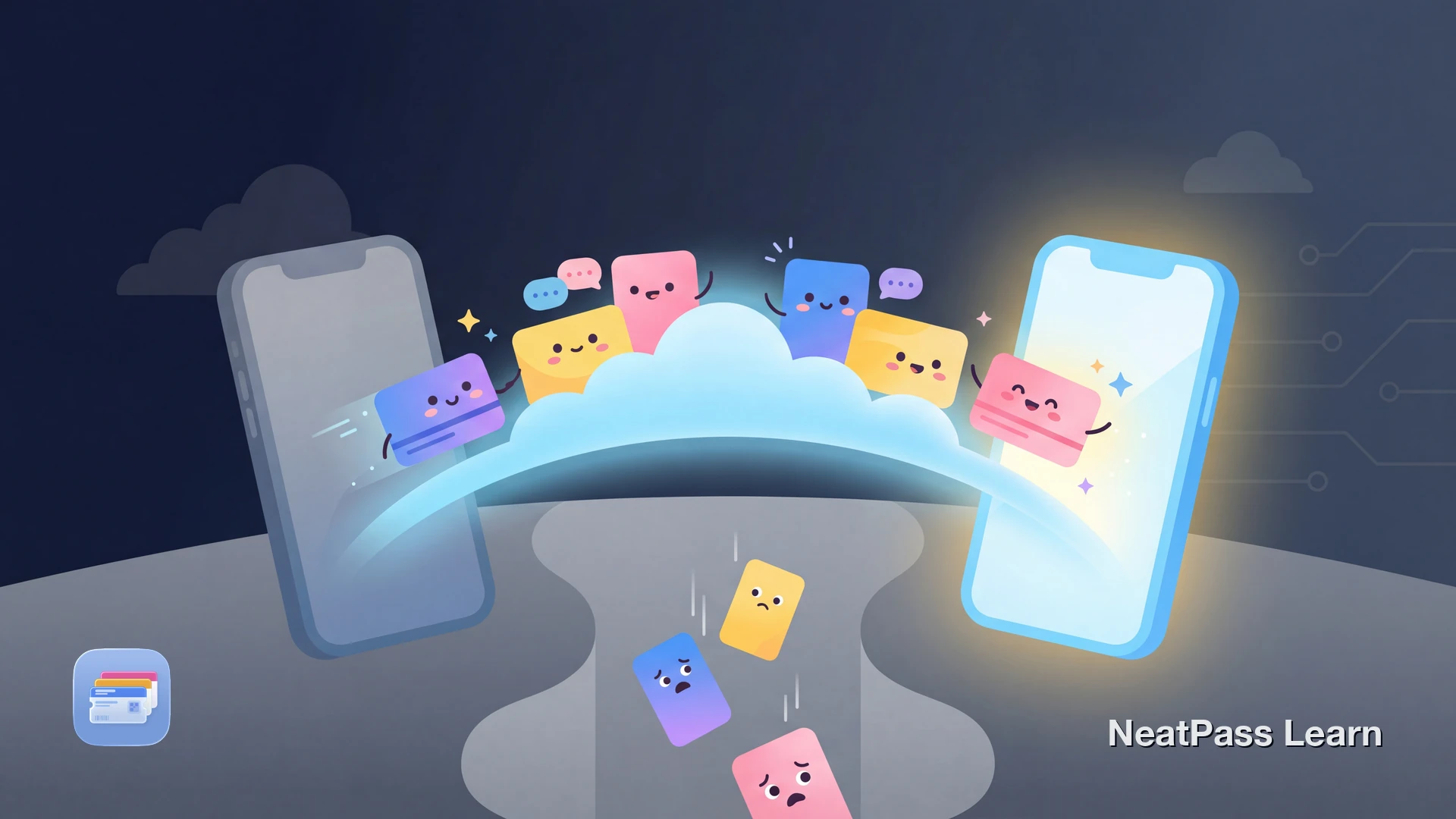
Getting a new iPhone is exciting, but transferring your data can be stressful. What happens to all those boarding passes, loyalty cards, and event tickets you've collected in Apple Wallet?
Good news: with iCloud Sync enabled, NeatPass automatically preserves all your passes during device upgrades. No manual exports, no lost cards, no starting over.
Why Passes Get Lost During Upgrades
Third-party wallet apps store your cards on their servers. When you switch phones, you're at the mercy of their backup systems. If they have server issues, change their terms, or shut down entirely, your passes disappear.
Server Dependency
Most apps require their servers to restore your cards. No internet at setup means no passes.
Account Issues
Forgot your password? Changed email? Your passes might be gone forever.
Slow Restoration
Re-downloading hundreds of passes from a server can take hours.
Lost Organization
Custom folders, favorites, and settings often don't survive the transfer.
Apple Wallet passes are stored locally and can sync via iCloud when the Wallet toggle is enabled in your iCloud settings. But any additional organization, custom designs, or source files live in the app that created them. That's where NeatPass's iCloud Sync becomes essential.
How NeatPass iCloud Sync Works
When you enable iCloud Sync in NeatPass, your entire pass library syncs to your personal iCloud account. This isn't a separate cloud service you need to trust. It's Apple's infrastructure, protected by your Apple ID.
Automatic Backup
Every pass syncs to iCloud as soon as you create it. No manual exports needed.
Real-Time Sync
Edit a pass on your iPhone and see the change on your iPad instantly.
Your Data, Your Control
Passes live in your iCloud, not on NeatPass servers. We never see your data.
Seamless Migration
Sign into your Apple ID on your new phone and your passes appear automatically.
Enable Before You Upgrade
Ready to migrate your cards?
NeatPass makes it easy to convert any ticket, pass, or loyalty card to Apple Wallet.
What Gets Synced
iCloud Sync preserves everything, not just the barcodes. Here's what transfers to your new device:
Pass Data
All pass information including event names, dates, locations, and custom edits.
Images & Originals
Logos, banners, barcode images, and the original source PDFs or screenshots.
Your Preferences
Username, date format, language preference, and auto-archive settings.
Collections
All custom collections, their order, and which passes belong to each.
Learn more about managing your pass data in the data management guide.
Multi-Device Editing
What happens if you edit the same pass on two devices before they sync? NeatPass handles this automatically with smart conflict resolution:
- Recent wins: If edits are more than 5 seconds apart, the newer version is used
- Field merge: Simultaneous edits to different fields are combined intelligently
- Collections merged: Collection assignments from both devices are combined
No manual intervention needed. You won't see confusing conflict dialogs or lose any work.
Offline Reliability
What if you're setting up your new iPhone without internet? Your passes still work. iCloud syncs in the background when connectivity returns.
Offline Changes Queued
Any edits you make offline are saved locally and sync when you're back online.
No Data Loss
The sync status indicator shows pending changes. Nothing gets lost.
Passes Work Immediately
Your passes are usable right away. Syncing happens in the background.
See how offline mode works for more details on using passes without an internet connection.
The Upgrade Checklist
Before setting up your new iPhone:
- Open NeatPass on your old phone and go to Settings
- Verify iCloud Sync is enabled (green status indicator)
- Wait for any pending changes to sync (orange indicator should turn green)
- Set up your new iPhone with the same Apple ID
- Download NeatPass from the App Store and your passes will appear
That's it. No export files, no account logins, no manual transfers. Your passes are ready to use.
Widget Setup
Frequently Asked Questions
Ready to migrate your cards?
DownloadYour Passes, Safe and Ready
Upgrading your iPhone should be exciting, not stressful. With NeatPass and iCloud Sync, your entire pass library transfers automatically. No accounts to remember, no exports to manage, no cards left behind.
Your passes live in your iCloud, protected by Apple's security. When you get that new iPhone, they'll be there waiting. Check our privacy FAQ to learn more about how we keep your data safe.