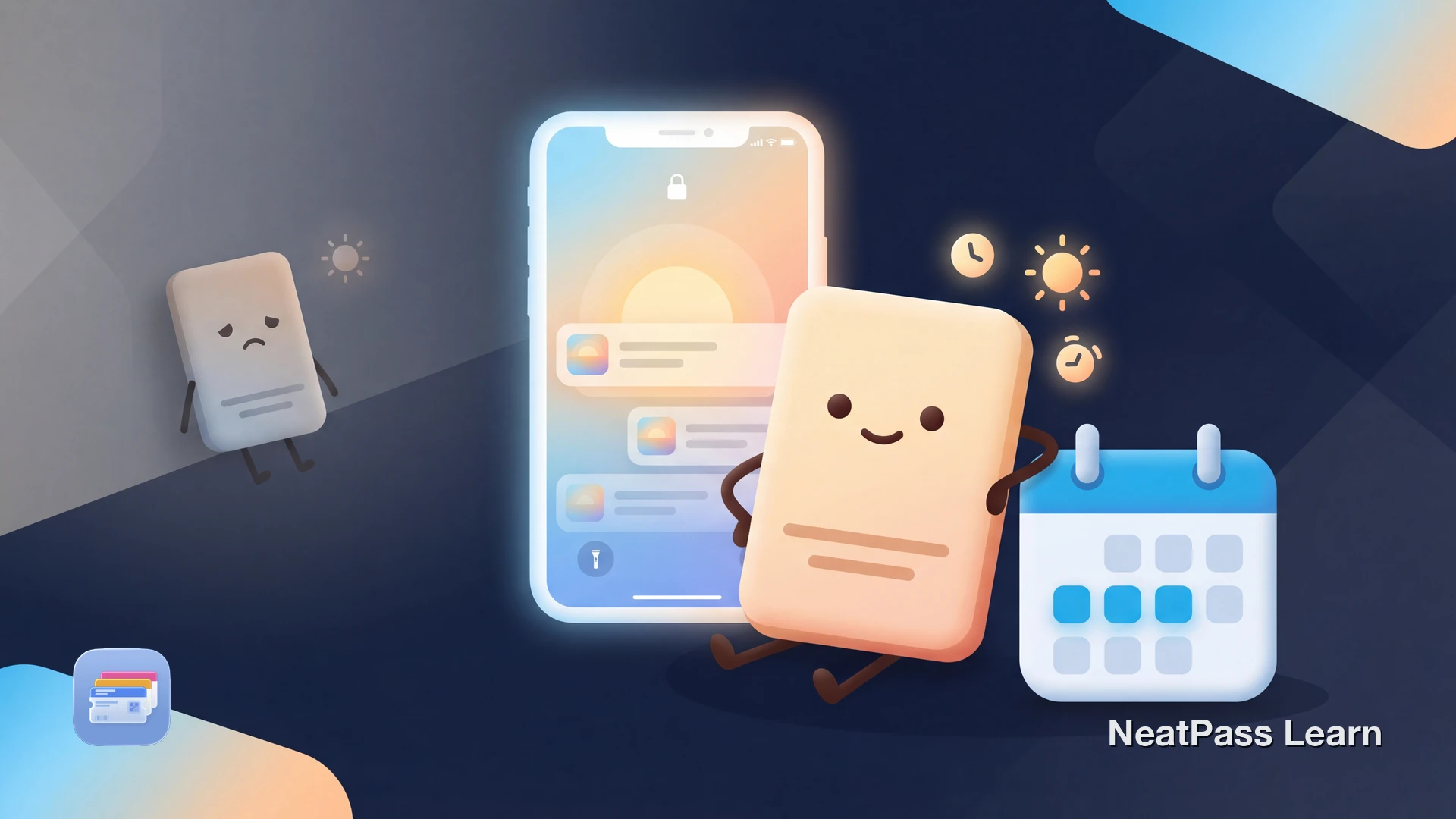
Your multi-day event pass appeared on your lock screen the first morning. Then day 2 arrives, and it's gone. You have to dig through the Wallet app to find it. This happens because of how Apple Wallet handles event dates.
The good news: this is fixable. Once you understand why iOS hides your pass, you can configure it to show up every morning of your event.
How Apple Wallet Decides When to Show Passes
Apple Wallet uses a property called relevantDate to determine when a pass should appear on your lock screen. This is a single date that tells iOS when the pass is most likely to be useful.
Single date only
Each pass has one relevantDate - iOS surfaces the pass on your lock screen around that date
Lock screen surfacing
When the date arrives, iOS automatically shows the pass on your lock screen for quick access
Location triggers
Passes can also appear based on proximity to a set location, independent of the date
This system works well for single-day events like concerts or flights. For multi-day events, Apple recommends using location triggers or setting the date to the last day. Alternatively, use lock screen widgets for guaranteed access regardless of dates.
Why Your Pass Disappeared After Day 1
When a ticket vendor or app creates your pass, they often set only the first day as the relevant date. Here's what happens:
Day 1 morning
Day 1 ends
Day 2 morning
Remaining days
Common with festival tickets
Fix your multi-day passes
NeatPass makes it easy to convert any ticket, pass, or loyalty card to Apple Wallet.
How to Fix Multi-Day Event Passes
Apple Wallet doesn't let you edit pass dates directly. You need to recreate or modify the pass using NeatPass, which lets you edit pass details including the relevant date.
Import your original pass
Change the relevant date
Add the venue location
Save and add to Wallet
Once configured correctly, your pass appears on your lock screen throughout the event. See our guide on adding passes to Wallet for step-by-step instructions.
Location Triggers as Backup
Even if the date has passed, location-based triggers can still surface your pass. When you arrive at the event venue, iOS detects your proximity and shows relevant passes.
Location still works
Passes with venue locations appear when you're nearby, regardless of date configuration
No morning notification
You won't get the automatic morning reminder that date-triggered passes provide
Consider adding the venue location to your pass as a reliable backup. NeatPass lets you configure multiple locations so your pass appears at different gates or entrances.
Widget workaround
Preventing This Problem
When creating passes yourself or importing tickets for future events, set them up correctly from the start:
- Set the date to the last day: For multi-day events, set the relevantDate to the final day so iOS considers the pass relevant throughout.
- Add venue location: Location triggers provide reliable visibility whenever you arrive at the venue, independent of dates.
- Test before the event: Add the pass a day before and verify it appears on your lock screen the next morning.
Passes created in NeatPass include proper date handling and work completely offline, so you're never stuck without access.
Frequently Asked Questions
Your Pass, Every Morning
Multi-day events shouldn't mean hunting for your pass each morning. Apple Wallet's relevantDate is a single date, so ticket vendors who set it to day 1 cause the pass to disappear after that.
By changing the date to the last day, adding a venue location, or using a lock screen widget, you get automatic access throughout your entire event. No more digging through Wallet on day 2.
Ready to migrate your cards?
DownloadRelated guides
- Music festival passes guide - Complete guide to managing festival tickets
- Pass not showing on lock screen - General troubleshooting for lock screen visibility