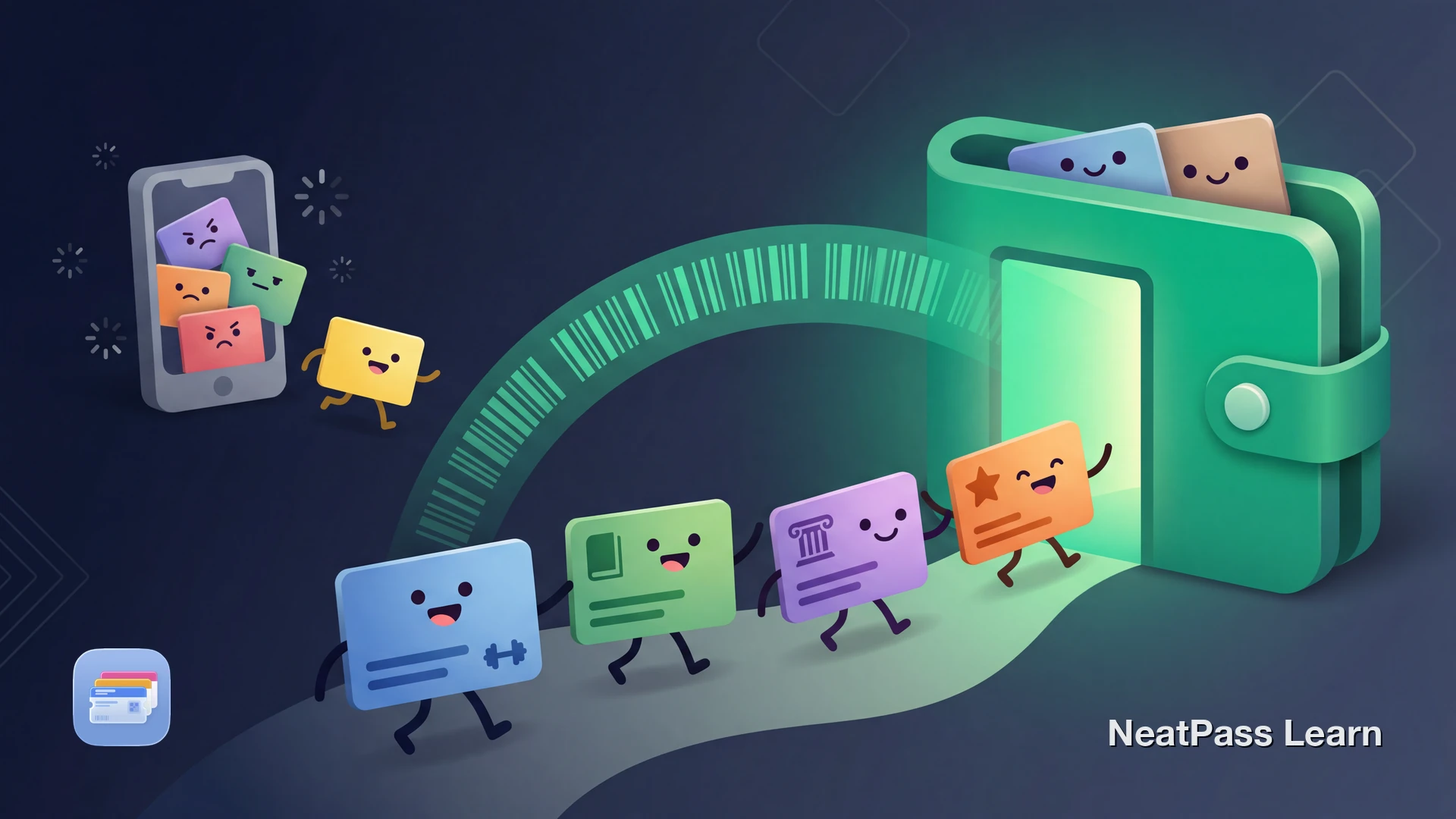
Most membership cards still live in plastic cards or slow issuer apps. That means opening the right app, waiting for it to load, and finding the barcode again every time you check in or redeem something.
If your membership card has a barcode, you usually do not need to wait for official Apple Wallet support. You can scan the barcode and create a Wallet pass that is faster to access and easier to use day to day.
Membership Cards That Usually Work Well
Membership cards vary by issuer, but many categories share the same pattern: a scannable barcode tied to your account. That makes them strong candidates for Wallet passes in NeatPass.
Gym memberships
Many gyms use barcode check-in, even if their app focuses on classes and marketing rather than Wallet support.
Museum and venue memberships
Membership cards for entry and discounts often include a scannable code that can be captured from the card or app.
Library and community cards
Library-style membership cards commonly use barcode formats that work well with NeatPass and Wallet passes.
Club and association cards
Warehouse clubs, recreation centers, and associations often rely on a barcode account ID that can be displayed in Wallet.
Success depends on the barcode and source quality. Start by checking supported barcode formats and use the troubleshooting steps for barcode not detected if the first import fails.
Why Membership Apps Still Skip Apple Wallet
Many membership programs prefer their own apps because they control the experience, updates, and account screens. Apple Wallet support requires extra work, and smaller organizations often choose not to build it even when members would use it.
That is exactly where NeatPass is useful. If you can capture the membership barcode cleanly, NeatPass can quickly turn it into a Wallet pass. The easiest starting point is to learn the available import methods.
How NeatPass Helps with Membership Cards
NeatPass lets you scan or import a membership barcode and convert it into a real Apple Wallet pass. Instead of opening a membership app at the door, you can access the pass from Wallet when you need it.
This is especially useful because membership check-ins often happen in basements, garages, and crowded venues where passes that work offline are more dependable. Review the privacy FAQ and personalize the pass later using customizing design.
Capture from card, app, or printout
Use a photo of a plastic card, a screenshot from the issuer app, or a printed membership document.
Barcode-first conversion
The important part is preserving the account barcode data so the scanner reads the same membership ID.
Offline access in Wallet
Once added, you can show the pass without waiting for app login, syncing, or network response.
Local processing for privacy
Local processing matters when membership cards contain personal account information.
Clear labels for recurring use
Name the pass by gym, club, or library branch so it is easy to pick during fast check-in.
Fits daily routines
Membership passes benefit from Wallet habits: quick access, predictable display, and less app switching.
Final step still matters
Scan your membership barcode to Apple Wallet
NeatPass makes it easy to convert any ticket, pass, or loyalty card to Apple Wallet.
Step-by-Step: Membership Card to Wallet Pass
Get a clean barcode source
Import or scan in NeatPass
Confirm the pass details
Customize for quick recognition
Add to Apple Wallet and test on your next visit
Frequently Asked Questions
Create a faster membership pass for Wallet
DownloadQuick Access at Check-In
Membership cards are one of the best Apple Wallet use cases because they are used repeatedly. A few seconds saved at every check-in becomes a real quality-of-life improvement over time.
If your membership program does not support Apple Wallet, you do not have to wait. Scan or import the barcode into NeatPass, create the pass, and keep your membership ready in the same place as your other Wallet passes.