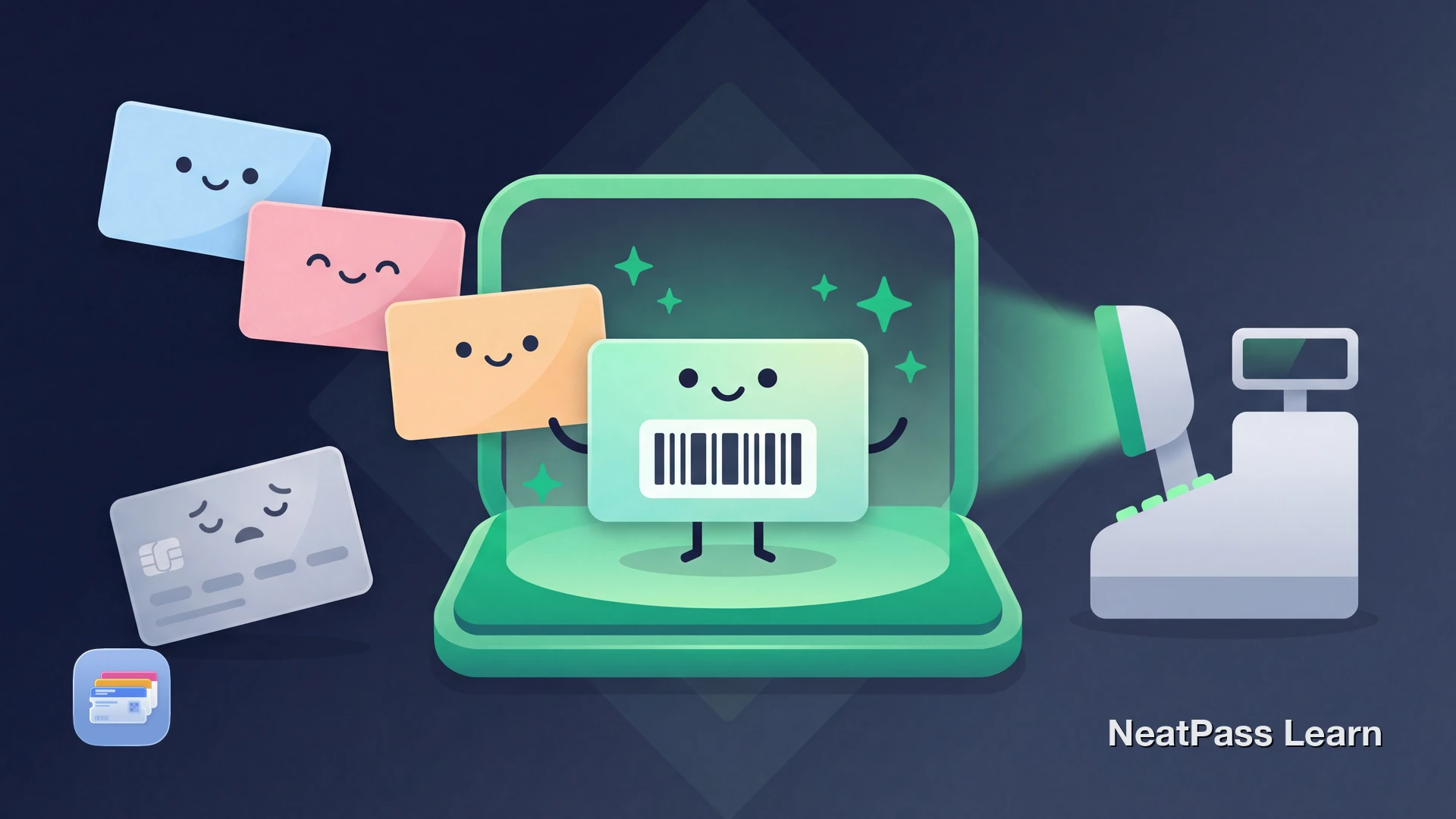
Your rewards card probably doesn't have an "Add to Wallet" button. Every purchase means opening the retailer's app, waiting for it to load, maybe logging in again, all while the line behind you grows.
Most retailers keep rewards cards trapped in their own apps. They want you engaged with push notifications and promotions. But every rewards card has a barcode, and that barcode works in Apple Wallet just like it does on plastic or in an app.
Why Retailers Keep Rewards Cards Out of Apple Wallet
Apple Wallet support requires retailers to integrate with Apple's PassKit framework. That means developer resources, ongoing maintenance, and less control over your experience. Most decide the investment isn't worth it.
App engagement
Retailers want you opening their app for ads and promotions
Data collection
Their app tracks more behavior than a Wallet pass
Development costs
PassKit integration requires developer resources
Control
They control the experience in their own app
The result: your phone fills up with retailer apps you open once a month just to show a barcode. There's a better way.
Add any rewards card to Wallet
NeatPass makes it easy to convert any ticket, pass, or loyalty card to Apple Wallet.
The Workaround: Create Your Own Wallet Pass
Every rewards card uses a barcode, usually Code 128, QR code, PDF417. When the cashier scans it, they're reading your membership number. It doesn't matter where that barcode lives, whether on plastic, in the retailer's app, or in Apple Wallet. The scanner reads the same data.
That means you can capture your rewards card barcode and create a native Apple Wallet pass. NeatPass handles the detection and conversion automatically.
Find your rewards card barcode
Screenshot or photo
Import into NeatPass
NeatPass detects the barcode
Customize and add to Wallet
Barcode formats
Why Wallet Passes Scan Better Than Screenshots
You might wonder why not just save a screenshot. The problem is screenshots fail at checkout more often than you'd think.
Auto-brightness
Apple Wallet automatically maxes screen brightness when displaying a barcode
Optimized for scanners
Wallet passes display barcodes at full resolution, not compressed like photos
Instant access
Double-click the side button to show your card from lock screen
Works offline
No internet needed, your pass works in dead zones
Older laser scanners sometimes struggle with phone screens. Apple Wallet's auto-brightness feature exists precisely for this: it maxes out your screen when showing a barcode. Screenshots don't trigger this behavior.
why screenshots fail at checkout and how native passes solve the problem.
Benefits Over Retailer Apps
Once your rewards cards live in Apple Wallet, you don't need each individual retailer app anymore.
No login screens
Wallet passes don't require authentication
No app updates
Wallet is built into iOS
No push notifications
Just your barcode, nothing else
No tracking
A barcode can't monitor your location or browsing
Faster checkout
Side button access beats app hunting
Details on how retailer apps track you versus Wallet passes in our guide to loyalty app privacy concerns.
Widgets for faster access
Common Scanning Issues and Fixes
If your rewards card won't scan at checkout, here are the most common causes:
- Screen brightness too low: Apple Wallet handles this automatically, but check if accessibility settings limit brightness
- Screen protector interference: Matte screen protectors can scatter light and confuse scanners
- Old scanner hardware: Some stores use laser scanners that struggle with screens; ask the cashier to enter your number manually
- Barcode cut off: Make sure the entire barcode is visible on your screen
For more troubleshooting, see our guide to barcode detection issues and offline mode for unreliable store Wi-Fi.
What About Points and Balance?
Self-created Wallet passes won't sync with the retailer's system. Your barcode works to earn and redeem points, but to check your current balance, you'll still need to:
- Open the retailer app occasionally
- Check receipts after purchase
- Ask at checkout
- Log into the retailer's website
For most people, this tradeoff is worth it. You use your rewards card far more often than you check your points balance. The card is now instantly accessible, and you can delete the app.
Frequently Asked Questions
Get your cards in Wallet
DownloadAll Your Rewards Cards in One Place
Retailers will probably never add native Apple Wallet support for rewards cards. They benefit too much from keeping you in their apps. But you don't have to wait for them.
With NeatPass, your rewards cards join your boarding passes, event tickets, and membership cards in Apple Wallet. One tap to show any card at checkout. No apps to open. No login required.