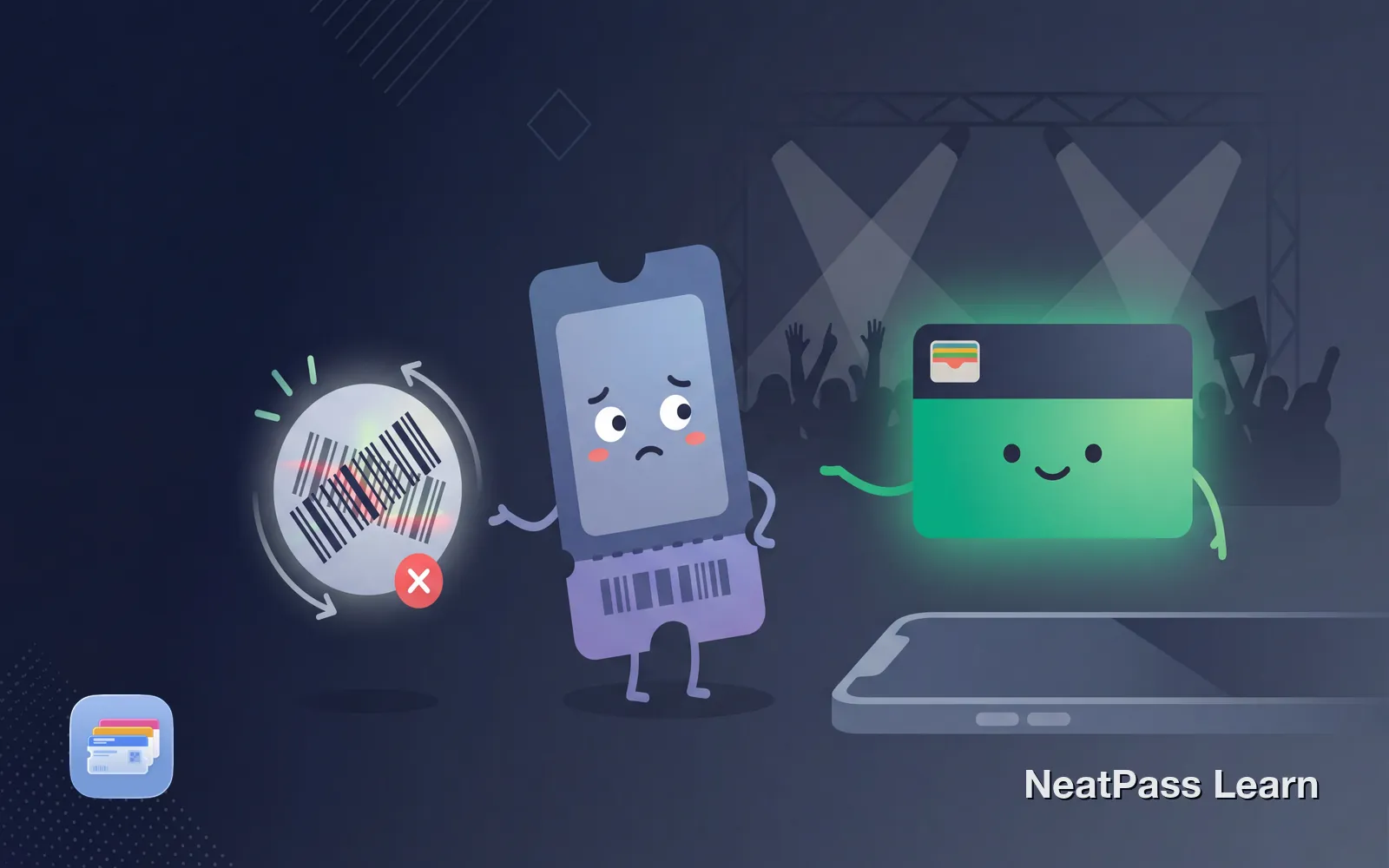
Your Ticketmaster ticket in Apple Wallet will not scan. The scanner at the venue rejects it, you see "Pass disabled," or the barcode simply will not appear. This is frustrating, especially when you are already at the venue.
The main culprit is usually SafeTix rotating barcodes, Ticketmaster's security technology that refreshes the barcode every 15 seconds. Understanding how SafeTix works helps you know when NeatPass can help and when you need the official app.
Why Ticketmaster Wallet Passes Fail
SafeTix - Ticketmaster's SafeTix system generates encrypted barcodes that rotate every 15 seconds, using the same technology as two-factor authentication apps. The barcode contains a timestamp and cryptographic signature that prove it was just generated. A screenshot or static copy becomes invalid within seconds.
Rotating barcodes
SafeTix barcodes refresh automatically every 15 seconds
TOTP encryption
Uses time-based one-time passwords like 2FA apps
Device-bound
Tickets are tied to your specific device and Apple ID
Screenshots rejected
Static images are instantly identified as invalid
When you add a SafeTix ticket to Apple Wallet, Ticketmaster creates a pass that can update its barcode. But if that update mechanism breaks, the pass stops working.
Common Reasons Your Ticket Won't Scan
Several issues can cause Ticketmaster Apple Wallet tickets to fail. Here are the most common with solutions.
1. Third-party purchase not transferred correctly
If you bought from StubHub, SeatGeek, or another reseller, the ticket needs to be transferred through Ticketmaster's system. A "Pass disabled" error often means the transfer did not complete properly. Contact your seller to complete the transfer correctly.
2. Ticket already in someone else's Wallet
Each Ticketmaster ticket can only be linked to one Apple ID. If the original buyer added it to their Wallet before transferring to you, you may see "Device limit reached." The seller needs to remove the ticket from their Wallet before you can add it.
3. Delivery delay still active
Ticketmaster delays barcode delivery until close to the event as a fraud prevention measure. If your event is more than a few days away, the "Add to Wallet" button might be disabled or the pass may show no barcode. Check back 24-48 hours before the event.
4. VPN or privacy features blocking refresh
SafeTix needs to communicate with Ticketmaster servers. Turn off your VPN, Apple Private Relay, and any proxy servers. These can prevent the barcode from updating correctly.
5. Outdated app or iOS version
Ticketmaster's Wallet integration requires current software. Update your iPhone to the latest iOS version and make sure the Ticketmaster app is current.
SafeTix cannot be converted
Troubleshooting Steps
If your Ticketmaster Wallet pass is not working, try these solutions in order.
Re-add ticket from the app
Sign out and back into Wallet
Disable VPN and Private Relay
Use Ticketmaster app directly
Learn more about barcode detection issues and general extraction troubleshooting in our help center.
When NeatPass Can Help
NeatPass only works with static barcodes. These are tickets where the barcode stays the same every time you view it. Some Ticketmaster events still use static barcodes, especially smaller venues, older ticketing systems, or events where the venue has not adopted SafeTix.
- Barcode stays the same (no animation)
- PDF tickets from email confirmations
- Print-at-home tickets with static QR codes
- Smaller venue or independent event
- No SafeTix label visible on the ticket
- Animated barcode with sliding bar
- SafeTix label on the ticket
- Timer or countdown on the barcode
- "Screenshots not valid" warning
- Large stadium or arena events
Check supported barcode typesto see the 18+ formats NeatPass can process.
Have a static barcode ticket?
NeatPass makes it easy to convert any ticket, pass, or loyalty card to Apple Wallet.
Converting Static Ticketmaster Tickets
If you have confirmed your ticket uses a static barcode, you can convert it to an Apple Wallet pass with NeatPass.
Screenshot or save the ticket
Import into NeatPass
Review extracted details
Add to Apple Wallet
Learn more about the Add to Wallet process and customizing your pass design.
Why Wallet Passes Beat the Ticketmaster App
For static barcode tickets, a native Apple Wallet pass offers advantages the Ticketmaster app cannot match.
Works offline
No signal needed in crowded arenas or stadiums
Auto-brightness
Screen automatically maximizes for scanning
Lock screen access
Double-tap to display, no app opening or logging in
No loading time
Instant access without waiting for app startup
Read more about offline mode and lock screen widgets for quick access at events.
If You're Already at the Venue
Your Wallet pass failed at the door and you need to get in now. Here are your options.
Use the Ticketmaster app
Download it now if you have signal. Your ticket is linked to your account.
Visit the box office
Bring your ID and the credit card used for purchase. They can look up your order.
Plan extra time for box office assistance. Keep your purchase confirmation email ready to show if needed.
Frequently Asked Questions
Your Ticket Ready at the Door
Ticketmaster's SafeTix technology protects against fraud but creates frustration when things go wrong. For rotating barcode tickets, the Ticketmaster app is your only option. For static barcode tickets, NeatPass can create a reliable Wallet pass that works offline and displays instantly.
Check your ticket type before the event. Knowing whether you have SafeTix or a static barcode saves stress at the door.
Ready to migrate your cards?
Download