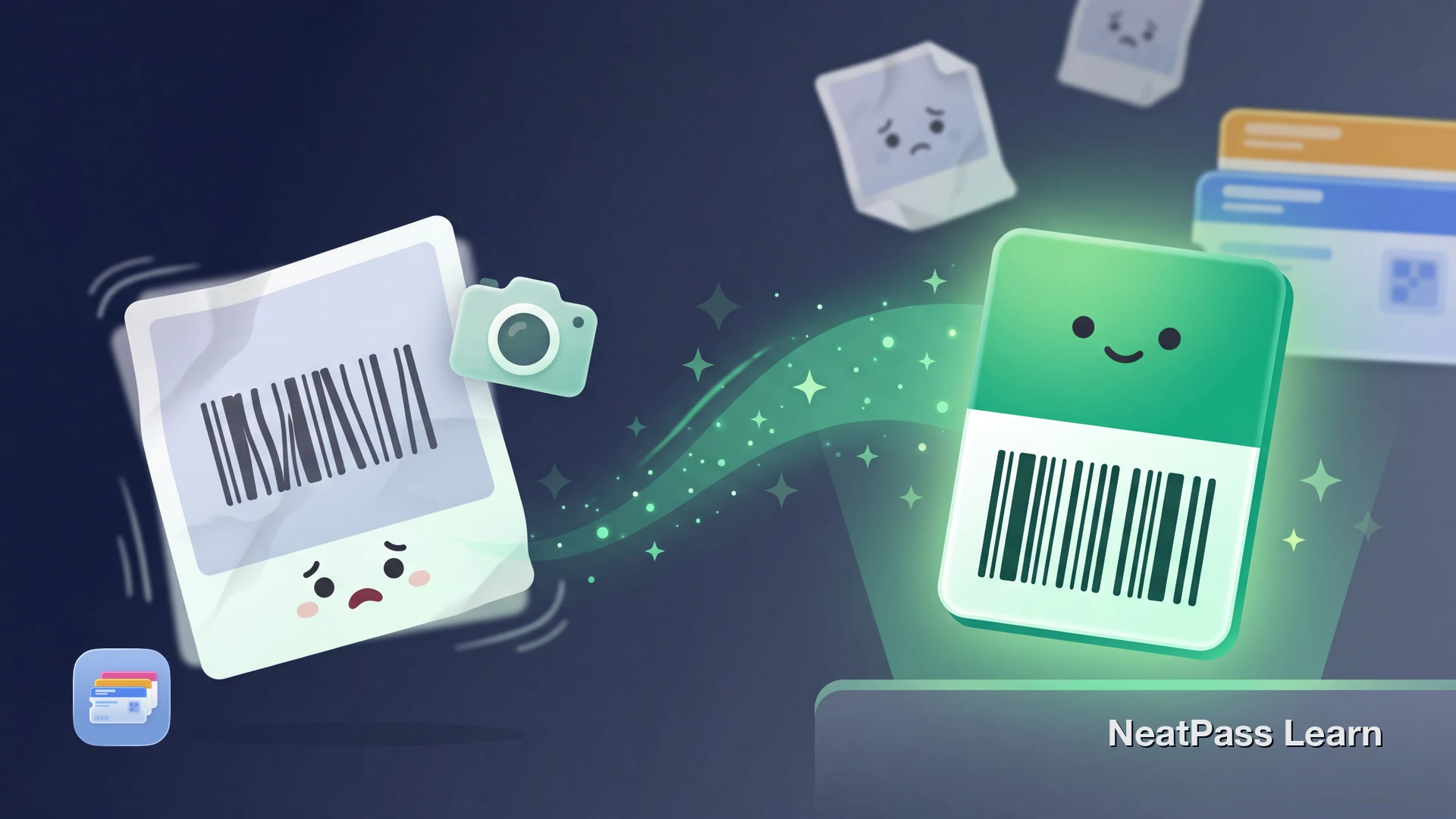
You have a physical card or printed ticket with a barcode and you want it in Apple Wallet. Taking a photo is the fastest way to capture it, but Apple Wallet cannot use a camera photo directly as a pass.
The workable approach is photo plus conversion: take a clear photo, extract the barcode data, and create a real Wallet pass. That gives you a clean barcode that usually scans more reliably than the original photo.
Why a Barcode Photo Needs Conversion First
A photo is just pixels. Apple Wallet expects a signed pass file that includes structured data such as the pass style, text fields, and barcode payload. Even a perfectly clear photo is still not a Wallet pass.
That is why the easiest NeatPass path starts with capture and extraction, not direct import. Use import methods for the best source path, then finish with the normal adding to Wallet step.
How to Take a Photo That Converts Well
Most conversion problems start with the photo. A few small capture choices make a big difference in detection accuracy and scan reliability later.
Use even lighting
Avoid strong glare on laminated cards and shiny ticket paper. Soft light makes barcode edges easier to detect.
Leave margins around the barcode
Do not crop too tightly during capture. The quiet area around the code helps barcode detection algorithms read it correctly.
Keep the camera parallel
Perspective distortion can warp lines and modules. Try to hold the phone straight above the barcode when possible.
Focus before you tap the shutter
A slightly blurry photo can still look readable to you but fail during barcode extraction. Tap to focus and hold steady for a moment.
Check format and detection early
How NeatPass Turns a Photo into a Wallet Pass
NeatPass reads the barcode from your photo, preserves the encoded data, and generates a proper Wallet pass file. The result is a clean pass in Apple Wallet instead of a static image buried in Photos.
Review the privacy FAQ and add the pass knowing it can work offline after it is added to Apple Wallet.
Photo import from camera or library
Start with a new camera shot or an existing image from your photo library.
Barcode extraction
Detects and decodes the barcode from the photo instead of storing the image itself as the final output.
Local processing for privacy
Designed for users who want pass creation without unnecessary cloud copies of card images.
Offline-ready result
Once added, your Wallet pass is available even when the original source app or network is not.
Works for tickets and cards
Useful for printed tickets, membership cards, loyalty cards, and other scannable barcodes.
Cleaner scan presentation
Wallet displays a fresh barcode at the correct size and contrast instead of a perspective-skewed photo.
Convert a barcode photo into a Wallet pass
NeatPass makes it easy to convert any ticket, pass, or loyalty card to Apple Wallet.
Step-by-Step: Photo to Apple Wallet
Use this flow for physical cards, printed tickets, or any barcode you can photograph clearly.
Take a clear photo of the barcode
Import the photo into NeatPass
Review barcode detection
Name and customize the pass
Add to Apple Wallet and keep the original photo
If extraction fails
Frequently Asked Questions
Turn your barcode photo into a real Wallet pass
DownloadPhoto In, Wallet Pass Out
Taking a photo is usually the fastest way to capture a physical barcode, but the photo is only the first step. The result you want is a proper Wallet pass with the same barcode data, not a saved image you have to zoom and position at the scanner.
With a clean photo and NeatPass barcode extraction, you can move printed cards and tickets into Apple Wallet in minutes and make them easier to use every time after that.