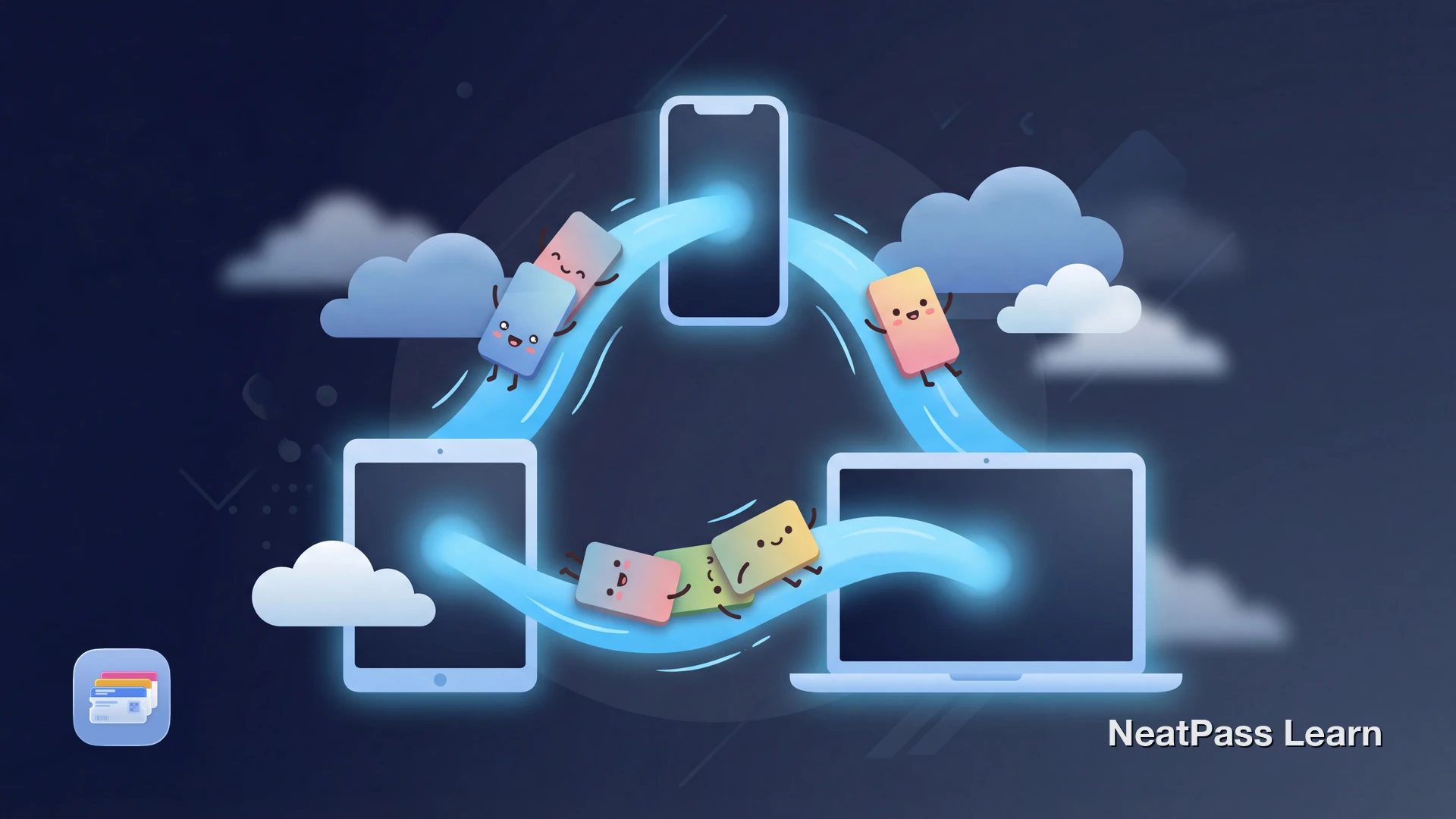
You added tickets to Apple Wallet on your iPhone, but now you're at the venue checking your Apple Watch. The tickets aren't there. You scramble to pull out your phone, find the original email, or log into the ticket app.
This happens constantly with official passes from Ticketmaster, Eventbrite, and other major ticket providers. Their passes often fail to sync between your iPhone and Apple Watch, even when you're signed into the same Apple ID. NeatPass solves this with reliable iCloud sync for all your custom passes.
Why Official Passes Fail to Sync
Apple Wallet supports iCloud syncing, but many official passes don't actually sync. Search any Apple Community forum and you'll find threads of frustrated users asking why their concert tickets show 'Pass Disabled' or won't appear on their Apple Watch.
The issue is that ticket providers often tie passes to specific devices or implement refresh mechanisms that break cross-device access. They do this for security, but it creates a poor experience for users with multiple Apple devices.
Common frustrations
Official Passes vs. Custom Passes
The difference comes down to how passes are created and managed. Official passes from ticket providers often include server-side validation that prevents proper syncing.
- May show 'Pass Disabled' on other devices
- Often tied to specific device or Apple ID
- Refreshing codes can break sync
- No control over sync behavior
- Sync reliably across all devices
- No device restrictions
- Attached PDFs and images sync too
- Full control over your passes
When you create a pass with NeatPass, you own that pass completely. It syncs via iCloud just like your photos or notes, with no third-party server deciding whether you can access it.
Sync your passes across all devices
NeatPass makes it easy to convert any ticket, pass, or loyalty card to Apple Wallet.
What Syncs Between Devices
NeatPass syncs everything about your passes through iCloud, not just the barcode. Here's what stays in sync across all your Apple devices:
Pass data
All fields including title, barcode, dates, colors, and custom notes sync automatically
Images and logos
Store logos, custom backgrounds, and any images you've added to your passes
Attached PDFs
Original tickets, confirmation emails, or any PDFs you've attached for reference
Organization
Folders, favorites, and archive status sync so your library looks the same everywhere
The attached PDF feature is especially useful for tickets. You can attach the original email or PDF ticket for reference. Learn more about viewing original documents.
Editing on Multiple Devices
What happens if you edit a pass on your iPhone while your iPad is offline? NeatPass handles this gracefully with field-level conflict resolution.
Field-level merging
Edit the title on iPhone and notes on iPad - both changes merge automatically when devices sync
Last write wins
If you edit the same field on multiple devices, the most recent change is kept
No data loss
Conflicts are resolved automatically - you never lose edits or end up with corrupted data
For more on editing your passes, see editing passes.
How to Enable iCloud Sync
iCloud sync should be enabled by default, but here's how to verify it's working:
- Open Settings on your iPhone
- Tap your name at the top, then iCloud
- Tap Show All under 'Apps Using iCloud'
- Make sure NeatPass is enabled
Repeat on all devices
Supported Devices
NeatPass syncs passes across your entire Apple ecosystem:
iPhone
Full pass management, creation, and editing. Your primary device for adding new passes.
iPad
Access all your passes with the larger display. Great for reviewing tickets before events.
Apple Watch
Quick access to passes from your wrist. Perfect for check-ins without reaching for your phone.
Note that Apple Watch doesn't support all barcode types. See supported barcodes for details on which barcodes display correctly on each device.
Troubleshooting Sync Issues
If passes aren't appearing on all devices, try these steps:
Check iCloud status
Verify iCloud is enabled for NeatPass in Settings on all devices. Sign out and back in if needed.
Force a sync
Open NeatPass on the device missing passes and pull down to refresh. Give it a minute to sync.
Check storage
If your iCloud storage is full, sync may fail. Free up space or upgrade your plan.
Passes also work offline once synced. Learn more about offline mode and how your passes stay accessible without an internet connection.
Frequently Asked Questions
Get reliable sync for all your passes
DownloadYour Passes, Everywhere
Multi-device sync should just work. Official passes from ticket providers often don't deliver on this promise, leaving you scrambling to find tickets when you switch devices. NeatPass gives you the reliable sync experience Apple intended.
Create a pass once, access it everywhere. Your iPhone and Apple Watch stay in sync automatically through iCloud. No more 'Pass Disabled' errors or missing tickets.