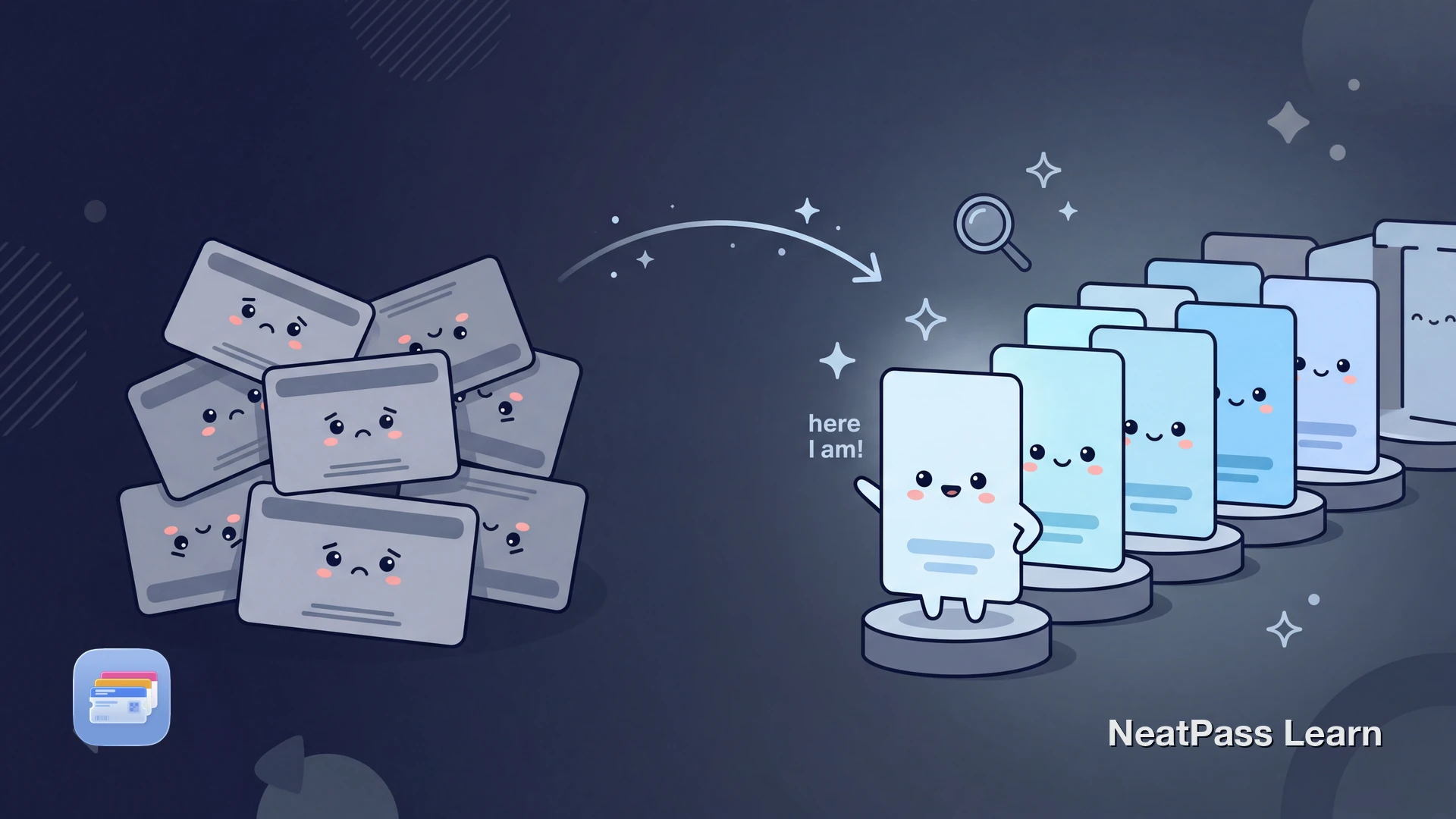
Most Wallet pass problems are not scanning problems. They are retrieval problems. You open Wallet and see five similar tickets, three membership cards from the same chain, and a few old passes with issuer names that mean nothing to you anymore.
Better naming fixes that. A clear pass title reduces mistakes, speeds up check-in, and makes your Wallet library usable again when it starts to grow.
Why Naming Matters More Than People Expect
Wallet is fast when the right pass is obvious. It feels slow when you have to read every card one by one while someone waits for you to scan. The larger your library gets, the more naming quality matters.
This is especially true once you start organizing passes in your app library. Good names work together with library organization and reduce the time you spend searching under pressure.
Duplicate default titles
Issuers often use the same generic title for multiple events, branches, or memberships.
Slow decisions at the scanner
You lose time comparing similar passes instead of presenting the right one immediately.
Messy long-term libraries
Old tickets, recurring events, and family passes become hard to distinguish over time.
Context lost after import
A barcode alone may still work, but the displayed name no longer tells you where or when the pass is used.
Build a Naming System, Not Just Random Edits
NeatPass lets you rename passes, but the speed benefit comes from using a repeatable naming format. The goal is fast recognition in one glance, not perfect wording.
A good naming system keeps the most useful information near the front and stays consistent across similar passes. This matters much more than whether the title sounds polished.
Put the time-sensitive part first
For tickets, start with venue or event name, then add date. This helps when you have several entries for the same organizer.
Use location cues
Add city, branch, or venue when you have multiple stores or memberships from the same brand.
Add family or owner prefixes
Prefix passes with a person name when you manage cards for children, partners, or shared accounts.
Keep names short and scannable
Use compact patterns you can read instantly on a small screen instead of full marketing names.
Pair names with quick access surfaces
Clear names work even better when you use widgets and frequently used passes are visible without searching.
Review names as part of editing
Treat naming as part of normal pass setup, alongside barcode checks and visual customization.
Names plus visual cues
Rename your passes before your next check-in
NeatPass makes it easy to convert any ticket, pass, or loyalty card to Apple Wallet.
Step-by-Step: Clean Up Pass Names Fast
Use this approach when you are naming new passes or cleaning up an existing library full of generic titles.
Choose one naming pattern per pass type
Rename the passes you use most first
Trim unnecessary words
Add a distinguishing clue
Review the list view and lock screen behavior
Speed up bulk cleanup
Frequently Asked Questions
Make your pass names easier to scan with your eyes
DownloadName for Speed, Not Perfection
You do not need clever titles. You need titles that remove hesitation. A good pass name helps you spot the right card or ticket before the scanner operator has to ask you to scroll again.
Start with a simple naming pattern, apply it to your most-used passes, and refine it as your Wallet library grows. The payoff is immediate every time you check in, board, or scan at checkout.