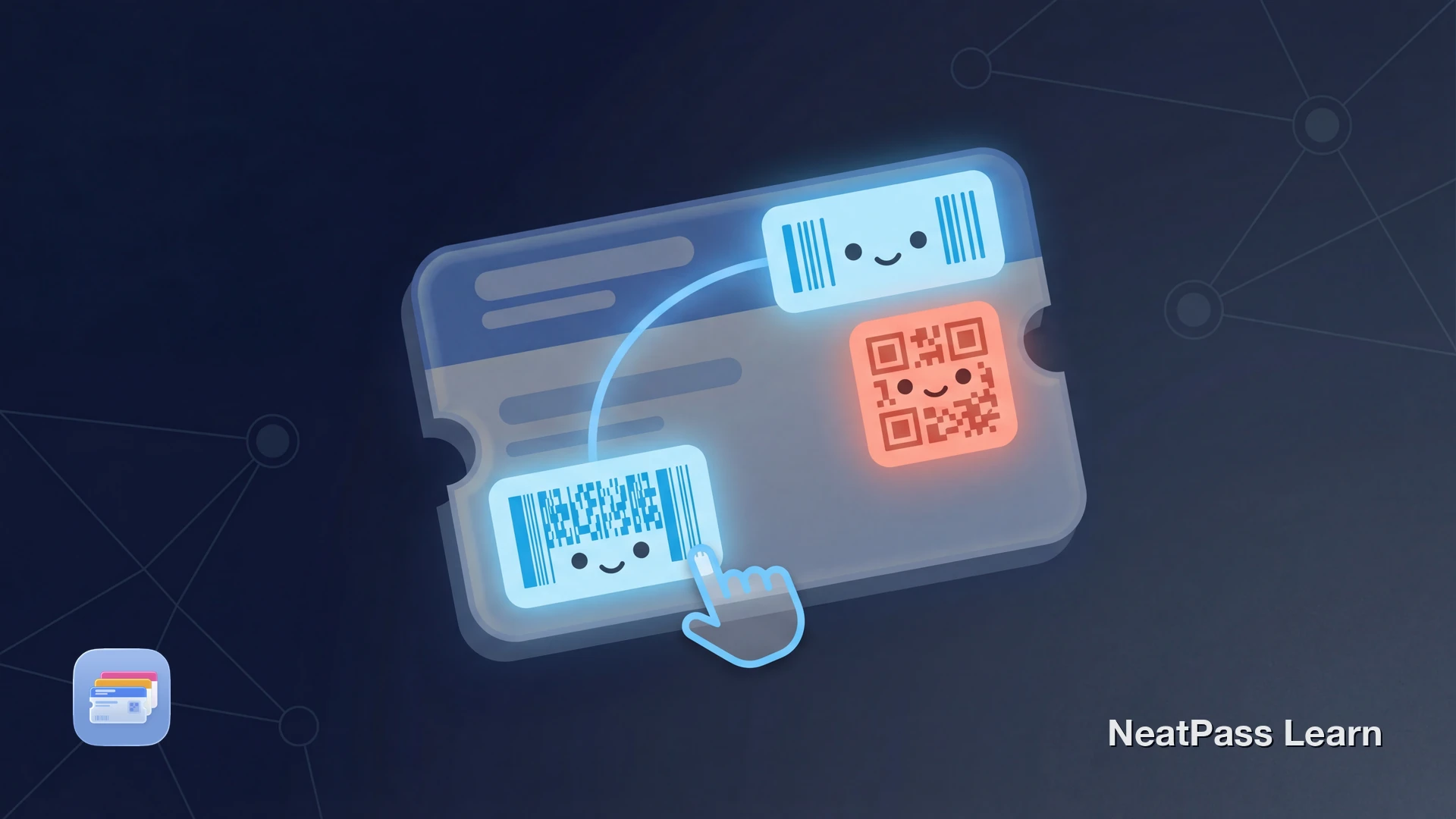
Your ticket has three barcodes. Maybe four. A large QR code at the top, a narrow barcode at the bottom, and something in between that looks like a dense block of lines. You need to add one to Apple Wallet, but which one is the right one?
Most tickets, boarding passes, and event confirmations contain multiple barcodes. Some encode the same data in different formats. Others carry completely different information. Picking the wrong one means your pass might not scan at the gate.
Why Tickets Have Multiple Barcodes
Ticket issuers include several barcodes for different purposes. A boarding pass might have an Aztec code for the gate scanner and a separate QR code linking to the airline's app. An event ticket might repeat the same admission data in both QR and PDF417 format so different scanner types can read it.
The result is confusing. You see multiple codes and have no way to tell which ones are duplicates and which ones carry unique data. Here is what the common barcode types look like and where they typically appear.
Common Barcode Types on Tickets
QR Code
Square grid pattern. The most common format for event tickets, boarding passes, and digital coupons. High data capacity and fast scanning.
PDF417
Stacked rows of narrow bars, wider than a standard barcode. Standard on airline boarding passes and government IDs. Holds large amounts of text data.
Code 128
Thin horizontal lines of varying width. Common on shipping labels, retail products, and some event wristband confirmations.
EAN-13
The standard retail barcode with 13 digits. Found on loyalty cards, library memberships, and product packaging across Europe.
Aztec
Square code with a bullseye center pattern. Used by airlines and transit systems. Common on Deutsche Bahn and European rail tickets.
DataMatrix
Small square or rectangular grid. Used in healthcare, industrial tracking, and some access control systems. Very compact data encoding.
A single ticket can mix these formats. A concert ticket might have a QR code for gate entry and a Code 128 barcode for the venue's internal tracking. Only one of them gets you through the door. For a full breakdown of supported formats, see supported barcode formats.
Scan Any Barcode to Apple Wallet
NeatPass makes it easy to convert any ticket, pass, or loyalty card to Apple Wallet.
How NeatPass Identifies Duplicates
NeatPass v1.1 introduced color-coded barcode selection to solve this exact problem. When you scan or import a ticket with multiple barcodes, NeatPass detects all of them and presents an interactive overlay.
The key feature: barcodes that encode the same data get the same color highlight. If your ticket has a QR code and a PDF417 that both contain your admission number, they appear in the same color. A third barcode with different data (like a tracking code) gets a different color.
Color-Coded Groups
Barcodes encoding identical data share the same highlight color. Spot duplicates instantly without decoding anything yourself.
Interactive Overlay
Tap any barcode on the detected page to select it. See the format type and encoded data before committing to your choice.
Smart Detection
NeatPass uses on-device AI to detect all barcodes on a page simultaneously, comparing their encoded content in real time.
Format-Aware Selection
When duplicates exist, NeatPass suggests the format best suited for Apple Wallet (QR or Aztec over linear codes).
This means you no longer have to guess. If two barcodes share a color, either one works for admission. Pick the format that Apple Wallet renders best. For details on how detection works, see live barcode detection.
Why Colors Matter
Which Barcode to Pick for Your Scenario
When your ticket has multiple barcodes with different data, the right choice depends on what you are using it for.
Event Tickets
Choose the QR or Aztec code. These are what gate scanners read. Ignore smaller linear barcodes, which are usually for internal tracking or order numbers.
Boarding Passes
Pick the PDF417 or Aztec code. Airlines use these for gate and security scanners. Any QR code on the page likely links to the airline's app or website.
Loyalty Cards
Use whichever barcode the store scanner reads. This is typically EAN-13 or Code 128. If both appear and NeatPass shows the same color, either works.
Coupons and Vouchers
Select the largest barcode. Coupons often include a small barcode for the offer ID and a larger one for checkout scanning. The checkout barcode is the one you need.
If you are unsure which barcode to pick, NeatPass's color-coding helps. Same color means same data, so you can safely pick either. Different colors mean different data, and you will want the one that matches the admission or membership information.
Step-by-Step: Selecting the Right Barcode
Import Your Ticket
Review the Color Overlay
Tap Your Preferred Barcode
Add to Wallet
If NeatPass does not detect a barcode on your ticket, see barcode not detected for troubleshooting tips. For information on how barcodes are converted between formats, check barcode conversion.
Auto-Fill Shortcut
Frequently Asked Questions
The Right Barcode, Every Time
Multiple barcodes on a ticket do not need to be confusing. NeatPass's color-coded detection shows you exactly which barcodes are duplicates and which carry unique data. Pick the right one, add it to Apple Wallet, and scan confidently at the gate.
Whether it is a concert ticket with three codes or a boarding pass with two, the color overlay takes the guesswork out of barcode selection.
Ready to migrate your cards?
DownloadRelated Reading