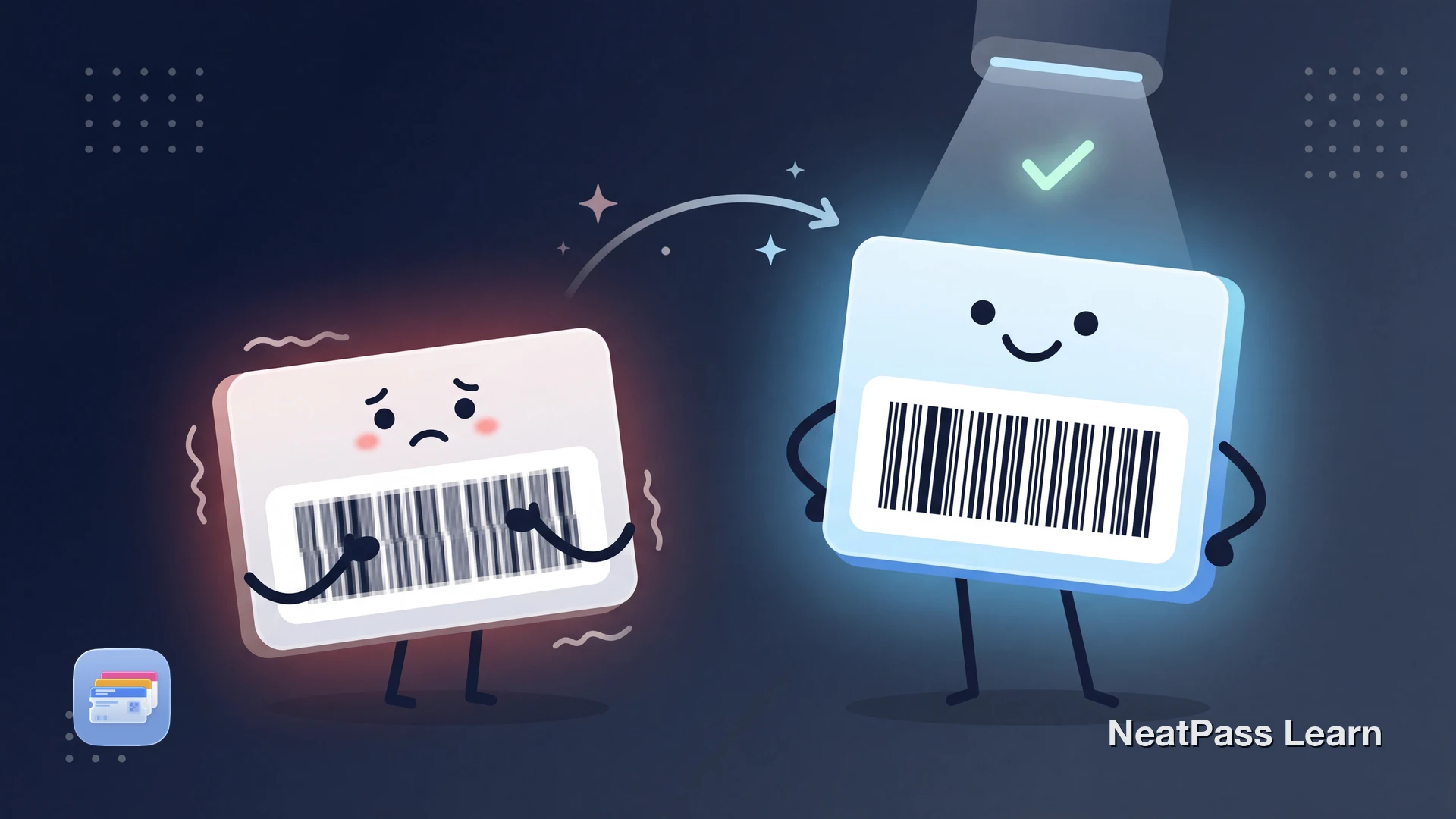
Your Apple Wallet pass has a barcode that looks fuzzy, pixelated, or washed out. When you try to scan it at the gate or checkout, the scanner cannot read it. The barcode is there, but it is too blurry to work.
This is a display-side problem, not a scanner problem. The barcode on your pass was likely created from a screenshot or low-resolution image, which means it is stored as a fixed-size picture rather than as scannable data. Here is what causes it and how to fix it.
Why Your Pass Barcode Looks Blurry
When a pass is created from a screenshot or photo of a barcode, the barcode is saved as a raster image. That is fundamentally different from how native Apple Wallet barcodes work, and it causes three specific problems.
Rasterization: Pixels Instead of Data
A screenshot captures pixels, not barcode data. The barcode becomes a grid of colored dots at whatever resolution your screen had at capture time. When the pass displays that image at a different size, the pixels stretch or compress. Fine lines merge together, edges blur, and the scanner cannot distinguish between the bars and spaces it needs to read.
JPEG Compression Artifacts
Most image formats apply compression that smudges sharp edges. Barcodes depend on precise boundaries between black and white areas. Compression introduces gray artifacts along these boundaries, reducing the contrast that scanners rely on. Each time the image is saved, shared, or re-compressed, it loses more sharpness.
Display Scaling Mismatch
Your iPhone may display the pass barcode at a different size than it was originally captured. If the original screenshot was 200 pixels wide but the pass displays it at 300 pixels, the device has to invent new pixels through interpolation. This smoothing process is exactly what makes the barcode unreadable.
Fixed pixel resolution
Screenshot barcodes cannot adapt to different display sizes
Compression damage
JPEG and HEIC formats blur the precise edges barcodes need
Scaling artifacts
Resizing introduces interpolation that smears barcode lines
Reduced contrast
Each processing step reduces the black-white contrast scanners need
Zooming in does not help
Screenshot Barcodes vs. Native Wallet Barcodes
The difference between a screenshot barcode and a native Wallet barcode is the difference between a photograph of a key and an actual key. One is a representation that might work. The other is the real thing.
- Stored as a fixed-resolution raster image
- Blurs when displayed at different sizes
- Degrades with each share or re-save
- No auto-brightness optimization
- Cannot adapt to screen density changes
- Generated from encoded data at display time
- Always renders at perfect pixel density
- No quality loss regardless of usage
- Apple Wallet auto-maximizes brightness
- Adapts to any screen size or resolution
Apple Wallet natively supports QR Code, PDF417, Aztec, and Code 128. See the full list of supported barcode formats for details on what each format is used for.
Get crisp, scannable barcodes on every pass
NeatPass makes it easy to convert any ticket, pass, or loyalty card to Apple Wallet.
How NeatPass Solves Blurry Barcodes
NeatPass does not just paste your screenshot onto a pass. It reads the barcode data from your source document using on-device AI, then regenerates the barcode from that extracted data. The result is a native Wallet barcode that renders sharp at any size.
AI barcode extraction
On-device AI reads the actual data encoded in your barcode, not just the pixels
Native barcode regeneration
Rebuilds the barcode from data so it renders crisp at any display size
14+ format detection
Detects QR Code, PDF417, Aztec, Code 128, DataMatrix, EAN-13, and more
On-device processing
Uses Apple's MLX framework on your iPhone, no cloud upload required
Works offline
Barcode extraction and pass creation work without an internet connection
The AI model runs entirely on your device using Apple's MLX framework. Learn more about how the AI model works and what to do if your barcode is not detected.
How to Fix a Blurry Barcode Pass
If you already have a pass with a blurry barcode, here is how to replace it with a crisp one.
Find your original source document
Import it into NeatPass
Let AI extract the barcode data
Add the pass to Apple Wallet
NeatPass supports multiple import methods including photos, PDFs, screenshots, and share sheets. See all import methods for the full list.
Customize your pass
Supported Barcode Formats
Apple Wallet generates barcodes natively for four formats. NeatPass detects all four plus 14 additional formats. If you are unsure which format your card uses, this guide helps you choose the right barcode format.
- QR Code - Used by most event tickets and digital passes
- PDF417 - Common on boarding passes and government IDs
- Aztec - Used by airlines and transit systems
- Code 128 - Standard for loyalty cards and retail barcodes
For formats like DataMatrix, EAN-13, GS1 DataBar, Code 39, or Micro QR, NeatPass detects the data and converts it to a compatible native format. The encoded data stays identical, only the visual format changes to one Apple Wallet can render natively.
All barcode processing happens on your iPhone. No barcode data is sent to any server. Read the privacy FAQ for full details on how your data is handled.
Frequently Asked Questions
Sharp Barcodes, Every Time
A blurry barcode on your Wallet pass is almost always caused by the barcode being stored as an image rather than as data. The fix is straightforward: extract the actual barcode data from your source document and let Apple Wallet generate the barcode natively.
NeatPass handles this automatically. Import your ticket, card, or pass, and the app extracts the barcode data using on-device AI, then creates a native Wallet pass with a barcode that renders perfectly at any size. Available for $4.99 as a one-time purchase, with a free tier to try one pass first.
Ready to migrate your cards?
Download