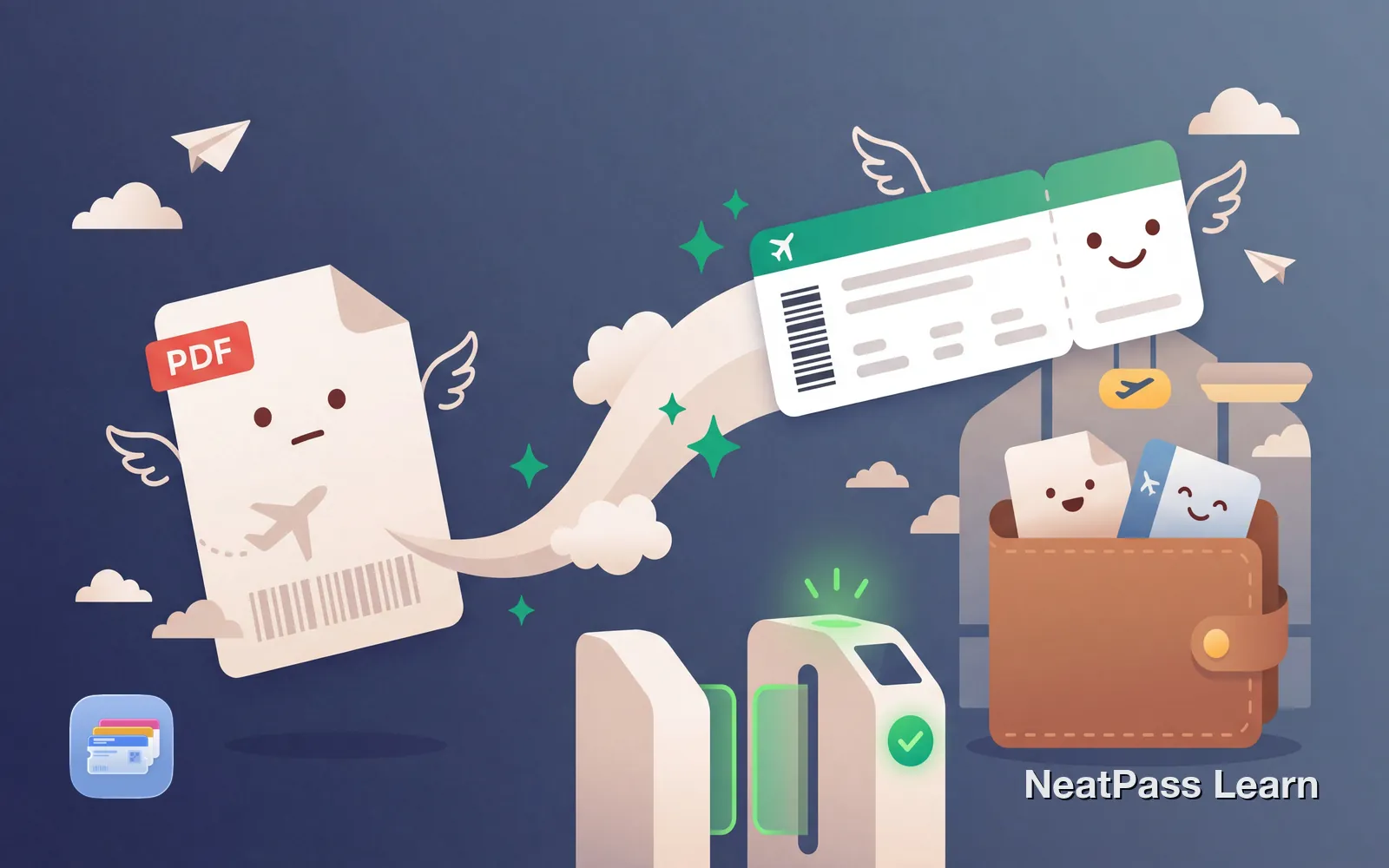
Your airline sent a PDF boarding pass with no Wallet option. At TSA, you dig through Files or email, wait for the PDF to render, then pinch-zoom to the barcode, all while holding your ID and laptop bin.
Extract the barcode and create a native Wallet pass. TSA and gate scanners read the barcode data, not the format. One tap and you are through.
Why Airlines Send PDFs Instead of Wallet Passes
Apple Wallet integration requires airlines to integrate with Apple's PassKit system. Some airlines have not made this investment, especially:
International carriers
Regional and international airlines often skip Wallet support
Budget airlines
Low-cost carriers focus on price over convenience features
Older booking systems
Legacy systems predate Apple Wallet entirely
Universal compatibility
PDFs work for everyone, regardless of phone type
Before You Convert: Check Your Options
Some airlines do support Wallet but hide the option. Before converting manually, try these:
- Check the airline's app - The "Add to Wallet" button is often only in their mobile app, not the website or email
- Complete online check-in - Wallet options often appear after check-in, not before
- Look for a mobile boarding pass link - Some emails have separate links for "Mobile Boarding Pass"
Major airlines with Wallet support
Which PDF Boarding Passes Can Be Converted
Most PDF boarding passes have a barcode that can be extracted and used in Wallet. Here is what works and what does not:
- PDFs with QR codes
- Aztec code boarding passes (most common)
- PDF417 barcodes
- Static 2D barcodes of any type
- Airlines requiring app-only boarding
- Dynamic barcodes that refresh
- PDFs without visible barcodes
- Some TSA PreCheck integration
Always keep your original PDF
Convert your boarding pass
NeatPass makes it easy to convert any ticket, pass, or loyalty card to Apple Wallet.
How to Convert a PDF Boarding Pass to Apple Wallet
The process extracts the barcode from your PDF and creates a native .pkpass file that Wallet accepts. NeatPass makes this straightforward.
Open your PDF boarding pass
Screenshot the barcode
Import into NeatPass
AI reads your boarding pass
Add to Apple Wallet
NeatPass automatically recognizes Aztec codes - the most common format for airline boarding passes. It also handles QR codes and PDF417 barcodes used by some carriers.
Why Wallet is Better Than a PDF at the Airport
Having your boarding pass in Wallet makes a real difference at the airport:
One-tap access
Double-tap side button at security, no app hunting
Works in airplane mode
Passes work without network, perfect for flights
Auto-brightness
Screen brightens automatically for TSA scanners
No loading time
Opens instantly vs waiting for PDF to render
At a busy security checkpoint, these seconds add up. No fumbling to find the right PDF, no zooming in on the barcode, no waiting for files to open. Learn more about offline mode and why local storage matters for travel.
Frequently Asked Questions
Add your boarding pass
DownloadTravel Smarter with Wallet
Next time you receive a PDF boarding pass, take 30 seconds to convert it to Wallet. At security and boarding, you will appreciate having instant access without digging through emails or opening PDF viewers.