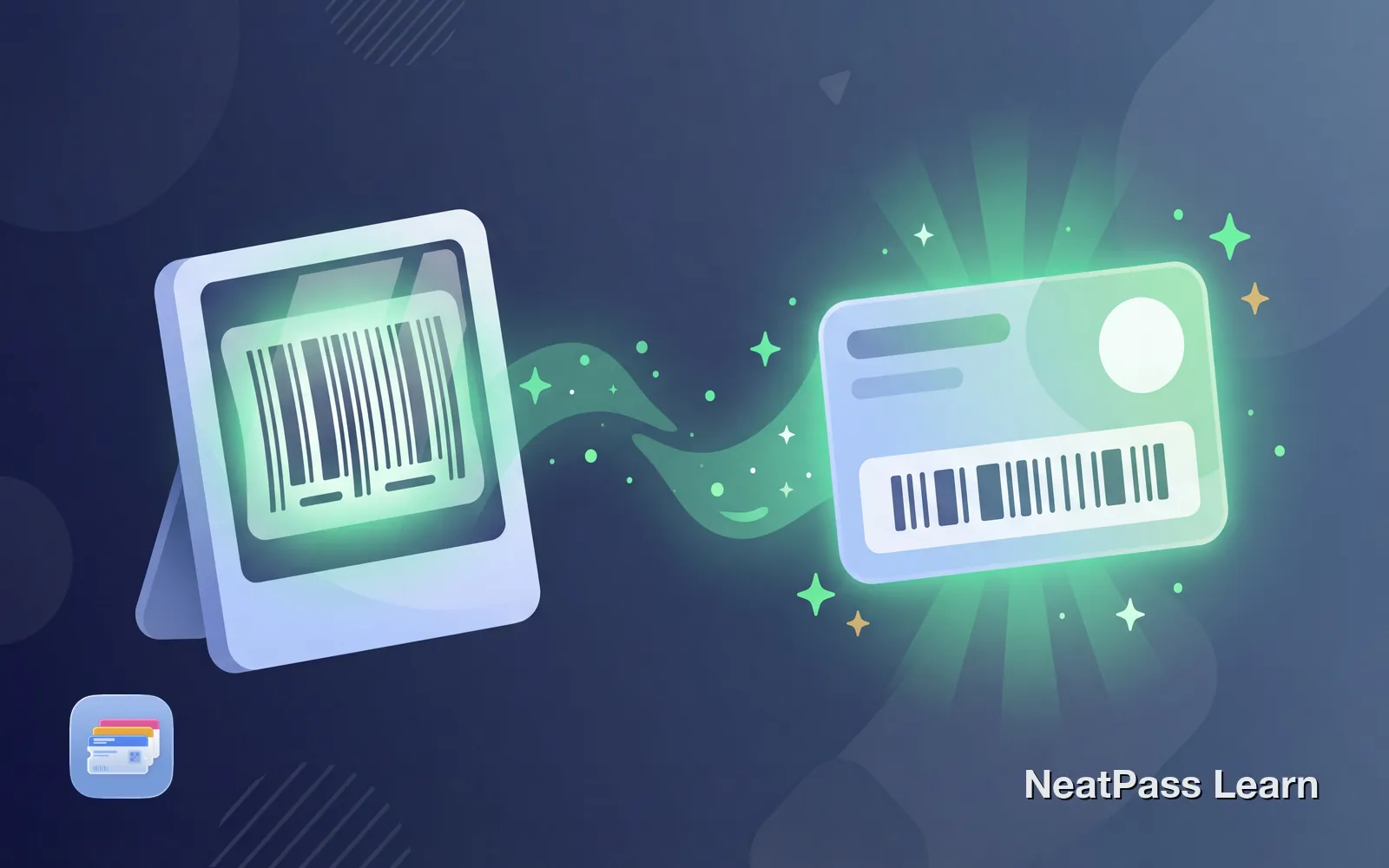
Apple Wallet requires .pkpass files, not images. But if your image contains a barcode, you can extract that data and create a proper Wallet pass. Here is how to convert any barcode image into a native Apple Wallet pass.
Why Apple Wallet Will Not Accept Images
Apple designed Wallet to hold passes, not pictures. A Wallet pass is a structured file containing barcode data, text fields, and styling information. An image is just pixels. Apple has no way to know what data your image represents.
Wrong file format
Wallet only accepts .pkpass files, not images
No import option
No built-in way to add photos to Wallet
Developer-only solutions
Creating passes natively requires certificates and coding
Convert your barcode images
NeatPass makes it easy to convert any ticket, pass, or loyalty card to Apple Wallet.
How to Actually Add Images to Wallet
The solution is to extract the data from your image and create a proper Wallet pass. NeatPass does exactly this. Its AI reads your entire image, detects barcodes, and auto-fills all pass details - title, colors, dates, seats, and whatever else your card or ticket needs.
Whether your image is a screenshot, a photo from your camera roll, or a downloaded file, NeatPass can read the barcode and turn it into a pass that actually works.
Works with any barcode
Step-by-Step Guide
Open NeatPass
Select your image
AI reads your image
Review and adjust
Add to Apple Wallet
The entire process takes about 20 seconds. Your barcode goes from a buried photo to a quick-access Wallet pass.
What Image Types Work?
NeatPass handles virtually any image source. If you can see a barcode in the image, NeatPass can probably extract it.
Screenshots
From apps, websites, or PDF viewers
Photos
Pictures of physical cards or tickets
Downloads
Images from email or web browsers
Shared images
AirDrop, Messages, or any other app
Barcode not detected?
Why This Is Better Than Keeping Images
Once your barcode is in Apple Wallet, you get features that images simply cannot provide.
Instant access
Double-click to show from lock screen
Auto-brightness
Screen maxes out for reliable scanning
Crisp barcodes
Rendered fresh, never compressed
Always available
Works offline, syncs via iCloud
No more scrolling through thousands of photos to find the right barcode. No more fumbling with brightness at checkout. No more hoping the scanner can read your compressed screenshot.
Frequently Asked Questions
Convert your images now
DownloadImages to Wallet Passes
NeatPass converts any image with a barcode into a native Wallet pass. Your barcode goes from buried in your photo library to instantly accessible on your lock screen.