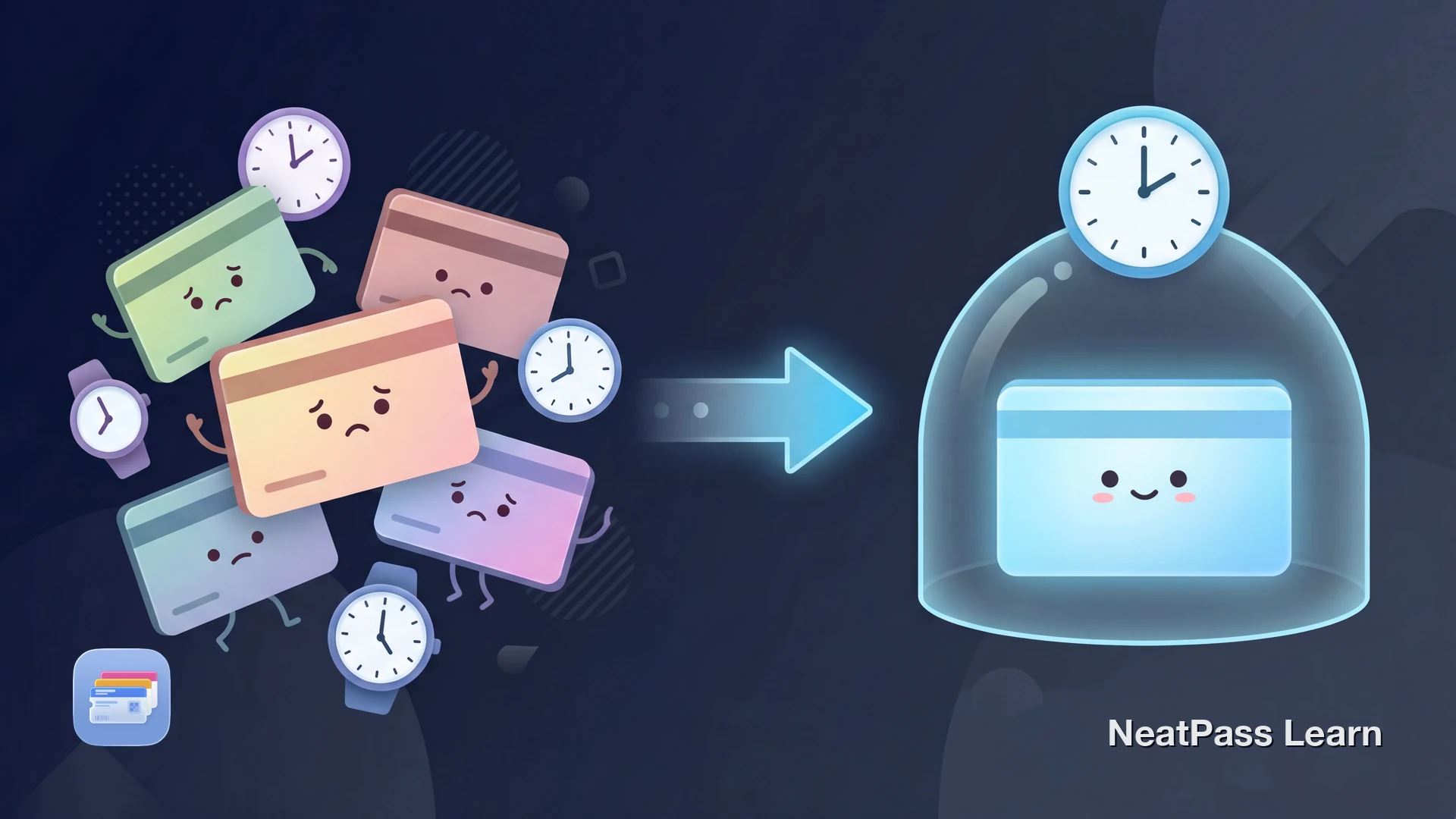
Your boarding pass says the flight leaves at 3pm, but Wallet surfaces it on the Lock Screen around 10am. Or an event pass appears at an unexpected local time after you travel to another time zone. This is a pass-relevance problem, not a Wallet alarm or notification with its own schedule.
The cause can be the time data encoded by the pass issuer. Wallet interprets the issuer's timestamp in relation to your device's local time zone, and the Wallet app does not let you edit that pass metadata directly.
What the Timezone Bug Looks Like
The symptoms depend on the type of pass and how far you are from the original timezone. Here are the most common scenarios.
Boarding pass off by hours
The pass surfaces on the Lock Screen 3, 5, or even 8 hours before or after the intended flight time
Event ticket after traveling
The pass surfaces at a different local time after your iPhone changes time zone at the destination
Train pass with wrong boarding time
The pass appears on the Lock Screen about 1 hour before or after the intended departure
Movie or show ticket confusion
The pass appears at a time that differs from the schedule shown when you open the ticket
Treat Lock Screen appearance as a shortcut
Why Apple Wallet Shows the Wrong Time
Every Apple Wallet pass is a .pkpass file. In many existing passes, a field called relevantDate helps Wallet decide when to surface the pass on the Lock Screen. Apple describes this relevance as passive: it does not post an alert or notification. The timestamp uses the W3C format, which supports time-zone offsets.
A timestamp with an explicit offset can look like 2026-06-15T09:30:00-04:00 (9:30am in US Eastern Daylight Time). If an issuer instead writes 2026-06-15T09:30:00Z, the Z means UTC (Coordinated Universal Time), and Wallet interprets that instant in your device's local time zone.
In that example, an issuer that intended 9:30am Eastern but encoded 9:30am UTC could make the pass surface around 5:30am in New York or 3:00pm in Mumbai. A time shown inside the pass can remain different if the issuer stored it in a separate field, but issuers may also use formatted date fields. Verify the schedule against the original ticket.
Apple also provides relevantDates for date intervals in current pass schemas. Whether a pass uses that newer field or the older relevantDate, Wallet relies on the issuer-supplied values and does not turn them into a user-configured alarm.
A technical detail for the curious
Lock Screen Relevance vs. Pass Time
There is an important distinction. Lock Screen relevance determines when Wallet makes a pass easy to reach. The time shown inside the pass comes from separate issuer fields and may be static text or a formatted date value.
A pass can therefore surface at an unexpected local time even when the schedule shown after you open it looks correct. That does not mean Wallet changed the ticket time; it means the relevance metadata and displayed fields are being interpreted separately.
If your pass is not showing on the lock screen at all, that is a separate issue. Check the guide on lock screen widgets and pass notifications for troubleshooting.
Check time data before creating a Wallet pass
NeatPass makes it easy to convert any ticket, pass, or loyalty card to Apple Wallet.
How to Fix or Work Around It
Since the root cause is in the pass file itself, there is no iPhone setting that fully fixes this. But these steps can help.
Verify your time settings
Delete and re-add the pass
Contact the pass issuer
Recreate the pass and review its time data
Recreated passes work offline just like the originals. Learn more about offline mode and how passes work without internet.
Timezone Tips for Travelers
If you travel frequently across time zones, the timezone issue can affect you more than most. Here is what to keep in mind.
Crossing time zones mid-trip
Your iPhone updates its time zone automatically when you land. If a connecting-flight pass contains relevance data that does not reflect the intended local time, the moment when it surfaces can shift. Always open the pass and verify the departure time with the airline before heading to the gate.
International flight boarding passes
If your airline only gives you a PDF boarding pass, you can convert it to a Wallet pass and review the extracted date and time before export. See the guide on converting PDF boarding passes to Apple Wallet.
Event tickets in another city
For tips on managing event passes, see adding concert tickets to Apple Wallet.
Add a note to your pass
How NeatPass Lets You Review Time Data
NeatPass extracts date and time information on your device and lets you review editable date and time fields before export. Compare them with the original ticket, save your changes, and re-export the pass so Wallet receives the reviewed metadata.
Review before export
Compare detected date and time values with the original ticket before adding the pass to Wallet
Editable date and time fields
Use the NeatPass date and time picker, save the change, then re-export the pass to Wallet
On-device processing
Ticket content stays on your phone; adding to Wallet briefly sends only a cryptographic hash for signing
Works offline after creation
Once added, a static Wallet pass can be displayed without internet, even after the local time zone changes
Getting started is simple. See the guide on adding your first pass to Apple Wallet.
Common Questions
Review time data before exporting a pass
DownloadCheck the Issuer's Schedule
An Apple Wallet time-zone issue can look like an iPhone alarm at the wrong time, but pass relevance is passive and depends on issuer metadata. Treat the original ticket and issuer schedule as the source of truth, and remember that barcode validity is a separate issuer-controlled question.
NeatPass lets you review and edit extracted date and time fields before exporting a personal pass. Ticket content stays on your device, only a hash is sent for Wallet signing, and the static pass can display offline once added. Learn more about how NeatPass handles your data.