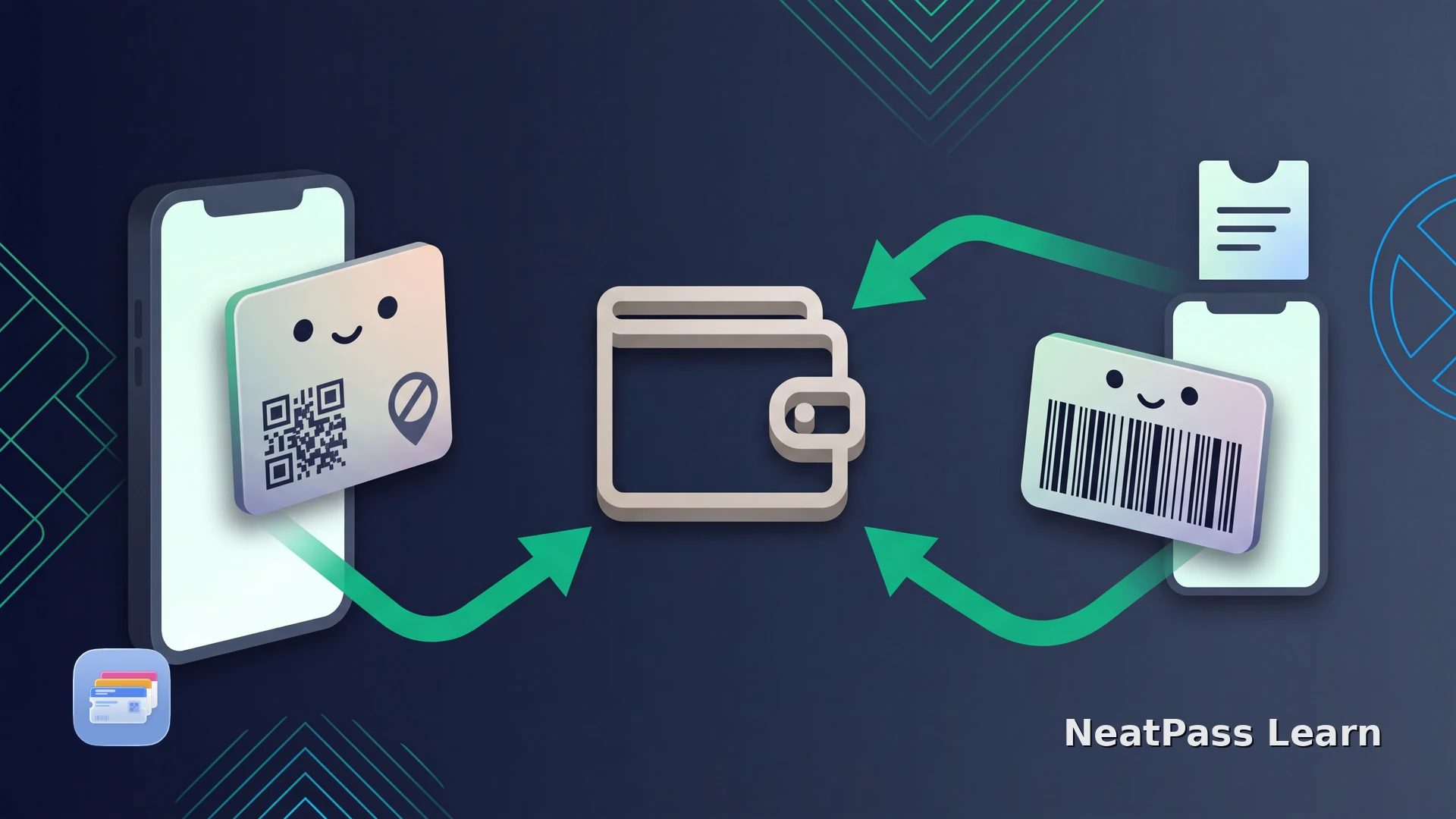
Official ZVV app tickets currently stay in the app rather than as Apple Wallet passes. Can you still save a Zurich transport ticket to Wallet?
For a normal ZVV app ticket, keep the ticket in the official app. The QR ticket can be personal and tied to an identity document or SwissPass, and ZVV manages its validity and status there. A separate static barcode from an issuer-authorized PDF or printout can be suitable for a Wallet pass when its terms allow it.
What the ZVV app actually offers
ZVV's official app and ticket pages direct customers to buy and show ordinary tickets in the app rather than in an Apple Wallet pass. Apple Pay can be used as a payment method, but paying with Apple Pay does not create a ZVV transit pass in Wallet.
QR ticket in the ZVV app
The ticket is shown as a QR code in the issuer app. The app remains the source for the ticket and its current validity.
Normal tickets stay in the app
Ordinary ZVV app tickets are bought and shown in the ZVV app. Keep that live ticket flow available during inspection.
Apple Pay is payment only
You can use Apple Pay to pay for an eligible purchase in the ZVV app. That payment card is not the same thing as a ZVV ticket pass.
Check-in Ticket is a live app flow
ZVV Check-in Ticket depends on location services, mobile data and motion data. Its app session is not a stable barcode to copy into Wallet.
Do not screenshot the ZVV app ticket
When a ZVV ticket needs its live source
A Wallet barcode can be useful when it represents a genuine, stable credential. A ZVV app ticket is different: its validity and personal conditions are determined by the issuer's current record, not just by the pixels of the QR code.
- Issued as a stable barcode or QR code
- The issuer allows a digital copy or Wallet-style storage
- The code is still valid when it is shown offline
- The ticket rules do not require the issuer app or live session
- Shown inside the ZVV app
- May be personal and require ID or SwissPass
- Check-in Ticket needs location, data and movement
- A screenshot cannot carry issuer updates or account checks
That distinction matters at a fare inspection. An authorized stable source can make a useful Wallet display; for the normal ZVV app ticket, keep the app available for account status and inspection rules.
The safe route for a ticket that really has a barcode
If an issuer gives you a separate PDF or printed ticket with a stable, scannable code and its terms permit a digital copy, follow this route. It does not apply to the normal ZVV app QR or Check-in Ticket.
Confirm the ticket source
Import the permitted source
Check the extracted data
Keep the original with you
Follow the adding a pass to Wallet after reviewing the source.
Use NeatPass for an authorized static source
NeatPass is useful when the issuer gives you a stable barcode you may store, such as an authorized printed or PDF credential. It preserves that source data in Wallet while the ZVV app remains responsible for dynamic tickets.
- A permitted static code A permitted, supported QR code or barcode can be extracted, kept on the device, and added to Wallet with the same data as the source.
- Dynamic ZVV tickets stay in the issuer flow The ZVV app QR, Check-in Ticket, SwissPass Mobile display, receipt, and account-only code stay in the issuer's flow. A static Wallet pass is for a separate source that the issuer allows you to store.
- The ticket conditions remain in force Use the Wallet pass only as a display of the same source data. Eligibility, subscription updates, identity checks, and requests to show the ZVV app or SwissPass still follow the issuer's rules.
For a permitted static source, see the guide to viewing the original source
Keep the source on your iPhone
Have a stable, authorized barcode to store?
NeatPass makes it easy to convert any ticket, pass, or loyalty card to Apple Wallet.
Frequently asked questions
Keep the ZVV ticket in the right place
For a normal ZVV app ticket, keep the current ticket in the official app, especially when it is personal or part of a Check-in Ticket session. A separate static, issuer-authorized barcode may also be suitable for a Wallet pass when its source and terms allow it.
For the wider picture, read the European train ticket guide and the guide to SwissPass and Apple Wallet.
Use the issuer's source