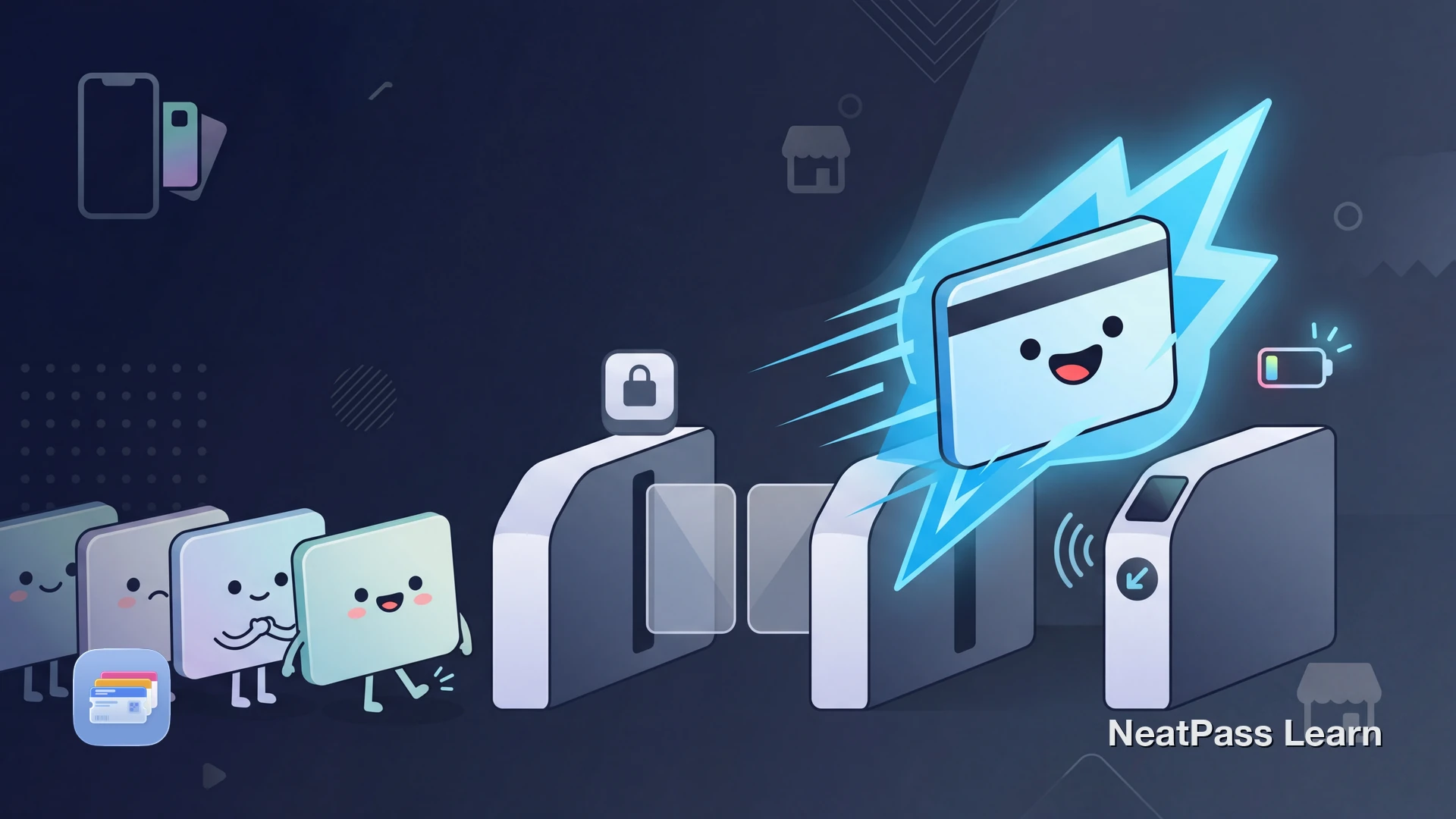
Many Apple Wallet interactions require Face ID, Touch ID, or a passcode before anything happens. Express Mode is the exception for eligible NFC-based cards, keys, and passes. It lets those items work with a simple tap, no authentication needed.
This is useful at transit gates, office doors, and hotel rooms where speed matters. But eligibility depends on the pass type and issuer, and many barcode-only passes are not eligible. Here is what Express Mode actually covers and where it stops.
What Is Express Mode?
Express Mode is an Apple Wallet setting that lets you use eligible cards, keys, and passes without waking your iPhone, unlocking it, or authenticating. You hold your device near an NFC reader and the transaction happens instantly.
When you add a supported item to Apple Wallet, Express Mode is turned on by default. You can have multiple Express Mode items active at the same time, though limits can vary by pass type or issuer.
Contactless, usually NFC
Which Cards Support Express Mode?
Express Mode works with a specific set of compatible cards, keys, and passes in Apple Wallet. Support depends on the pass type and issuer, so not all cards or passes qualify.
Transit cards
Stored-value cards like Suica, PASMO, Octopus, and other supported transit systems. You can select a travel card for Express Mode where supported, subject to issuer limits.
Payment cards for transit
A credit or debit card in Apple Wallet can be set as your Express Transit card. Apple Card and Apple Cash are also eligible.
Car keys and home keys
Digital car keys and home keys added to Wallet can use Express Mode for one-tap access without authentication.
Hotel keys and employee badges
Supported hotel room keys and corporate employee badges work with Express Mode at compatible NFC readers.
Student IDs (campus credentials)
Participating universities let students add campus IDs to Wallet. Express Mode enables tap access for dorms, libraries, and campus purchases.
For a closer look at the different types of passes Apple Wallet can hold, see the pass types guide.
How to Enable or Disable Express Mode
Express Mode turns on automatically for most eligible items. If you want to check the setting or turn it off, here is how.
Open the card in Wallet
Go to card details
Adjust Express Mode
You can also manage Express Transit from Settings > Wallet & Apple Pay > Express Transit Card. On Apple Watch, go to Settings > Wallet & Apple Pay > Express Transit Card on the watch itself.
Power Reserve: Express Mode When Your Battery Dies
On iPhone XS, XR (2018) and later, some compatible Express Mode cards, passes, and keys remain available for up to five hours after your iPhone shuts down because the battery is drained. Apple calls this Power Reserve.
This means you may still be able to tap through a transit gate or unlock an office door with a supported item even when your iPhone screen is black and unresponsive. Pressing the side button shows a low-battery icon and text indicating that Express Cards may still be available, but it does not identify a specific item.
Up to 5 hours
Some compatible Express Mode cards, keys, and passes stay active for up to five hours after the battery drains completely
iPhone XS/XR and later
Requires iPhone XS, XR, SE (2nd generation), or any newer model. Older iPhones do not support Power Reserve
Automatic activation
Power Reserve activates automatically when the battery runs out. No setup needed, but it does not activate after a manual shutdown
Manual shutdown exception
Security Considerations
Express Mode skips authentication by design. That means anyone holding your iPhone could tap it at a supported transit reader or door lock. Apple limits the feature to compatible contactless readers, and the issuer controls which passes qualify. Your payment card set for Express Transit only works at transit readers, not at retail payment terminals.
You can disable Express Mode for any card at any time. If your iPhone is lost or stolen, you can also suspend your cards via Find My or iCloud.com.
Fine-grained control
Where Express Mode Usually Does Not Apply
Express Mode requires issuer-enabled contactless support. Most barcode-based passes in Apple Wallet are visual-only and do not qualify. If a pass uses a QR code, PDF417, Code 128, or another visual barcode, you still need to open Wallet, find the pass, and show the barcode to a scanner unless the issuer provides a compatible contactless option.
This includes the majority of everyday cards. Check the supported barcode formats to see which types NeatPass can convert into Wallet passes.
These passes still benefit from Apple Wallet features like lock screen suggestions and location alerts. Learn how to add any card to Apple Wallet to take advantage of those features.
Get your barcode cards into Apple Wallet
NeatPass makes it easy to convert any ticket, pass, or loyalty card to Apple Wallet.
Where NeatPass Fits In
NeatPass handles the barcode-based passes that usually do not qualify for Express Mode. It converts barcode-based cards like loyalty cards, membership cards, gym passes, and event tickets into proper Apple Wallet passes. These passes live natively in Wallet, support location-based notifications, and appear on your lock screen when relevant.
While barcode passes cannot bypass Face ID through Express Mode, NeatPass makes them as fast as possible. Passes work offline, and lock screen widgets give you one-tap access without opening any app.
NeatPass converts barcode data on-device. To sign a Wallet pass, it sends only a cryptographic hash to the signing server. The pass content and barcode content stay local unless you enable optional iCloud Sync. See the privacy FAQ for details on how your data stays private.
Explore Apple Wallet further
Frequently Asked Questions
Add your cards to Apple Wallet
DownloadNFC Speed, Barcode Flexibility
Express Mode is a convenient shortcut for eligible contactless items in Apple Wallet. It makes transit, keys, badges, and other supported passes faster by removing the authentication step. Availability depends on the pass type and issuer, and many barcode-only passes do not qualify.
For everything else, barcode-based passes in Apple Wallet still offer fast access through lock screen suggestions, widgets, and offline reliability. NeatPass bridges the gap by converting any barcode card into a proper Wallet pass, giving you the best experience Apple Wallet can offer for passes without an issuer-enabled contactless option.