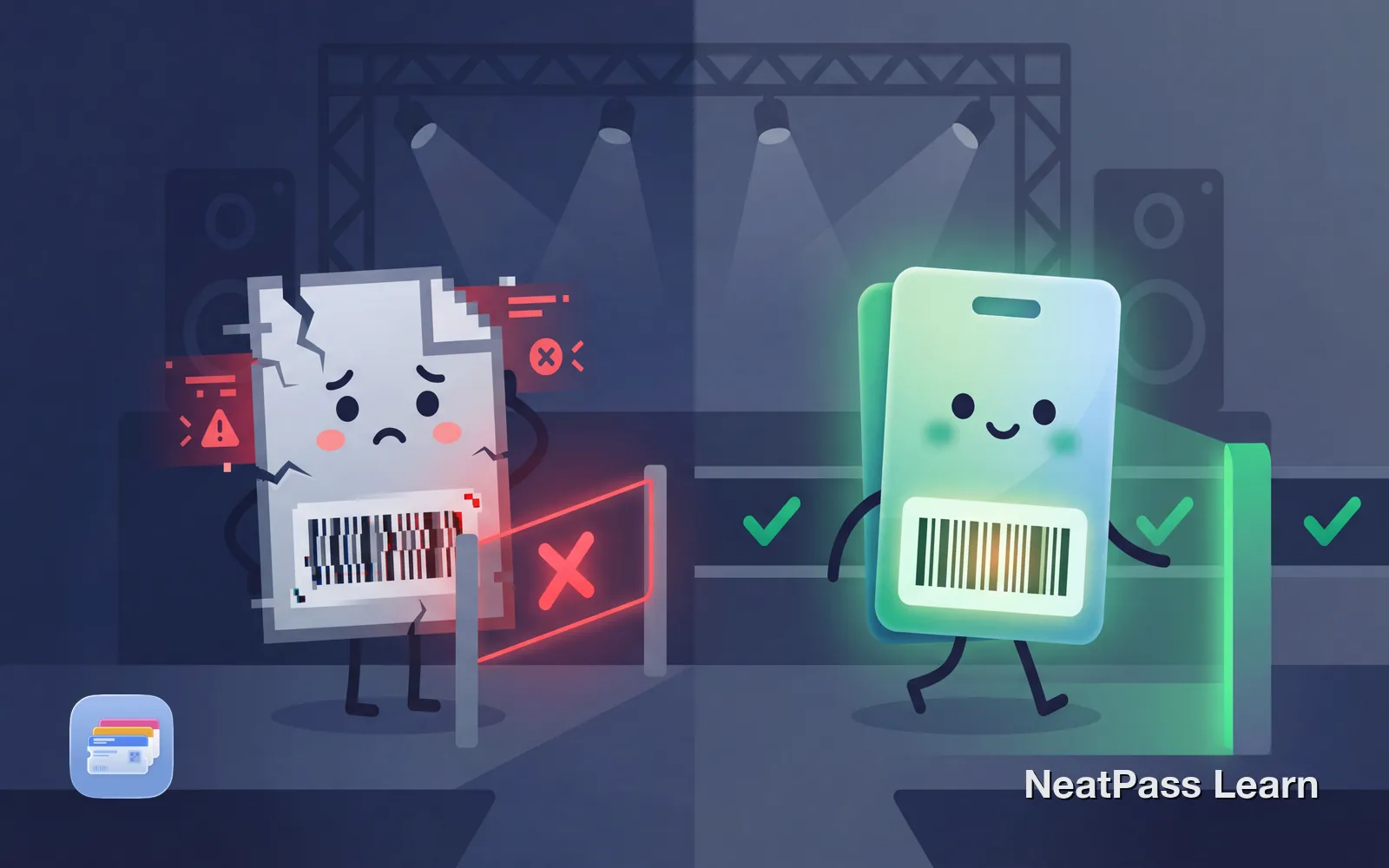
Your concert ticket screenshot is not scanning. This is not a malfunction or a brightness problem. Most major ticketing platforms now use rotating barcodes that change every few seconds, making screenshots intentionally invalid.
Before you panic at the gate, here is what is happening and what you can actually do about it.
Why Concert Screenshots No Longer Work
Ticketing platforms introduced dynamic barcodes to combat fraud. When scalpers could screenshot and sell the same ticket multiple times, venues had no way to know which copy was legitimate. Rotating barcodes solved this by making each barcode valid for only seconds.
The technology works by generating a new barcode linked to your account and device. The venue scanner checks not just the barcode data, but a timestamp and cryptographic signature that proves the barcode was just generated.
Ticketmaster SafeTix
Barcodes refresh every 15 seconds
AXS Mobile ID
QR codes change every 60 seconds
SeeTickets UK
Dynamic barcodes tied to your account
NFL, NBA, MLB
All explicitly reject screenshot tickets
Screenshots explicitly rejected
Check If Your Ticket Uses Dynamic Barcodes
Not all concert tickets use rotating barcodes. Here is how to tell the difference before you try to convert anything.
- Barcode animates or shows countdown
- SafeTix label visible on ticket
- Warning: 'Screenshots not valid for entry'
- Ticket only appears in official app
- AXS Mobile ID or similar branding
- Barcode stays the same every time
- PDF ticket from email confirmation
- Eventbrite tickets (usually static)
- Smaller venue or independent promoter
- Print-at-home option available
The easiest test: open your ticket in the official app, watch the barcode for 30 seconds. If it changes or animates, it is dynamic. If it stays exactly the same, it is static and can be converted.
If You Have Dynamic Tickets
For SafeTix, AXS Mobile ID, or other rotating barcode tickets, you must use the official app. There is no workaround. Here is how to prepare:
Download the official app
Log in and verify your ticket
Check for Add to Wallet option
Keep your phone charged
Ticketmaster Add to Wallet
If You Have Static Tickets
For Eventbrite, smaller venues, or any ticket with a barcode that does not change, you can convert it to a real Apple Wallet pass. The barcode data remains valid because it was never meant to rotate.
Got static concert tickets?
NeatPass makes it easy to convert any ticket, pass, or loyalty card to Apple Wallet.
NeatPass extracts the barcode data from your screenshot or PDF and creates a native Wallet pass. The pass stores the actual barcode information, not an image, so it renders perfectly every time and works without internet at the venue.
Screenshot or save your ticket
Import into NeatPass
Review extracted details
Add to Apple Wallet
NeatPass supports 18+ barcode formats, including QR codes, Aztec codes, and PDF417 commonly used on event tickets. Learn more about the adding to Wallet process in the help center.
Why Wallet Passes Beat Screenshots at Concerts
Even for static tickets, a real Wallet pass is better than a screenshot. Concert venues are harsh environments for phones:
Works offline
No cell signal needed at crowded venues
Auto-brightness
Screen maxes out for easy scanning
Lock screen access
Double-tap to display, no app to open
Location-aware
Pass appears when you arrive at the venue
Perfect barcode
No compression or cropping artifacts
Organized by event
No scrolling through photos to find it
Learn more about offline mode and lock screen widgets for even faster access at the gate.
What To Do If You're Already At The Venue
If your screenshot is not scanning and you are already at the gate, here are your options:
Use the official app
Download it now if you have signal. Your ticket is tied to your account.
Go to the box office
Explain the situation. They can often look up your ticket by email or ID.
Most venues have procedures for exactly this situation. Stay calm, keep your purchase confirmation email ready, and be prepared to show ID that matches the ticket buyer's name.
Frequently Asked Questions
Prepare Before The Show
The worst time to discover your screenshot does not work is at the venue gate. Check your ticket now. If it uses dynamic barcodes, set up the official app. If it is static, convert it to a real Wallet pass with NeatPass.
Your future self standing in the entry line with thousands of other fans will thank you. Learn more about customizing your pass design, so it is easy to find in your Wallet.
Convert static tickets now
Download