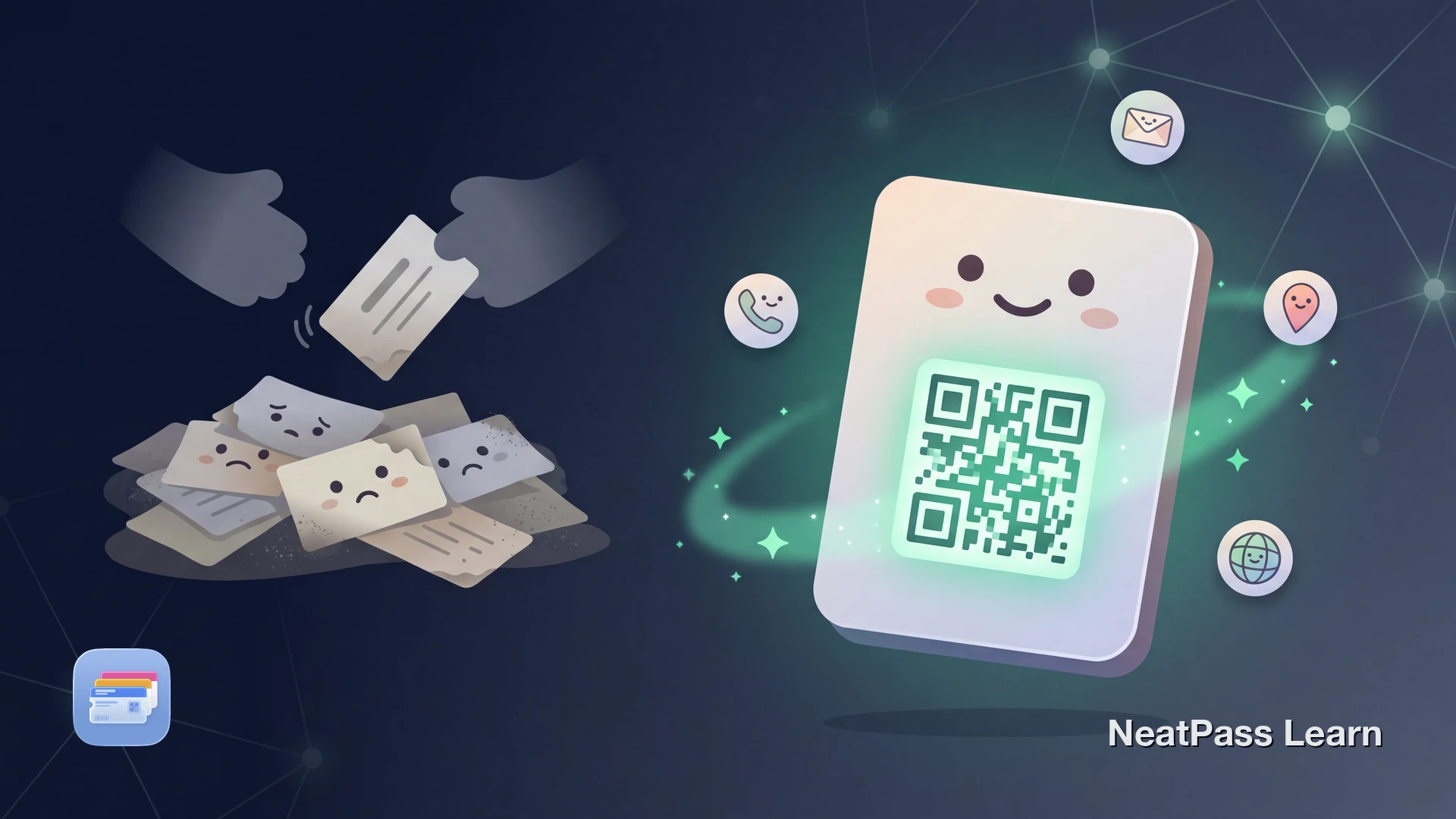
Most professionals still rely on dedicated apps like HiHello, Blinq, or Wave to share contact info digitally. These apps work, but they come with subscriptions, account creation, and yet another app on your phone. For something you use a few times at a networking event, that is a lot of overhead.
Apple Wallet can hold a pass with your contact QR code, accessible from your lock screen with a double-tap of the side button. No app to open, no login, no internet required. The person scanning your code does not need any app either.
The Problem with Business Card Apps
Dedicated digital business card apps have become popular, but they introduce friction that paper cards never had:
Subscription fees
Most apps charge $5-10/month for analytics, custom branding, or removing watermarks
Separate app required
Each platform needs its own download and account setup before you can share
Internet dependency
Many features require connectivity, which is unreliable at crowded conference venues
Platform lock-in
Your contact data lives on their servers, tied to their ecosystem and pricing changes
The core need is simple: show a QR code that contains your contact details. That does not require a dedicated app or a monthly subscription.
Apple Wallet as Your Business Card
Apple Wallet already holds your boarding passes, event tickets, and loyalty cards. Adding a business card pass follows the same pattern. Your contact QR code sits alongside your other passes, always accessible from the lock screen.
The key advantage: Wallet passes work completely offline. Conference WiFi is notoriously unreliable, and cellular signals struggle in convention centers. Your Wallet pass displays instantly regardless of connectivity.
Share your contact info from your lock screen
NeatPass makes it easy to convert any ticket, pass, or loyalty card to Apple Wallet.
What to Put in Your QR Code
The QR code on your business card pass can encode different types of information. Choose based on what you want recipients to do:
- vCard data encodes your name, phone, email, company, and title directly. When scanned, the recipient's phone prompts them to save your contact. No internet needed on either side.
- Landing page URL points to a web page with your full profile, social links, and portfolio. More flexible but requires the scanner to have internet access.
- LinkedIn profile URL sends people directly to your professional profile. Simple, but limited to one platform.
NeatPass supports QR codes and 17 other barcode formats for maximum compatibility with any scanner.
How to Create Your Business Card Pass
Creating a digital business card in Apple Wallet takes a few minutes. Here is the process with NeatPass:
Generate your QR code
Import into NeatPass
Customize your pass
Add to Apple Wallet
For a detailed walkthrough, see the guide on adding passes to Wallet and the available import methods in NeatPass.
Wallet Pass vs. Business Card Apps
Here is how a Wallet-based business card compares to dedicated apps for day-to-day use:
- Works offline, no internet needed
- Lock screen access with double-tap
- No subscription or recurring fees
- No account creation required
- Universal QR code, scannable by any phone
- No app needed on the recipient's side
- Many features require internet
- Must open app and navigate to card
- Monthly subscriptions from $6/month
- Account and profile setup required
- Some use proprietary sharing methods
- Recipients may need to download the app
Learn more about how offline mode keeps your passes accessible in any environment.
Using Your Card at Events
At conferences and networking events, speed matters. The person you just met has 30 seconds of attention before the next introduction. Double-tap your side button, show the QR code, and they scan it. Your contact details are in their phone before the conversation ends.
You can customize the pass appearance to reflect your professional brand. See the guide on customizing pass design for options like colors, labels, and layout.
Add event location for automatic display
When This Approach Works Best
A Wallet-based business card works well for most professional scenarios. The QR code is static and scannable by any smartphone camera.
Ideal for
Conferences, trade shows, networking meetups, client meetings, casual introductions, coworking spaces
Consider alternatives for
Teams needing centralized analytics, CRM integrations, lead scoring, or branded company-wide cards with admin controls
Your QR code data stays on your device. Read about how NeatPass handles data in the privacy FAQ.
Frequently Asked Questions
Your Card, Always Ready
A digital business card does not need a dedicated app. Apple Wallet keeps your contact QR code on your lock screen, accessible in under a second, with no internet, no login, and no subscription.
For even faster access, add a lock screen widget to surface your business card pass with a single tap.
Create your business card pass
Download