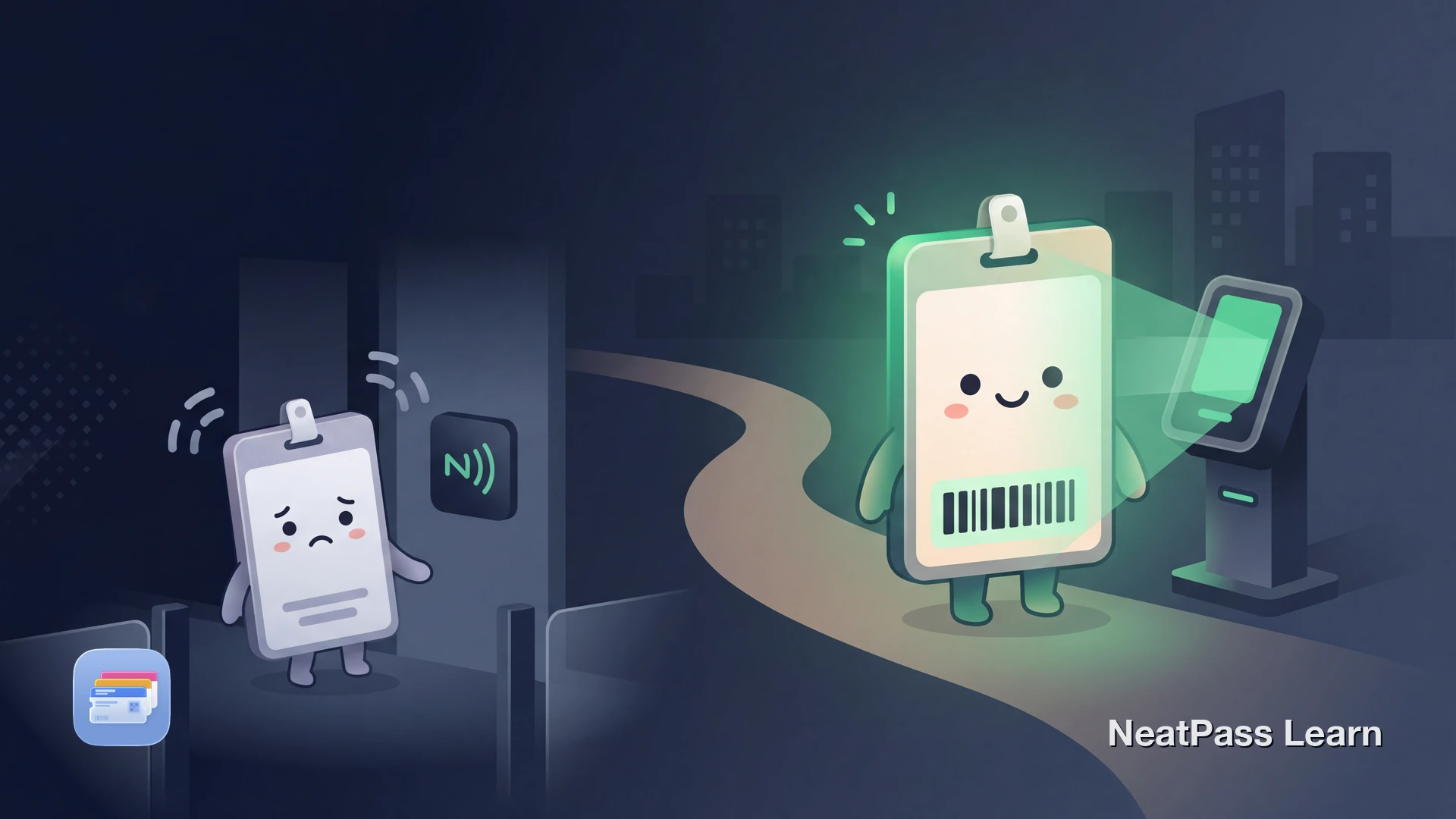
Most corporate employee badges use NFC or RFID chips for door access. These chips operate on specific radio frequencies that your iPhone cannot replicate. So when you search for ways to add your employee badge to Apple Wallet, the honest answer depends on what your badge actually does.
Apple does offer an official Employee Badge in Apple Wallet feature, but it requires your company's IT department to set it up with certified access control providers. Very few organizations have adopted it. If yours hasn't, you still have options for digitizing parts of your badge.
Apple's Official Employee Badge Feature
Apple partnered with access control companies like HID Global and ASSA ABLOY to create an official Employee Badge in Apple Wallet solution. When enabled, you can tap your iPhone or Apple Watch on door readers instead of using a physical badge.
The feature supports Express Mode (no unlock required), works in Power Reserve for up to five hours after your battery dies, and uses Face ID or Touch ID for extra security at sensitive areas.
The catch: your employer must use a compatible access control system and specifically enable this feature. Companies like Silverstein Properties at the World Trade Center, MediaStorm in China, and Nan Fung Group in Hong Kong have rolled it out. But for most employees, this option is not available yet.
How to check if your company supports it
Why You Cannot Simply Copy a Badge to Apple Wallet
Traditional employee badges use RFID chips operating at frequencies around 125 kHz (low frequency) or 13.56 MHz (high frequency). iPhones only support NFC at 13.56 MHz, and even then, they cannot emulate the proprietary protocols that most access control systems require.
Frequency mismatch
Many badges use 125 kHz RFID, which is completely outside your iPhone's NFC range
Encrypted credentials
Modern badges like MIFARE DESFire use encryption that prevents copying for security reasons
Proprietary protocols
Each access control system uses its own communication standard that third-party apps cannot replicate
Hardware-level security
The badge chip contains a unique cryptographic key that cannot be extracted or transferred
This is actually a good thing. These protections exist to prevent unauthorized access to your workplace. If anyone could copy a badge to a phone, building security would be compromised.
What You Can Add to Apple Wallet
While NeatPass cannot replicate NFC door access, many employee badges serve a dual purpose. Beyond opening doors, badges often display a barcode or QR code used for visual ID checks, cafeteria payments, printer authentication, or visitor verification.
If your badge has a scannable barcode, you can create a Wallet pass that stores that barcode for quick access. This gives you a backup you can pull up instantly without carrying the physical card.
Want a digital backup of your employee badge?
NeatPass makes it easy to convert any ticket, pass, or loyalty card to Apple Wallet.
How to Create a Badge Pass with NeatPass
If your employee badge has a barcode, QR code, or you simply want a visual reference pass with your badge photo, NeatPass can help. It supports 18 barcode formats, including common ID badge formats like Code 128 and QR codes.
Photograph your badge
Import the photo
Review and customize
Add to Apple Wallet
For more details on the full process, see the guide on adding passes to Wallet or explore all import methods available in NeatPass.
When a Digital Badge Pass Helps
A Wallet-based badge pass is most useful for the non-door-access parts of your daily work life:
- Visual ID verification at reception desks
- Barcode scanning at the cafeteria or vending machines
- Backup when you forget your physical badge
- Quick reference for your employee ID number
- Printer or copier authentication via barcode
- Visitor sign-in at partner offices
- NFC/RFID door access (requires physical badge or Apple's enterprise feature)
- Secure area access with hardware tokens
- Time clock systems that read the badge chip
- Parking garage gate access via RFID
- Elevator access control systems
- Turnstile badge readers
Your Wallet pass works completely offline, so it is available even in basements or areas with no cell signal.
Make your badge pass easy to find
Privacy and Your Badge Data
Employee badges often contain sensitive information like your full name, photo, department, and employee number. NeatPass processes everything on your device.
Your badge data never leaves your iPhone. There are no accounts and no cloud uploads. For full details, see the privacy FAQ.
Asking Your Company for Apple Wallet Support
If you want full door access from your phone, the solution has to come from your employer's side. Here is what to suggest to your IT department:
- Ask if they use HID, ASSA ABLOY, Wavelynx, Kisi, or similar access control systems that support Apple Wallet integration
- Point them to Apple's Employee Badge in Apple Wallet program for enterprise deployment
- Mention that providers like HID Origo and SwiftConnect handle the integration and credential management
- Note that the feature works with Express Mode, Power Reserve, and supports both iPhone and Apple Watch
The more employees who ask, the more likely IT will prioritize it. In the meantime, a barcode-based Wallet pass covers the non-NFC uses of your badge.
How to check if your company supports it
Frequently Asked Questions
Your Badge, Digitized Where Possible
The reality of employee badges in Apple Wallet is nuanced. Full door access requires your company to adopt Apple's enterprise solution. But for everything else your badge does, a Wallet pass created from the barcode or a photo gives you quick, offline access right from your lock screen.
Photograph your badge, create a pass, and keep a digital backup ready. For the door access part, talk to your IT department about Apple's official program.
Create a badge pass with NeatPass
Download