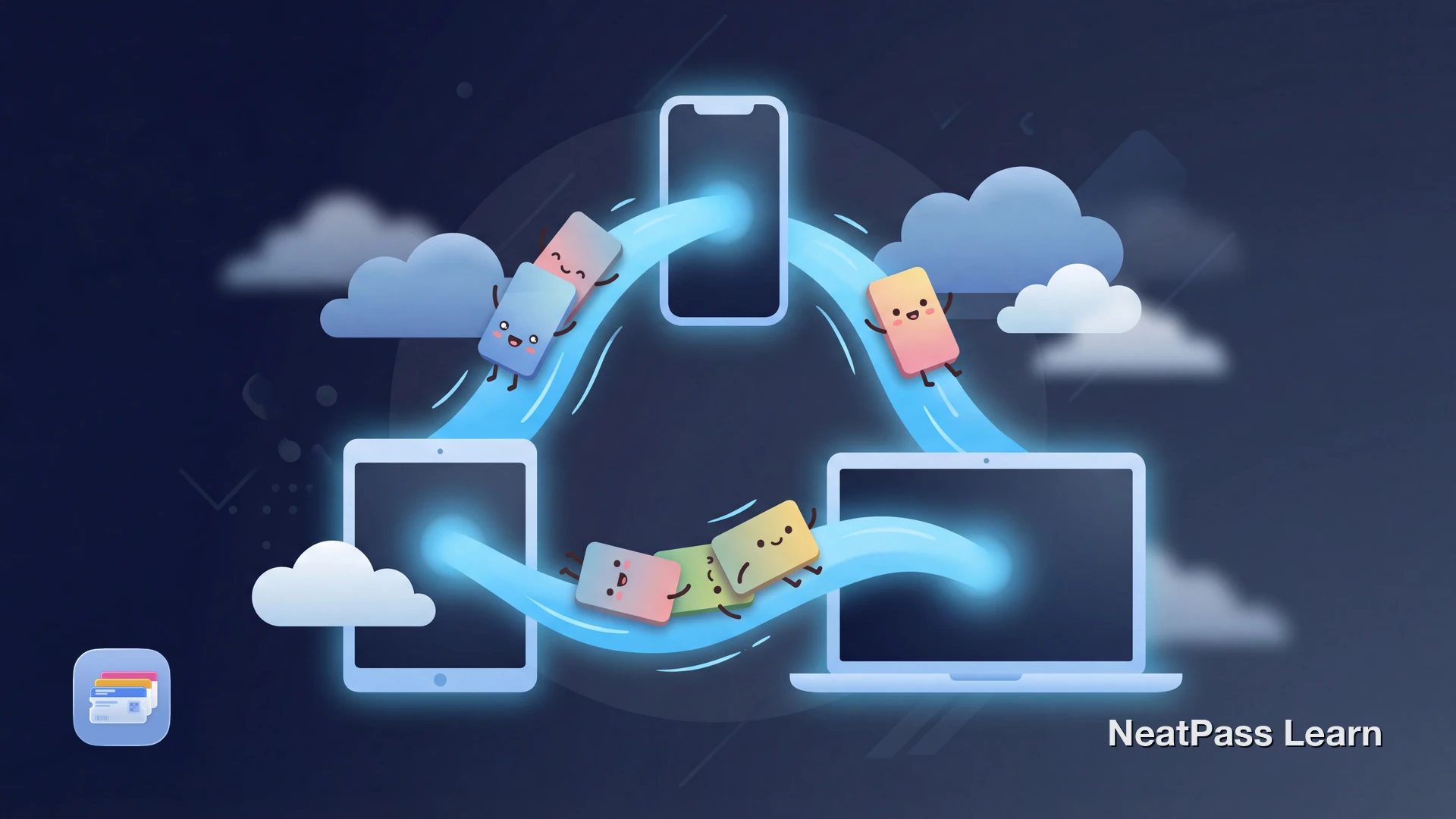
You added tickets to Apple Wallet on your iPhone, but now you're at the venue checking your Apple Watch. The tickets aren't there. You scramble to pull out your phone, find the original email, or log into the ticket app.
Apple says supported Wallet passes can stay in sync across Apple devices, but availability still depends on the pass, its issuer, your device, and iCloud settings. NeatPass's current sync target is iPhone, and iCloud sync is off by default. Enable it only when the option is available in the app.
Why a Wallet Pass May Be Missing on Another Device
Apple says supported Wallet passes can sync through iCloud. A pass may still be unavailable on another device when the issuer, pass configuration, device, or iCloud settings limit that access.
Possible causes include issuer account or device checks, pass refresh rules, and incomplete iCloud setup. Those controls can be valid security measures while still making access on a paired device confusing.
Common frustrations
Official Passes vs. Custom Passes
The difference comes down to how passes are created and managed. Official passes can include issuer validation or device and account checks that limit what happens on another device.
- May be unavailable on another device when issuer restrictions apply
- May be tied to a provider account or device
- Refresh or re-authentication can limit access
- No control over issuer sync behavior
- When available and enabled, sync compatible custom data from iPhone
- Current NeatPass sync target is iPhone
- Attached files may sync when supported
- You control the custom pass data
When you create a pass with NeatPass, you manage that pass directly. If iCloud sync is available and enabled, compatible custom data can be stored through the current iPhone target. This does not promise that every official Wallet pass will appear on every device.
Sync compatible custom passes from iPhone
NeatPass makes it easy to convert any ticket, pass, or loyalty card to Apple Wallet.
What Syncs Between Devices
When iCloud sync is available and enabled, NeatPass can sync compatible custom pass data from its iPhone app. It is off by default. The stored set may include:
Pass data
Compatible pass fields can include title, barcode, dates, colors, and custom notes
Images and logos
Attached images can sync when the feature supports them
Attached PDFs
Attached PDFs can sync when supported as references; this does not change issuer acceptance
Organization
Collection membership and archive/status data can sync under the conflict rules below
The attached PDF feature is especially useful for tickets. You can attach the original email or PDF ticket for reference. Learn more about viewing original documents.
Editing on Multiple Devices
When the same custom pass changes on separate sync attempts, NeatPass resolves the record with timestamps and version information, not field-by-field merging.
Timestamp and version decide
For a conflicting pass record, the change with the winning timestamp and version is kept
Collections are unioned
Collection membership is combined so a pass can remain in every collection represented by either copy
Warnings and status follow rules
Barcode warnings use OR logic, while archive and status fields use their defined winner. Fields are not merged, so conflicting edits are not promised to survive
For more on editing your passes, see editing passes.
How to Enable iCloud Sync
iCloud Sync is off by default. If system iCloud is available on your iPhone, enable the in-app toggle and verify it is working:
- Open NeatPass on your iPhone
- Tap Settings in NeatPass
- Open iCloud Sync
- Turn on the toggle when system iCloud is available
Off by default
Current Sync Scope
NeatPass currently targets iPhone for custom pass management and iCloud sync. Compatible Apple Wallet passes may appear on a paired Apple Watch, but iPad and all-device access are not promised:
iPhone
Current NeatPass target for pass creation, management, editing, and any available iCloud sync
iCloud availability
iCloud sync is off by default and only available when the app and account expose the option
Apple Watch
Compatible Wallet passes may appear on a paired Apple Watch; support varies by pass and barcode
Note that Apple Watch doesn't support all barcode types. See supported barcodes for details on which barcodes display correctly on each device.
Troubleshooting Sync Issues
If a compatible pass is missing from the current iPhone or paired Apple Watch, try these steps:
Check iCloud availability
On iPhone, confirm iCloud is available for NeatPass and enabled in Settings. Availability can vary by account, OS, or rollout.
Refresh on iPhone
Open NeatPass on the iPhone where a pass is missing and refresh after enabling sync. Give iCloud a moment to update.
Check storage
If your iCloud storage is full, sync may fail. Free up space or upgrade your plan.
Locally stored pass data can remain available offline once synced. Learn more about offline mode and how locally stored pass data can remain accessible without an internet connection. For data-handling details, see the privacy FAQ.
Frequently Asked Questions
Sync compatible custom data from iPhone
DownloadYour Passes, Everywhere
Supported Wallet passes may sync or appear on paired Apple devices, but missing items depend on the issuer, pass configuration, device, and iCloud settings. NeatPass offers an iPhone-based path for compatible custom pass data when iCloud is available and enabled.
Create a custom pass on iPhone and, when sync is available and enabled, access compatible data under the same iCloud account. A paired Apple Watch may show compatible Wallet passes, but iPad and all-device access are not promised. If a pass is missing, check the issuer, device, and iCloud setup before assuming Wallet sync is broken.