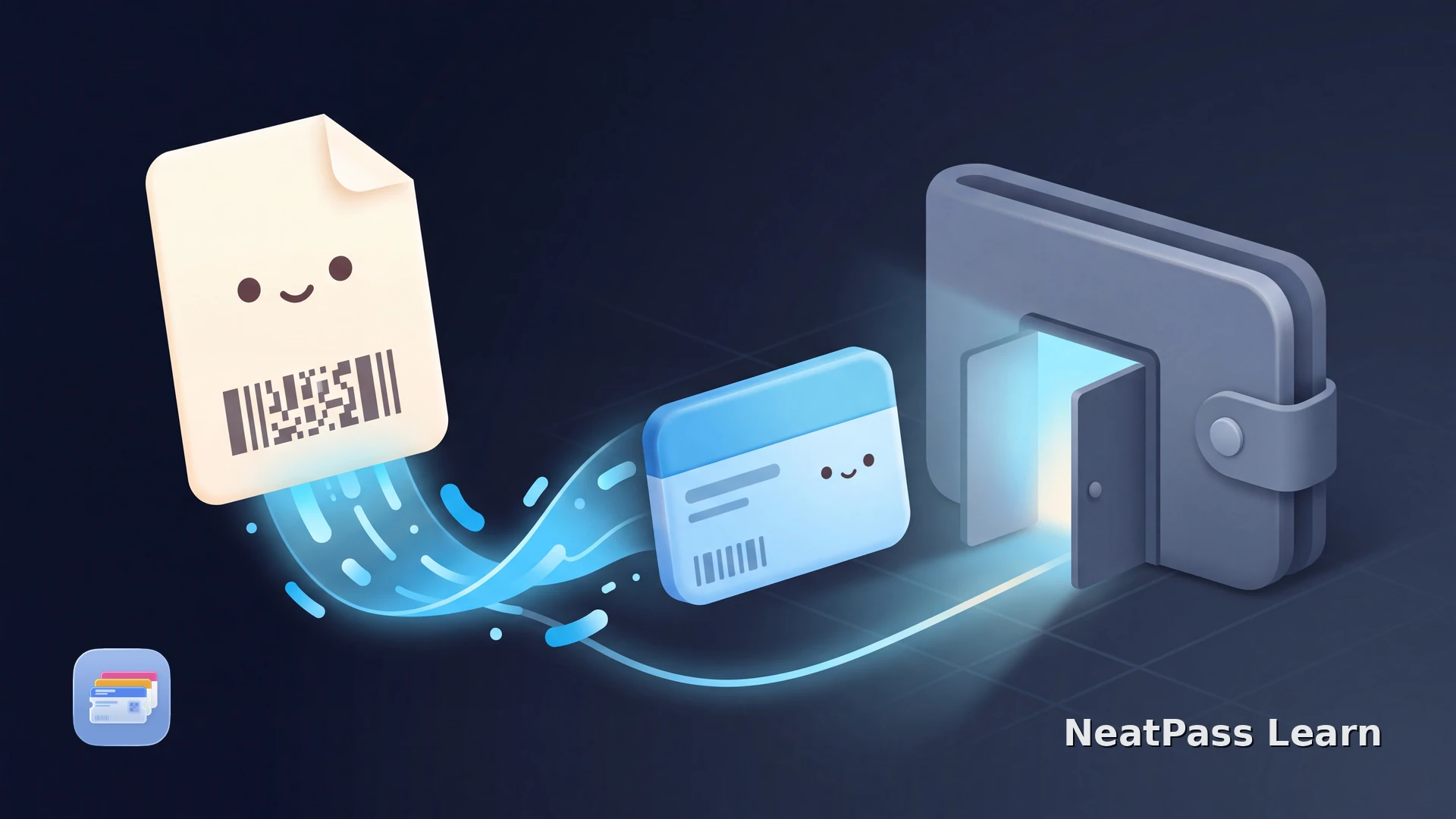
Yes, you can turn a PDF into an Apple Wallet pass, as long as the PDF has a barcode or QR code. Apple Wallet has no built-in PDF import, so the PDF never opens as a pass on its own. A converter app reads the code out of the PDF and builds a real pass around it. This works for any PDF: a ticket, a membership card, a loyalty card, a gym card, a voucher, a boarding pass, or an insurance card.
Why Apple Wallet Will Not Open a PDF
Apple Wallet holds passes, not documents. A pass is a small file with a barcode, a few text fields, and colors. A PDF is a page layout. Wallet has no way to know which part of the page is the barcode and which part is just print, so it never offers to add a PDF.
Wrong file type
Wallet only opens .pkpass files, not PDFs
No PDF import
There is no button to add a PDF to Wallet
Tapping does nothing
Open a PDF and Wallet is not even offered
Turn your PDF into a pass
NeatPass makes it easy to convert any ticket, pass, or loyalty card to Apple Wallet.
How a PDF Becomes a Pass
A converter reads the barcode out of the PDF and builds a pass around it. NeatPass does this on your iPhone. It scans every page of the PDF, finds the barcode or QR code, and fills in the title, dates, seat, and colors from the text on the page.
The barcode on the finished pass carries the exact same data as the one in the PDF, so it scans at the gate or register just like the original. You get a real Wallet pass you can open from the lock screen.
Works with any barcode
How to Convert a PDF, Step by Step
Open NeatPass
Pick your PDF
NeatPass reads the pages
Check the details
Add to Apple Wallet
The whole thing takes a few seconds and happens on your phone. Your PDF goes from a file buried in your email to a pass you can scan in one tap.
What Kinds of PDF Work
Almost any PDF with a scannable code works. If you have a travel PDF specifically, see the guide on converting PDF tickets to Apple Wallet. Here are the common ones people convert:
Tickets and boarding passes
Event tickets, train tickets, and airline boarding passes
Membership and loyalty cards
Store loyalty cards, club cards, and membership PDFs
Gym and club cards
Gym cards, pool passes, and season passes
Vouchers and insurance cards
Gift vouchers, coupons, and insurance ID cards
PDFs That Need a Second Look
Most PDFs convert in one tap. A few need a little extra care. Here is what to do.
The PDF has several pages
The PDF has no barcode
The barcode changes over time
How NeatPass Handles Your PDF
NeatPass is built to keep your PDF private and your pass reliable.
One-time purchase
Pay once, convert as many PDFs as you want
On-device
The PDF is read on your phone and never uploaded
Keeps the original
The full PDF stays attached to the pass
Crisp barcode
The code is drawn fresh so scanners read it fast
There is no subscription and no account. Your PDF never leaves the phone, and you always have the original document if you need it later.
Frequently Asked Questions
Convert your PDF now
DownloadAny PDF, One Pass
Apple Wallet will not open a PDF, but a converter turns any PDF with a barcode into a real pass. NeatPass reads the code on your phone, builds the pass, and keeps the original PDF attached, so your ticket, card, or voucher is always one tap away on the lock screen.