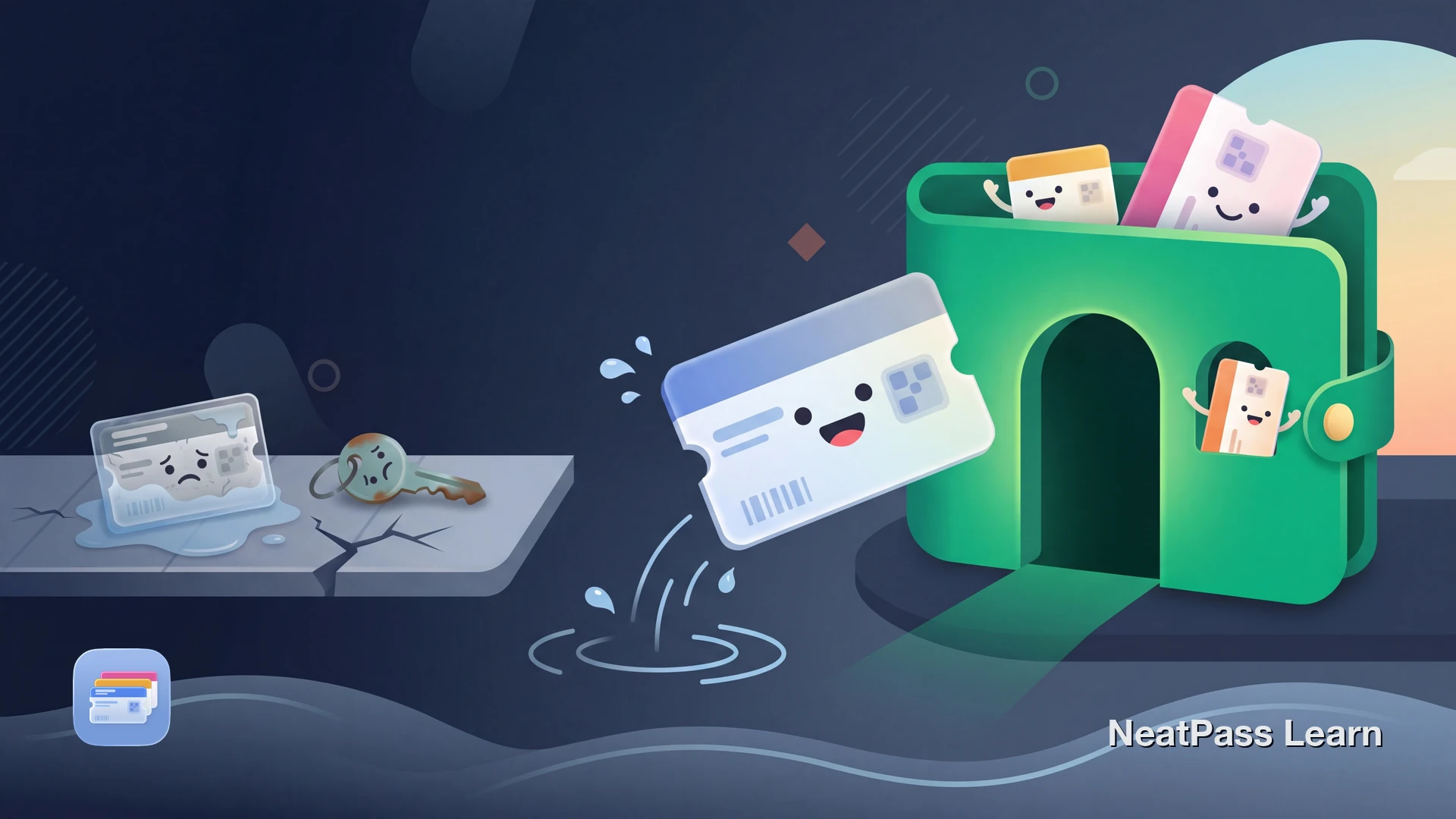
Pool passes still often come as physical cards, key fobs, or facility apps instead of Apple Wallet. Every visit means digging through a bag for a laminated card, fumbling with a wet key fob, or opening an app that barely works.
Whether it is a seasonal pool pass, a year-round rec center membership, or a family swim club card, there is a way to get it into Apple Wallet with NeatPass.
The Problem with Physical Pool Passes
Pool and recreation center memberships come with unique challenges that most other cards do not have:
Water damage
Paper cards get soggy, lamination peels, and barcodes smear after repeated poolside use
Family card juggling
Parents managing 3-4 kids' passes plus their own, all while carrying towels and swim bags
Seasonal renewals
New cards every summer season mean old ones pile up or get thrown away before you need them
Forgotten at home
You drove to the pool and your pass is on the kitchen counter
How to Digitize Your Pool Pass
The fix is straightforward: take a photo of your pool membership barcode, then use NeatPass to turn it into a native Apple Wallet pass.
NeatPass reads the barcode data from your photo or screenshot and creates a real Wallet pass. The pass reproduces the same scannable barcode data, so it can work at the front desk like the original card.
How it works
Ready to digitize your pool pass?
NeatPass makes it easy to convert any ticket, pass, or loyalty card to Apple Wallet.
Step-by-Step: Pool Pass to Apple Wallet
Find your barcode
Take a clear photo
Open NeatPass
NeatPass reads the barcode
Customize your pass
Add to Apple Wallet
Pro tip
Managing Family Pool Passes
Family memberships are where digital passes really shine. Instead of carrying four or five physical cards to the pool, create a separate Wallet pass for each family member. At check-in, swipe between passes to scan each one.
For families with young children, this means one parent can check in everyone without handing out cards that inevitably end up at the bottom of the pool bag or left in the car.
Pin your most-used pool pass to a lock screen widget for even faster access at the gate.
Why Apple Wallet Beats a Physical Pool Card
Once your pool membership lives in Apple Wallet, you gain features a laminated card simply cannot offer:
Lock screen access
Double-click side button to show your pass instantly
Works offline
No internet needed at outdoor pools with weak signal
More water-resistant than paper
Modern iPhones from iPhone 7 onward are splash and water resistant, though you should dry the screen before scanning.
Location-aware
Pass can appear on your lock screen when you arrive at the pool
Private import workflow
NeatPass processes the import on-device, and the finished pass is available in Wallet without reopening the original facility app.
Season-proof
The same pass can stay useful year after year if the facility keeps the same member ID and barcode active
Your pass works offline, perfect for outdoor pools with spotty reception. Learn about adding passes to Wallet and read the privacy FAQ to understand how your data stays on your device.
Why not just use a photo of the card?
Seasonal vs. Year-Round Passes
If your pool issues a new barcode each season, you will need to create a new Wallet pass when you renew. Simply delete the old pass and import the new barcode.
For year-round memberships with a permanent member ID, the same Wallet pass can stay useful as long as your membership remains active and the facility keeps the same barcode system.
Frequently Asked Questions
Get your pool pass in Apple Wallet
DownloadYour Pass, Always Ready
Pool operators do not always issue native Apple Wallet passes. That leaves members juggling physical cards, key fobs, or app-based barcodes.
With NeatPass, your pool membership card joins your other passes in Apple Wallet. One-tap access at the gate. No soggy cards. No forgotten passes. Just scan and swim.