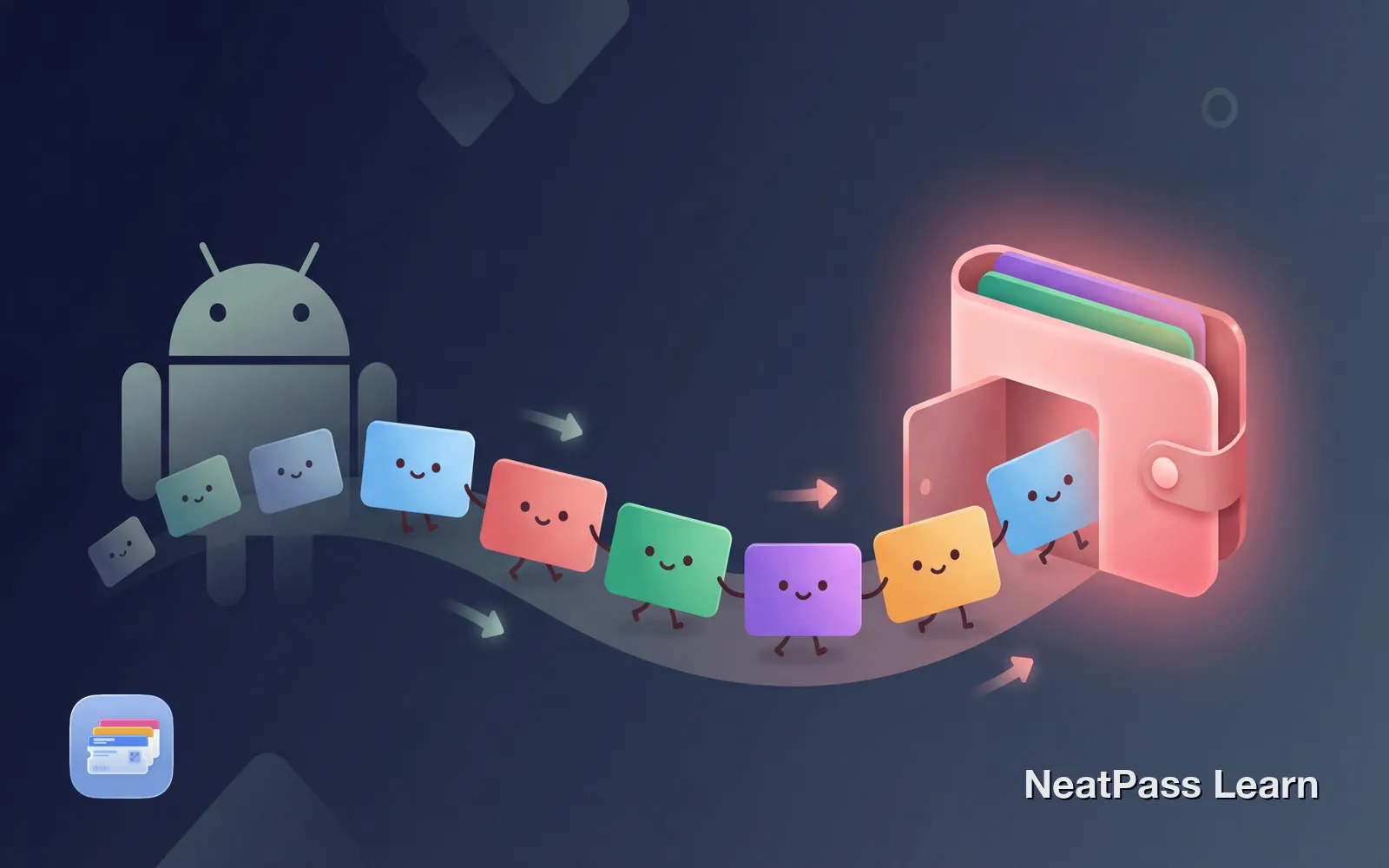
You've made the switch to iPhone. Your contacts transferred, your photos came over, but your wallet passes are nowhere to be found. That's because Google Wallet passes, Samsung Pay cards, and third-party loyalty apps don't automatically migrate to Apple Wallet.
The good news: your passes aren't lost. You just need to recreate them. Here's how to get everything into Apple Wallet on your new iPhone.
What Transfers Automatically (And What Doesn't)
Apple's Move to iOS app does a lot of heavy lifting when switching from Android. It transfers contacts, photos, messages, calendars, and even some app data. But wallet passes aren't on that list.
Payment cards
Must be re-added and verified by your bank
Google Wallet passes
No transfer path to Apple Wallet
Samsung Pay passes
Samsung's format doesn't export to iPhone
Loyalty app cards
Stocard, Catima cards need recreation
Google Wallet and Apple Wallet use completely different pass formats. There's no official way to export from one and import to the other. Each ecosystem is its own island.
Before You Switch: Capture Everything
If you haven't completely moved to iPhone yet, take a few minutes to preserve your Android passes. This will make recreation much easier.
Screenshot your passes
Forward confirmation emails
Note membership numbers
Check linked apps
Transfer your screenshots to your iPhone via Google Photos, email, or AirDrop from a computer. You'll use these to recreate passes.
Bring your passes to Apple Wallet
NeatPass makes it easy to convert any ticket, pass, or loyalty card to Apple Wallet.
Recreating Passes on iPhone
Once you're on iPhone, you have several options for getting passes into Apple Wallet, depending on the pass type and source.
Option 1: From Original Sources
The cleanest method is getting fresh passes from the original issuers. Many companies now support Apple Wallet directly.
- Airlines - Download their iOS app and add boarding passes from your upcoming trips
- Event tickets - Check confirmation emails for "Add to Apple Wallet" links
- Transit passes - Set up fresh in the transit app or Apple Wallet's transit section
- Store apps - Many retail apps (Target, Walgreens, etc.) offer direct Wallet integration
Check your inbox
Option 2: From Screenshots
For passes that don't offer native Apple Wallet support, you can recreate them from the screenshots you captured. NeatPass uses AI to read your images, detect barcodes, and auto-fill pass details like title, colors, and dates.
Open NeatPass
Select your screenshot
Let NeatPass extract the data
Customize and add to Wallet
Learn more about this process in the detailed guide: How to Convert Screenshots to Apple Wallet Passes.
Option 3: From Physical Cards
If you have the physical loyalty card, you can photograph it directly. NeatPass reads barcodes from photos just as easily as screenshots.
Photo tips
For more on digitizing physical cards, read: How to Convert Any Image to an Apple Wallet Pass.
Transferring Specific Pass Types
Loyalty Cards
Your loyalty cards transfer to iPhone in seconds. The barcode contains the same data as your plastic card - just screenshot it from your Android app or photograph the physical card.
NeatPass automatically recognizes your membership number and creates an Apple Wallet pass. Works with all supported barcode formats - ready to use at any checkout.
Event Tickets
For upcoming events: Check your purchase confirmation email. Ticketmaster, AXS, and Eventbrite often include direct Apple Wallet links. If not, a clear screenshot of the barcode is all you need.
Tip: Keep your original ticket accessible until after the event. With NeatPass you can always view the original source.
Transit Passes
Transit cards are often tied to specific hardware and can't be transferred via screenshot. In these cases:
- Create a new account through your transit agency's app on iPhone
- Add a payment method to top up
- Contact the provider for a balance transfer (many support this)
Policies vary - check with your transit agency. See also the supported pass types.
Why Apple Wallet Is Worth the Migration Effort
Recreating passes takes some time, but you're not just moving data. You're upgrading to a better system.
Lock screen access
Double-click to show passes instantly
Works offline
No internet needed at the scanner
Private by design
Apple doesn't track your pass usage
iCloud backup
Passes sync across all your Apple devices
NeatPass follows the same privacy principles. All barcode extraction happens on your device. Your pass data never leaves your phone.
Once in Apple Wallet, your passes work offline and appear automatically on your lock screen based on location and time. You can also add home screen widgets for your most-used cards.
Frequently Asked Questions
Start recreating your passes
DownloadYour Passes, Now on iPhone
Switching platforms means rebuilding your digital wallet, but it's a one-time effort. Once your passes are in Apple Wallet, they're backed up to iCloud, accessible from your lock screen, and always available offline.
NeatPass makes the migration easier by converting any barcode image into a native Wallet pass. Screenshot, scan, add to Wallet. Your Android passes now work on iPhone.