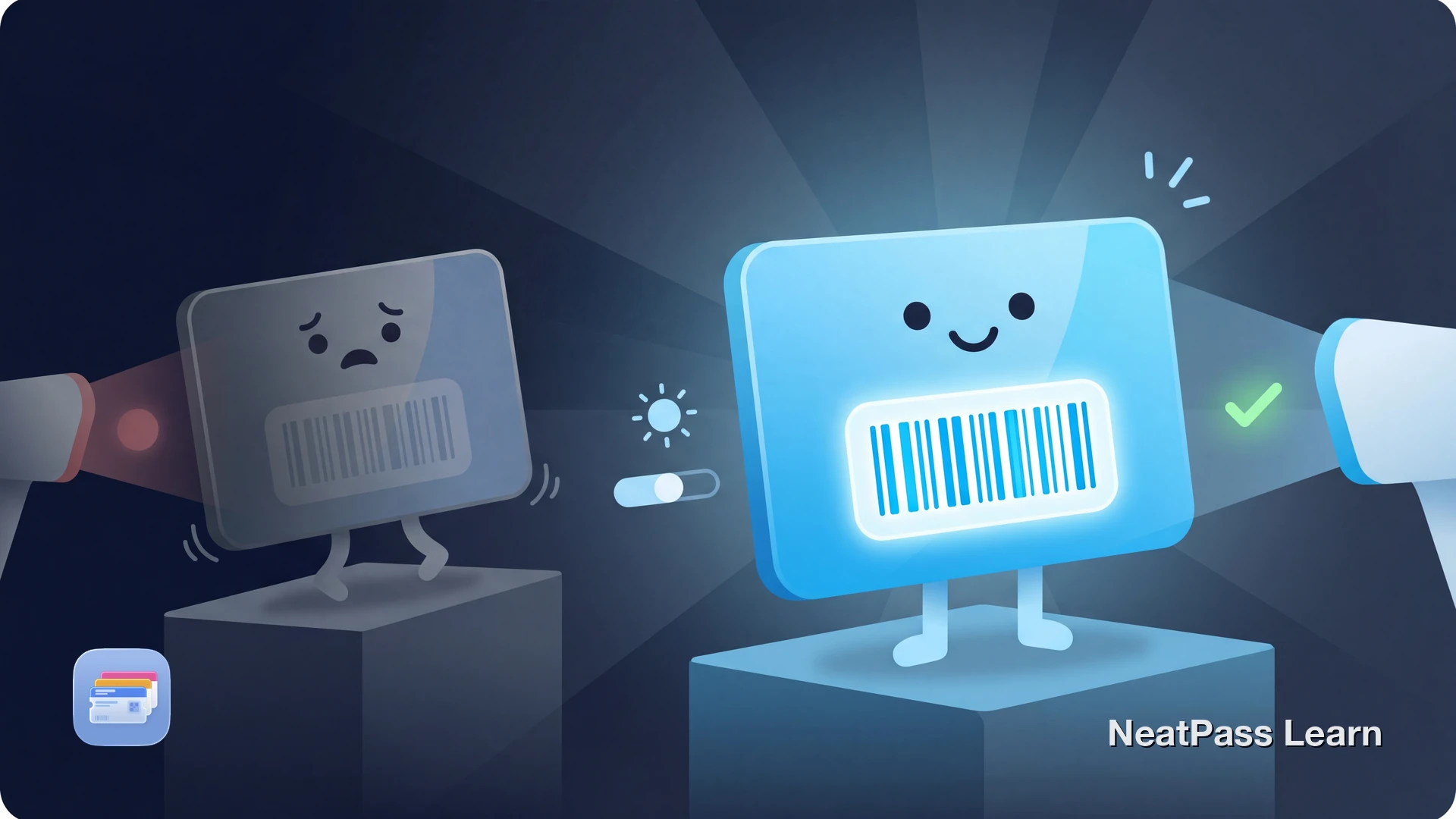
Wallet passes scan more reliably than screenshots because the barcode is rendered cleanly, shown in a focused full-screen view, and the screen automatically brightens. If a pass still will not scan, the problem is usually glare, Low Power Mode, screen protection, or scanner limitations.
Most scanning failures come down to a handful of common causes. Here are practical tips for when auto-brightness is not enough, what can go wrong, and how to fix it.
How Pass Display Affects Scanning
When you open a barcode pass in Apple Wallet, iOS presents it in a clean full-screen layout with a sharp rendered barcode. The screen automatically brightens to help scanners read the code. Despite this, some situations can still cause scanning issues.
Clean full-screen presentation
Wallet shows the barcode prominently without extra app chrome, which makes it easier for many scanners to read.
Sharp barcode rendering
Native passes render the barcode from data instead of from a blurry screenshot, which improves clarity.
Automatic screen brightness
Wallet automatically increases screen brightness when displaying a barcode, giving scanners the best possible contrast.
This applies to all natively supported barcode types including QR Code, PDF417, Aztec, and Code 128. For a full list, see the supported barcodes guide.
When Brightness or Display Settings Get in the Way
Even with a native Wallet pass, there are situations where the screen is still hard for a scanner to read.
Low Power Mode
Low Power Mode can leave your screen dimmer than usual, so raising brightness manually before scanning is a good first check.
Accessibility settings
Features like Reduce White Point or Zoom Filter can cap maximum brightness or alter display output in ways that affect barcode readability.
Glare and viewing angle
A bright scanner beam, overhead lighting, or the wrong angle can create reflections that wash out the code.
Software glitches
Occasionally an iOS or app-state glitch can affect how the pass displays. A restart is still a reasonable troubleshooting step.
Quick check for a dim screen
Why Barcodes Sometimes Refuse to Scan
Even with maximum brightness, a barcode can fail to scan. The problem is not always the screen. Here are the other common causes.
Screen protector interference
Matte protectors scatter light and reduce contrast. Scratches or damage on the protector can create glare that confuses the scanner.
Damaged or corrupted barcode data
If the barcode was created from a screenshot or a low-quality image, the encoded data may be incomplete or unreadable.
Wrong barcode format
The scanner at the venue may expect a different barcode type than the one on your pass. Not all scanners read all formats.
Scanner equipment issues
Dirty scanner lenses, misconfigured equipment, or old hardware can cause failures that have nothing to do with your phone.
If your barcode was created from a photo or screenshot and looks blurry, the data may be corrupted. See the barcode not detected troubleshooting guide for help.
Sharp Barcodes That Scan More Reliably
NeatPass makes it easy to convert any ticket, pass, or loyalty card to Apple Wallet.
Quick Fixes for Scanning Problems
Before you assume the pass is broken, try these steps. They can clear up common scanning issues quickly.
Disable Low Power Mode
Manually increase brightness
Clean your screen
Adjust the angle
Reopen the pass cleanly
Even faster access
How NeatPass Optimizes Barcode Scanning
NeatPass creates native Apple Wallet passes, which means your barcodes get all the built-in scanning advantages. But NeatPass also adds its own optimizations on top.
Optimized barcode rendering
Barcodes are generated from data, not copied from images. That helps them stay sharp across common Wallet viewing sizes and avoids screenshot blur.
Multiple barcode formats
NeatPass supports QR Code, PDF417, Aztec, Code 128, and more. The right format is chosen based on the original source.
Full offline support
Passes work without an internet connection. No loading screens, no app login, no server delays at the checkout.
Native Wallet presentation
Because NeatPass creates native Wallet passes, your barcode is shown in the same clean Wallet layout as other passes.
More consistent scanner results
Native barcode data can produce more consistent results across different scanner types and hardware generations.
All passes work fully offline, with no internet needed at the scanner. Learn more about offline mode and how NeatPass handles barcode conversion.
Tips for Reliable Scanning Every Time
Follow these habits and you are less likely to run into scanning problems.
Keep Low Power Mode off
Disable it when heading to the register or gate. Turn it back on after you scan.
Clean your screen
A quick wipe before presenting your barcode takes two seconds. Even minor smears can scatter light.
Use a slight angle
Hold your phone at a slight angle to the scanner. Direct reflection is one common cause of failed reads.
Avoid matte screen protectors
If you scan barcodes frequently, glossy protectors preserve better contrast for scanners.
Create passes from original sources
Use PDF tickets or email confirmations rather than screenshots. Data-based barcodes are sharper.
Restart your iPhone
If brightness behavior seems stuck, a restart clears temporary software glitches.
If your barcode looks different from the original after conversion, here is why that happens and when it is fine.
Frequently Asked Questions
Bright Screen, Clean Scan
When scanning fails, the cause is usually a dim screen, glare, a dirty display, or scanner limitations rather than the barcode data itself. Those are all quick things to check before assuming the pass is broken.
For the most reliable experience, use passes built from actual barcode data rather than screenshots. NeatPass creates native Wallet passes with properly encoded barcodes that stay sharp, work offline, and are easier for many scanners to read.
Get sharper barcodes in Wallet
Download