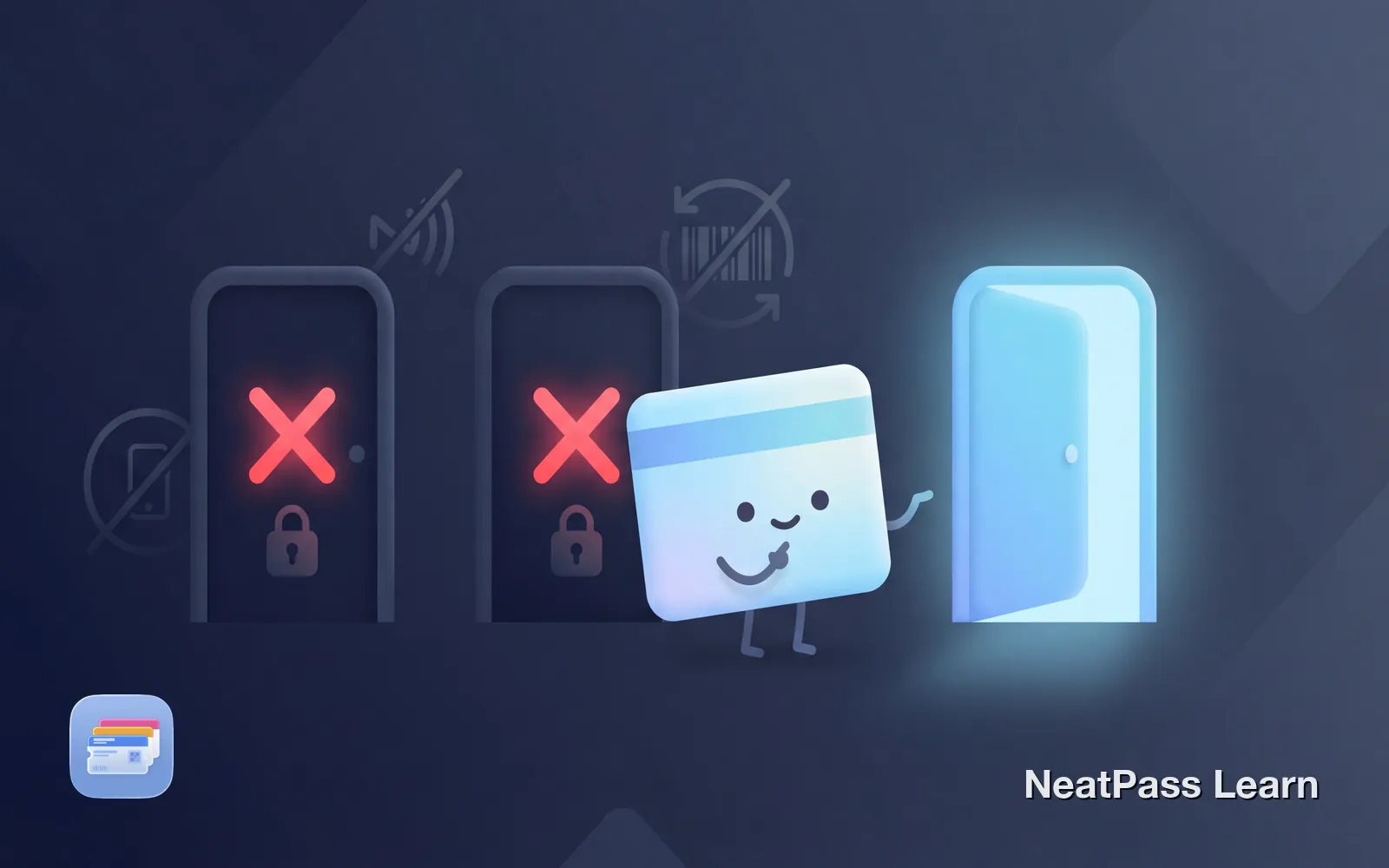
Apple Wallet is powerful, but it is not magic. There are real limitations that Apple does not advertise, and understanding them helps you decide when you need a workaround. Here is an honest look at what Apple Wallet cannot do, and how to work around each limitation.
What Apple Wallet Cannot Do
Before diving into workarounds, be clear about what Apple Wallet genuinely cannot do. These are not bugs or missing features, they are deliberate design decisions.
Clone NFC access cards
You cannot duplicate your apartment key fob or office badge
Add unsupported bank cards
Your bank must partner with Apple, you cannot force a card in
Generate rotating barcodes
Dynamic barcodes require issuer integration with Apple
Store arbitrary images
You cannot add screenshots or photos directly to Wallet
Limitation 1: No NFC Card Cloning
The most common frustration: you cannot clone your apartment key fob or office badge into Apple Wallet. Your iPhone has NFC hardware, so why not?
Apple deliberately restricts NFC pass creation for security reasons. The company requires card issuers to officially integrate with Apple Wallet rather than allowing users to copy any NFC credential. This prevents fraud and unauthorized access card cloning.
Why this matters
The Workaround
There is no workaround for NFC-only access cards. If your building uses NFC credentials, you need the physical card. However, many buildings are now supporting Apple Wallet natively through providers like HID, SALTO, or Brivo. Ask your building management if they plan to add support.
For hotel room keys, several chains including Hyatt, Hilton, and IHG now offer Apple Wallet integration at select properties.
Limitation 2: Bank Must Support Apple Pay
You cannot add just any credit or debit card to Apple Wallet for payments. Your bank must have a partnership with Apple. If they do not participate, there is no way to force your card into Wallet for contactless payments.
Apple maintains lists of participating banks for different regions. Most major banks in the US, Canada, UK, and Europe are supported. However, some regional banks, credit unions, and cards from certain countries are not available.
Regional limitations
The Workaround
For payments, your options are limited. You can check if your bank plans to add support, switch to a supported card, or use physical cards at terminals that do not accept contactless payments.
However, if you want to store the barcode from a store card or gift card (not for NFC payments, but for scanning at checkout), NeatPass can help. Many store cards and gift cards use barcodes rather than NFC, and these can be converted to Wallet passes.
Limitation 3: No Arbitrary Image Storage
Apple Wallet only accepts passes in the .pkpass format. You cannot add screenshots, photos, or arbitrary images directly to Wallet. This trips up many users who want to store vaccination cards, insurance cards, or other documents.
Apple's reasoning: Wallet is designed for interactive passes with barcodes and data, not as a general image storage system.
Add any card with a barcode
NeatPass makes it easy to convert any ticket, pass, or loyalty card to Apple Wallet.
The Workaround
This is where NeatPass excels. If your card or document has a barcode or QR code, NeatPass can extract it from a screenshot or photo and create a proper Wallet pass. The pass includes all the features native passes have: lock screen access, automatic brightness, and offline functionality.
- Screenshot buried in Photos
- Search through thousands of images
- Brightness not optimized for scanning
- No lock screen access
- Proper pass in Apple Wallet
- Double-tap side button to access
- Auto-brightness for scanning
- Works completely offline
For documents without barcodes (like a photo of your medical information), the best option is creating a dedicated album in Photos for quick access.
Limitation 4: Limited Pass Customization
Apple strictly controls how passes look. You cannot change the font, resize text, add custom buttons, or rearrange field positions. Apple and Google define the structure and placement of all elements.
This exists for good reasons: consistency across passes, better usability, and preventing deceptive designs. But it can be frustrating when the default layout does not match your preferences.
What You CAN Customize
Background color
Choose any RGB color for the pass background
Logo and strip image
Add your own logo and banner image
Field content
Control what text appears in each field
Barcode type
Choose from supported barcode formats
NeatPass gives you control over the customizable elements. You can choose colors, add logos, and set field labels to match how you want your passes to appear. While the layout remains Apple-defined, your passes can still reflect your style.
Limitation 5: Dynamic Barcodes Require Issuer Support
Some tickets, like Ticketmaster SafeTix, use rotating barcodes that change every few seconds. This prevents screenshots from working at entry gates. Apple Wallet supports these dynamic barcodes, but only when the ticket issuer has integrated with Apple.
If an issuer has not built this integration, you cannot create a pass with rotating barcodes yourself. The barcode in any third-party pass will be static.
Screenshots will not work
The Workaround
For events using dynamic barcodes, there is no workaround. Use the official app or the official Apple Wallet pass if the issuer provides one. Once the pass is in Wallet, it will refresh the barcode automatically.
However, many events still use static barcodes that work perfectly when converted to Wallet passes. Movie theaters, smaller venues, conferences, and most loyalty programs use static codes. Check the article on why concert screenshots do not scan to understand which ticket types you can convert.
What NeatPass Can Actually Help With
The following section explains where NeatPass provides real value versus Apple Wallet's limitations.
Cards without 'Add to Wallet' button
Most loyalty cards, gym memberships, library cards
Screenshot and photo import
Extract barcodes from images using on-device AI
Pass customization
Colors, logos, and field labels within Apple's constraints
Static barcode tickets
Events, movies, transit passes with fixed barcodes
What NeatPass cannot help with
- NFC-only access cards (no barcode to convert)
- Credit/debit cards for payments (requires bank partnership)
- Dynamic rotating barcodes (requires issuer integration)
- Documents without any barcode or QR code
Privacy Advantage of the Workarounds
One benefit of using NeatPass to work around Apple Wallet limitations: your data stays on your device. NeatPass uses on-device processing to extract barcodes and create passes. Your ticket content stays on your device.
This means you get the convenience of Apple Wallet without giving up privacy to yet another company. Your cards remain yours.
Frequently Asked Questions
Get unsupported cards in Wallet
DownloadWorking Within the Constraints
Apple Wallet has real limitations, but understanding them helps you make the most of what it can do. For most everyday cards, loyalty programs, gym memberships, library cards, event tickets with static barcodes, NeatPass provides a straightforward path into Wallet.
The cards you cannot add are the exception, not the rule. Focus on what you can digitize today. Your physical wallet will get a lot lighter.
Related articles
- What Can Apple Wallet Store? (Complete guide to supported pass types)
- Apple Wallet Features You're Probably Not Using (Get more from your existing passes)
- How to Add Any Card to Apple Wallet (Step-by-step guide for unsupported cards)