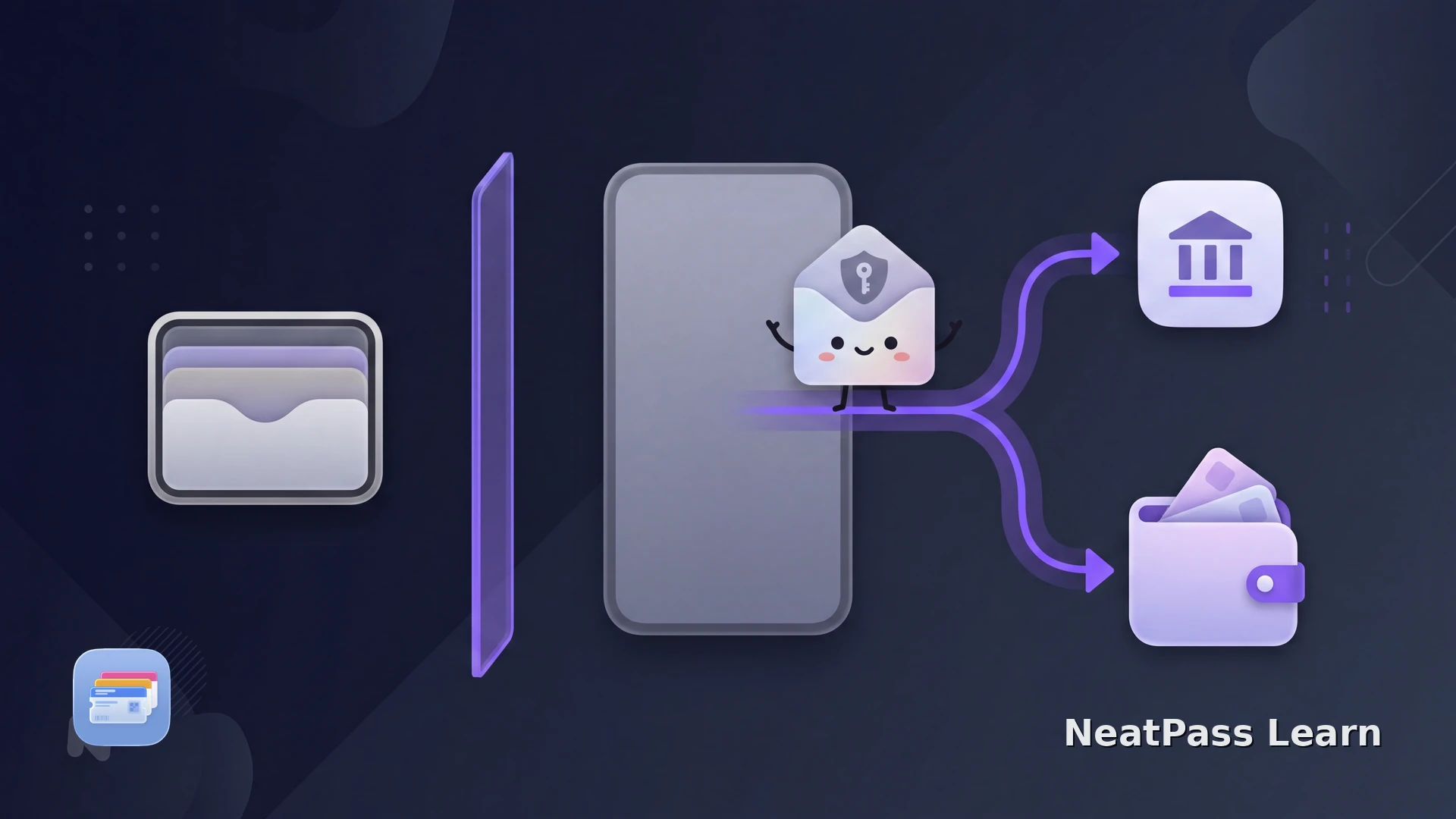
Apple Wallet is available on iPhone and Apple Watch, not Android.
The useful next step is to identify the pass issuer's Android option. Depending on the issuer, that may be an app or website, or Google Wallet when the issuer offers it.
Short answer
Apple Wallet's Platform Boundary
Apple Wallet passes are available on iPhone and Apple Watch. Apple does not provide an Android version of the Apple Wallet app.
This is a platform boundary, not a missing Android setting. An issuer's Apple Wallet button is not an Android destination, so look for the issuer's Android or Google Wallet option instead.
Your Android Options
Start with the service that issued the pass. These are the practical destinations to check:
- The issuer's Android app, if it provides the ticket or membership card there.
- The issuer's website, if it offers a mobile pass, account view, or barcode page.
- Google Wallet, through an issuer option when available or its documented photo/barcode flow. Google also supports adding some files, but classification and availability depend on the file and pass type, and issuer updates may not carry over.
Apple Wallet and Google Wallet are separate platform destinations. The NeatPass guide to Apple Wallet and Google Wallet explains the distinction without treating one as an Android client for the other.
Check the Issuer Before You Search for an App
A quick check of the original ticket or membership source usually gives you the right answer:
- Open the issuer's Android app or sign in on its website and look for the pass in your account.
- Look for an explicit Google Wallet button or supported-wallet list. Do not infer support from an Apple Wallet button alone.
- Keep the original confirmation, barcode, or account access available until you know which Android option works.
Use NeatPass when you have an iPhone
NeatPass makes it easy to convert any ticket, pass, or loyalty card to Apple Wallet.
Where NeatPass Fits
On iPhone, NeatPass can create a standard Apple Wallet pass from compatible source material when the issuer does not offer a direct handoff. Android users should follow the issuer's Android app, website, or Google Wallet option.
Before planning an iPhone workflow, check the NeatPass compatibility guide for the current device requirement.
On a supported iPhone, the NeatPass import-methods guide explains how to start with a file, photo, screenshot, or other source.
Frequently Asked Questions
Keep your supported passes in one place
DownloadUse the Wallet Your Issuer Supports
Apple Wallet is available on iPhone and Apple Watch, not Android. On Android, follow the issuer's supported path through its app or website, or Google Wallet when offered. If you use an iPhone, NeatPass can create standard Wallet passes from your own source material, but it remains an iPhone app and does not extend Apple Wallet to Android.