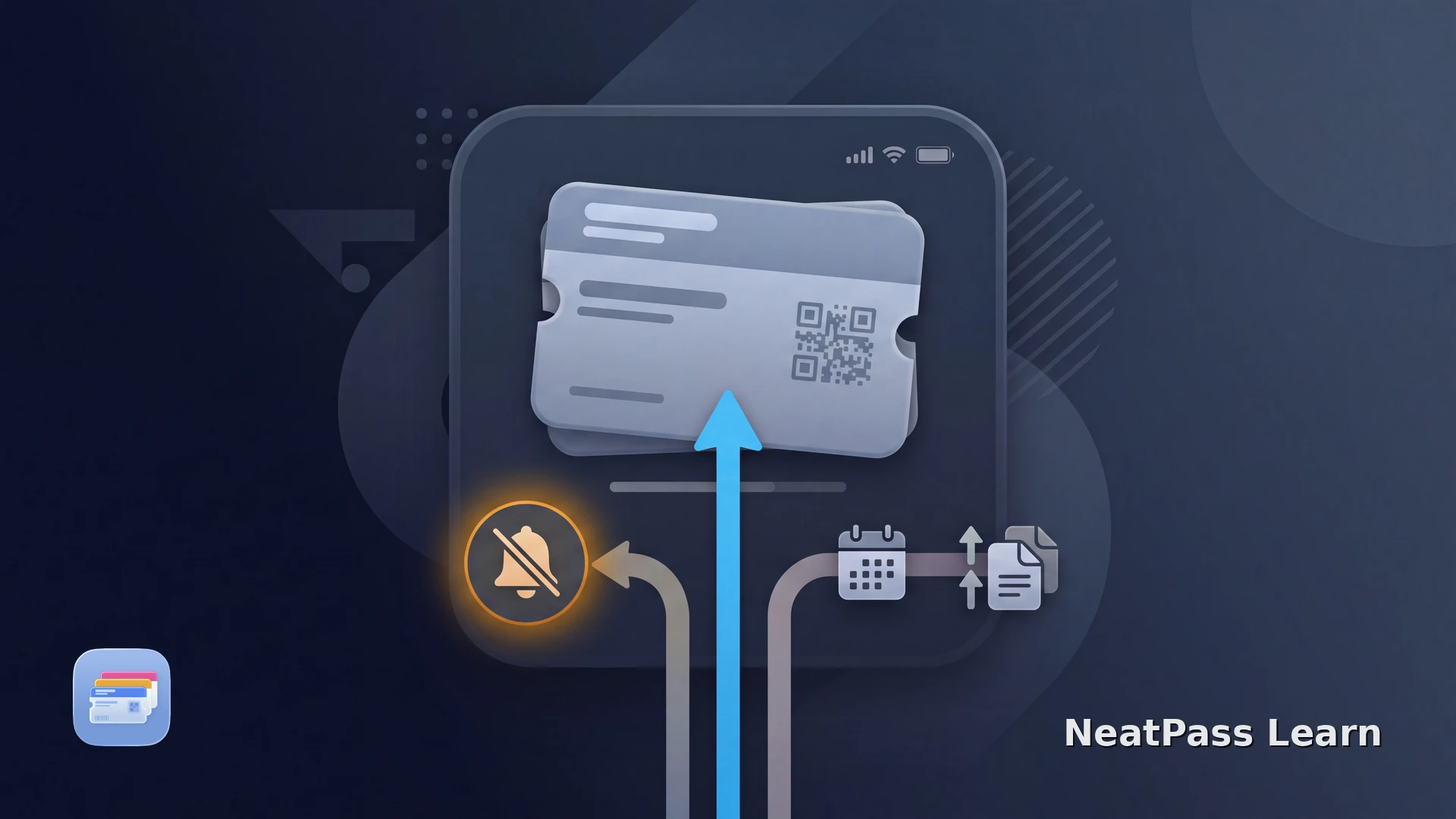
An Apple Wallet pass can update without producing a notification. A separate pass can appear on the Lock Screen because its date or location is relevant. Treat an issuer update, a Wallet alert, and passive surfacing as separate events.
Start with Wallet's notification permission and, when the pass offers it, the pass's Automatic Updates setting. Then check what the issuer actually sends. If the reminder is for a card stored in NeatPass, its local reminder settings are a separate path.
Check Wallet notification settings
First confirm that Wallet is allowed to notify you. The exact labels can vary by iOS version, but the current path to check is Settings > Wallet & Apple Pay > Notifications:
Open notification settings
Review the pass itself
Test the right event
For NeatPass's local notification settings, see the NeatPass notification guide.
Automatic Updates still depend on the issuer
The Automatic Updates switch lets a pass receive changes, but it does not create an update. The issuer must publish new pass data, and Wallet then retrieves it. If the issuer sends nothing, there is no new Wallet notification to show.
Permission is not delivery
For NeatPass-specific troubleshooting after the issuer check, compare the symptoms with the NeatPass Wallet troubleshooting guide before changing unrelated iPhone settings.
Separate alerts from passive surfacing
Wallet behavior is easier to understand when you name the event you expect:
Issuer update
The issuer publishes updated data, and Wallet retrieves the latest version for passes that support updates.
Wallet notification
The Wallet notification permission controls whether an alert can be shown.
Lock Screen relevance
If the pass offers Suggest on Lock Screen, a relevant date or location can surface it passively. Location-based relevance also needs Location Services.
A relevance date is therefore not a notification schedule. It can help iOS surface a useful pass at the right context, but it does not promise a banner, sound, or scheduled reminder.
For NeatPass's local Lock Screen access, read the NeatPass Lock Screen widget guide.
Keep static cards close at hand
NeatPass makes it easy to convert any ticket, pass, or loyalty card to Apple Wallet.
NeatPass reminders are local
NeatPass adds local, date-based reminders for cards in its own library. Set a date and allow the app's notifications when you want that local reminder; issuer updates and Wallet alerts remain controlled by their own channels.
For a calendar-backed workflow, see the NeatPass calendar integration guide.
When you want the card in Wallet as well, follow the NeatPass Add to Wallet guide and treat its local reminder as a separate convenience.
Frequently asked questions
Keep a local reminder for an important card
DownloadName the layer that should notify you
Check Wallet permission, the pass's Automatic Updates setting, and the issuer's delivery behavior in that order. A missing alert may be expected when the event was only a background update or passive Lock Screen surfacing.
For imported cards, NeatPass provides a separate local reminder path based on your dates and notification permission. Keeping the two systems distinct makes the next troubleshooting step clear.
More Wallet context