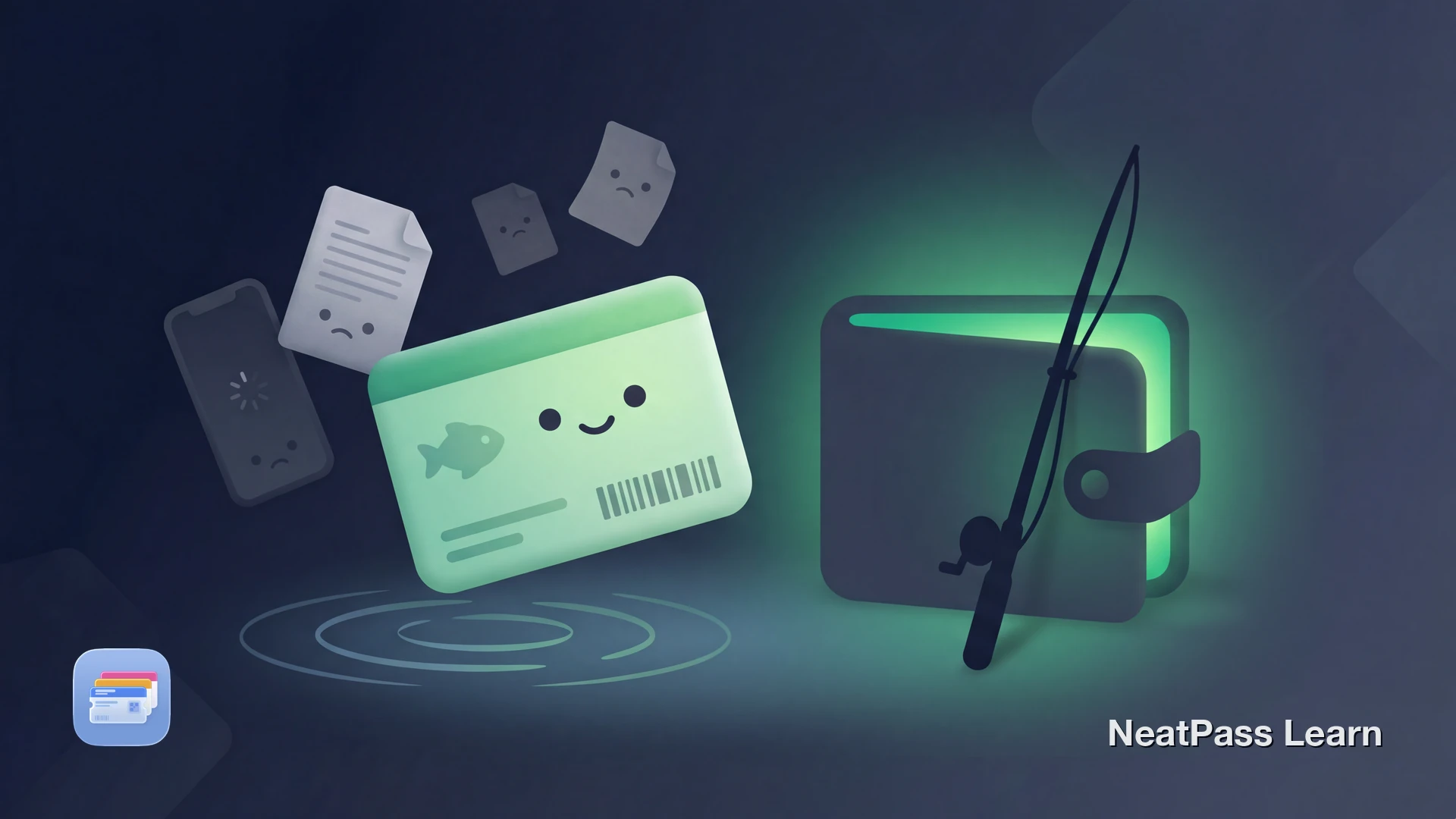
Most state fish and wildlife agencies still issue fishing licenses as PDF emails, paper printouts, or in-app views buried inside slow government portals. When a game warden asks for proof on the water, you end up scrolling through email, waiting for an app to load, or digging through your tackle box for a soggy receipt.
No state wildlife agency currently offers native Apple Wallet support for fishing licenses. But if you have a license number, confirmation barcode, or PDF receipt, you can create a Wallet pass that is ready the moment you need it.
How Fishing Licenses Are Issued Today
License formats vary by state, but most follow a few common patterns. Understanding what you receive helps you decide the best way to get it into Apple Wallet.
PDF email confirmations
Many states email a PDF after online purchase. These often contain a license number, QR code, or barcode that serves as proof of purchase.
State-specific apps
Apps like Go Outdoors (VA, NC, GA), Fish|Hunt FL, CDFW License (CA), and MyFWP (MT) let you view your license digitally, but only inside that app.
Paper cards and receipts
Some states mail a physical card. Others print a receipt at point of sale. Either way, the license info is tied to an ID number or barcode.
Online account portals
Several states let you log in to view and print your license from a web portal. This requires internet access and remembering your login.
The common thread is a license number or barcode that identifies your purchase. Check supported barcode formats to see which types NeatPass can read and convert.
The State of Digital Fishing Licenses
Digital adoption is growing, but unevenly. States like Texas now offer fully digital licenses for the 2025-26 season, where anglers carry proof entirely on their phone. California launched a CDFW License app that lets you display your license electronically. Washington state debuted its MyWDFW app in late 2025 for the 2026 license year.
Other states still require printed licenses or only accept proof through their own official app. Some states accept a screenshot or photo of your license, while others (like California) specifically require the official app display.
The problem is that none of these state apps integrate with Apple Wallet. Your license stays locked inside a government app that may be slow, require login each time, or not work without cell service. That is where a tool like import methods in NeatPass becomes useful.
Showing Proof to a Game Warden
In most US states, anglers must carry valid proof of their fishing license while fishing. Conservation officers and game wardens have the authority to stop and inspect your license at any time on the water, at the boat ramp, or along the shore.
Many states now accept digital proof shown on a phone screen. Some wardens can also look up your license by name or ID number using their field systems. But relying on a lookup means waiting, and it does not help if the warden has no signal either.
A Wallet pass with your license number or barcode is a fast, reliable way to show proof. It opens from the lock screen, works offline, and does not require logging into anything.
How NeatPass Gets Your License into Apple Wallet
NeatPass lets you capture a barcode or license number from your fishing license and turn it into an Apple Wallet pass. Instead of opening a state app or searching your email, you can pull up your license from Wallet in seconds.
Passes created in NeatPass work offline, which matters when you are fishing in areas with poor cell coverage. Your data stays private through local on-device processing, and you can customize the design to make it easy to spot among your other passes.
Scan from PDF or screenshot
Import the barcode or QR code from your emailed license PDF, a screenshot of your state app, or a photo of your paper license.
Works without cell service
Once in Apple Wallet, the pass displays your license info even in remote fishing spots with no signal.
Instant lock screen access
Double-click the side button and your fishing license appears. No app to open, no login to remember.
Private and local
Your license data is processed on your iPhone. Nothing is uploaded to external servers.
Custom labels and colors
Name the pass by state, season, or license type so you can tell multiple licenses apart at a glance.
Keep the original as backup
The Wallet pass supplements your official license. Keep the original PDF, app, or paper as a fallback.
Adding the pass to Wallet
Get your fishing license into Apple Wallet
NeatPass makes it easy to convert any ticket, pass, or loyalty card to Apple Wallet.
Step by Step: Fishing License to Wallet Pass
Find your license barcode or number
Import into NeatPass
Verify the pass details
Customize for quick access
Add to Apple Wallet and test
Important: This Is Not a Legal Replacement
A Wallet pass created from your fishing license is a convenience tool for quick access to your barcode and license information. It is not an official document issued by your state wildlife agency. Regulations about what constitutes valid proof of licensing vary by state.
Always carry your original fishing license or use your state's official app as the primary proof. Use your Wallet pass for quick reference and barcode display. You can customize the pass design to include notes about which documents to carry alongside it.
Frequently Asked Questions
Keep your fishing license ready in Wallet
DownloadLicense Ready, Line in the Water
Fishing should be about the water, not fumbling with apps and paperwork. A Wallet pass puts your license one tap away, works in remote areas without signal, and is ready the moment a warden asks.
If your state does not support Apple Wallet yet (and none currently do), NeatPass bridges the gap. Learn more about how passes work offline or set up widgets for even faster access on your next trip.