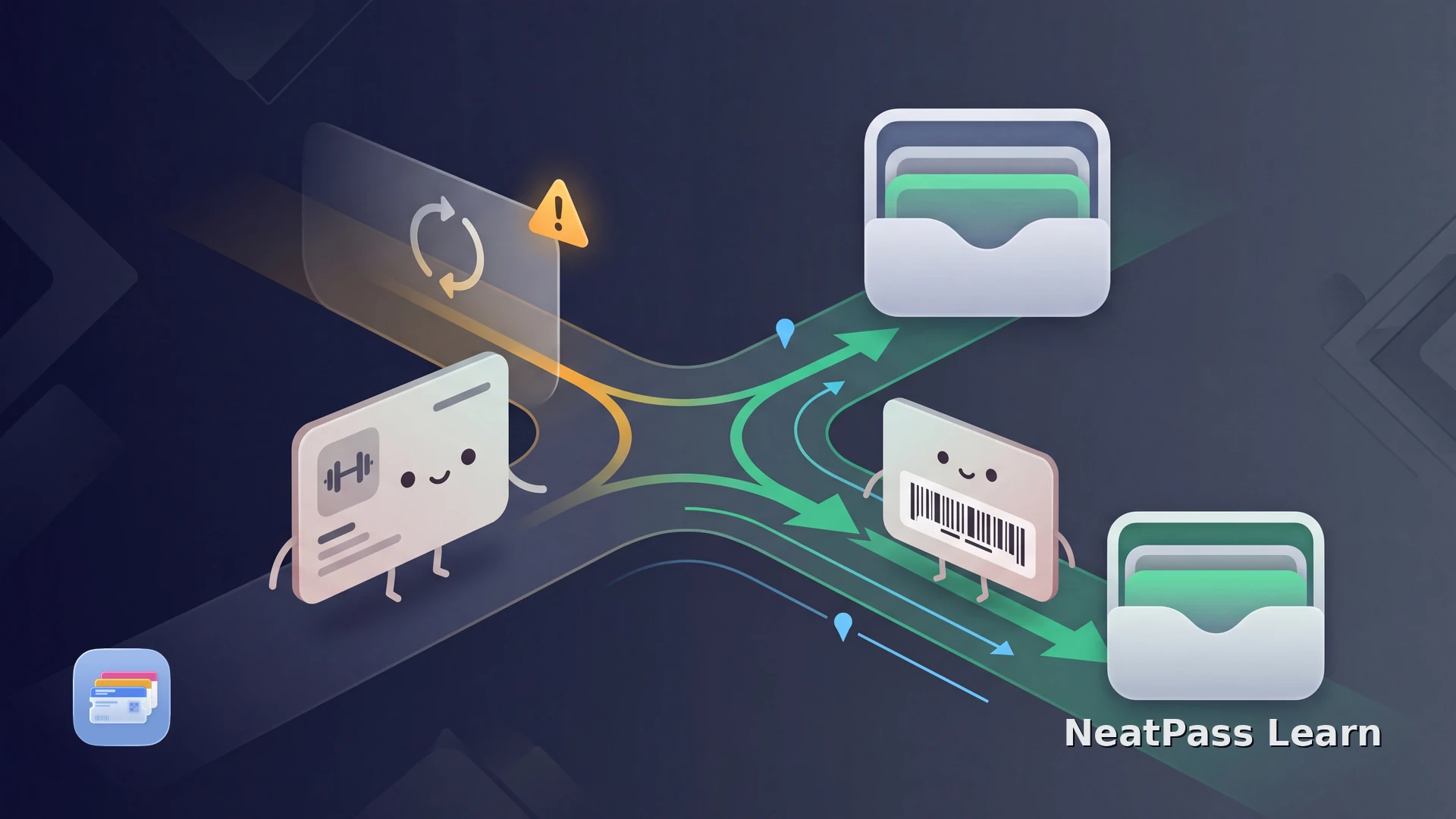
Fitness First Germany's membership terms document a membership card for club access, while its app page covers membership management and training but does not explain how the access credential is displayed. If you are looking for a Fitness First card in Wallet, check the current issuer flow and the kind of credential your access view actually shows.
Fitness First Germany and Apple Wallet
Fitness First Germany's membership terms name the membership card as the club-access credential, while the app page covers membership management, training plans, bookings, and activities. Neither page documents an Add to Apple Wallet path or explains how the current access credential appears.
Check your own current access view. If it shows a stable barcode or QR code that your club scans, NeatPass can place that code in Wallet. Use the Fitness First flow for a changing or non-barcode credential, and keep the personal membership card or ID available when the club requests an identity check.
Membership card and app
Fitness First Germany documents a membership card for access and an app for membership and training features.
Issuer-controlled information
The current club or app view determines which credential you should present.
Card technology is not documented
Confirm a stable visible barcode before creating a Wallet copy.
Look for a supported visible code
Create a Fitness First barcode pass with NeatPass
NeatPass can turn a clear, stable barcode or QR code from your current Fitness First access view into a Wallet pass for quick display. A changing or non-barcode credential stays in the Fitness First flow.
When your current Fitness First access view does show a stable code, choose a NeatPass import method to capture it. Test the result at your own club and keep the Fitness First app available until the scanner has accepted the pass.
Check your Fitness First card for a Wallet pass
NeatPass makes it easy to convert any ticket, pass, or loyalty card to Apple Wallet.
Step by step: test your Fitness First card
Open the Fitness First app
Check what the club actually scans
Capture the visible code
Review the detected data
Add and test at your club
Keep the original source available
What NeatPass adds
For a compatible visible barcode, NeatPass creates a clear Wallet pass with the same encoded value and keeps the imported source available beside it.
Quick display
Open a tested static code from Wallet without searching through the app.
Barcode fidelity
The pass keeps the visible barcode data captured from the Fitness First card.
Less app switching
A saved pass can be shown directly when you reach the check-in desk.
Clear membership label
Use a club name or membership label that you can recognize quickly.
If the pass does not display or scan correctly, use the NeatPass Wallet troubleshooting guide.
Use the credential your club accepts
A NeatPass barcode pass presents the stable encoded value from your source. Changing codes, app sessions, and non-barcode access remain in the Fitness First app or membership flow.
A membership or app change can alter the credential. Check the current access view again before relying on a saved pass.
Test the pass at your club with the Fitness First app or membership card available, and ask staff which credential to use if the scanner rejects it.
Frequently asked questions
Create a tested Fitness First pass
DownloadTest the code before you depend on it
Fitness First Germany's public material documents a membership card and the Fitness First app, but not how the access credential is displayed or an official Apple Wallet flow. A NeatPass barcode pass is useful when your own club displays and accepts a stable code.
Use NeatPass for that visible barcode, add it to Wallet, and test it with the official app ready. If the access view uses a changing or non-barcode credential, the Fitness First flow remains the right tool.
Continue with related guides