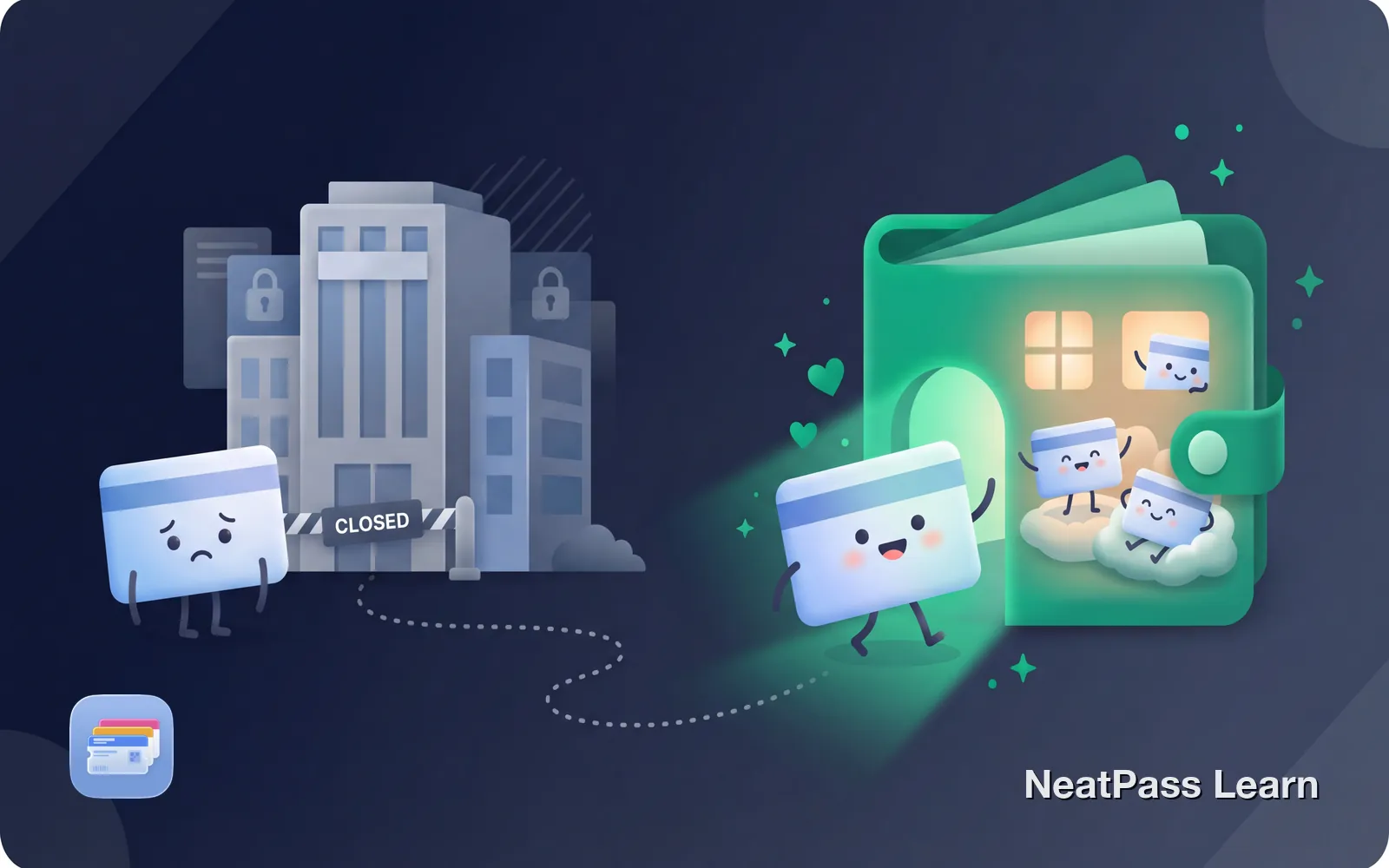
Your loyalty card has no "Add to Wallet" button. Every checkout, you open the store app, wait for it to load, maybe log in again while people wait behind you.
The retailer wants you in their app. But every loyalty card has a barcode, and that barcode works the same in Apple Wallet as on plastic.
Why Most Loyalty Cards Do Not Support Apple Wallet
Apple Wallet requires companies to integrate with Apple's PassKit framework. This takes developer resources, ongoing maintenance, and gives up some control over the customer experience. Many retailers decide it is not worth it.
Data collection preferences
Retailers want you in their app where they can track more
Development costs
PassKit integration requires engineering resources
App engagement
Their app means push notifications and upsells
Points sync complexity
Keeping Wallet passes updated with points is extra work
Which Cards Usually Work vs Do Not
Some major retailers support Apple Wallet natively. Many more do not. Here is a general breakdown:
- Starbucks (via their app)
- Walgreens Balance Rewards
- Target Circle (varies)
- Dunkin' (via their app)
- Some airline frequent flyer cards
- Most grocery store cards
- Gas station rewards
- Small business loyalty cards
- Gym memberships
- Library cards
The pattern
Add any loyalty card to Wallet
NeatPass makes it easy to convert any ticket, pass, or loyalty card to Apple Wallet.
The Workaround: Create Your Own Wallet Pass
Every loyalty card has one thing in common: a barcode. That barcode is what the register scans. It does not matter if the barcode is on a plastic card, in an app, or in Apple Wallet, the scanner reads the same data.
This means you can photograph your loyalty card's barcode and create your own Apple Wallet pass. NeatPass makes this easy.
Find your loyalty card barcode
Photograph or screenshot it
AI reads your image
Review and add to Wallet
The barcode in your new Wallet pass contains identical data to the original. When the cashier scans it, the register sees your loyalty account, just like if you handed over the plastic card.
Why This is Better Than Store Apps
Once your loyalty cards live in Apple Wallet instead of individual store apps, you gain several advantages:
Instant access
Double-tap side button to show any card immediately
Works offline
No internet needed, passes work anywhere
No account logins
Skip the login screen that store apps require
No app clutter
Delete the store apps, keep just your cards
For more on why native Wallet passes beat store apps, see the guide on Apple Wallet vs. loyalty apps. Learn more about offline mode and why local storage matters for everyday cards.
Privacy bonus
What About Points and Balance Updates?
This is the one limitation. Wallet passes you create yourself do not automatically update with your current points balance. The barcode works for earning and redeeming points, but to check your balance, you still need to:
- Open the store's app occasionally
- Check receipts after purchases
- Ask at the register
- Check the store's website
For most people, this tradeoff is worth it. You use your loyalty card far more often than you check your points balance.
Frequently Asked Questions
Add your loyalty cards now
DownloadYour Cards in Wallet
Retailers may never add Apple Wallet support for their loyalty cards. They benefit from keeping you in their apps. But you do not have to wait for them. Create your own Wallet passes from any card with a barcode.
With NeatPass, your loyalty cards join your boarding passes, event tickets, and memberships in one place. One tap to show any card at checkout.