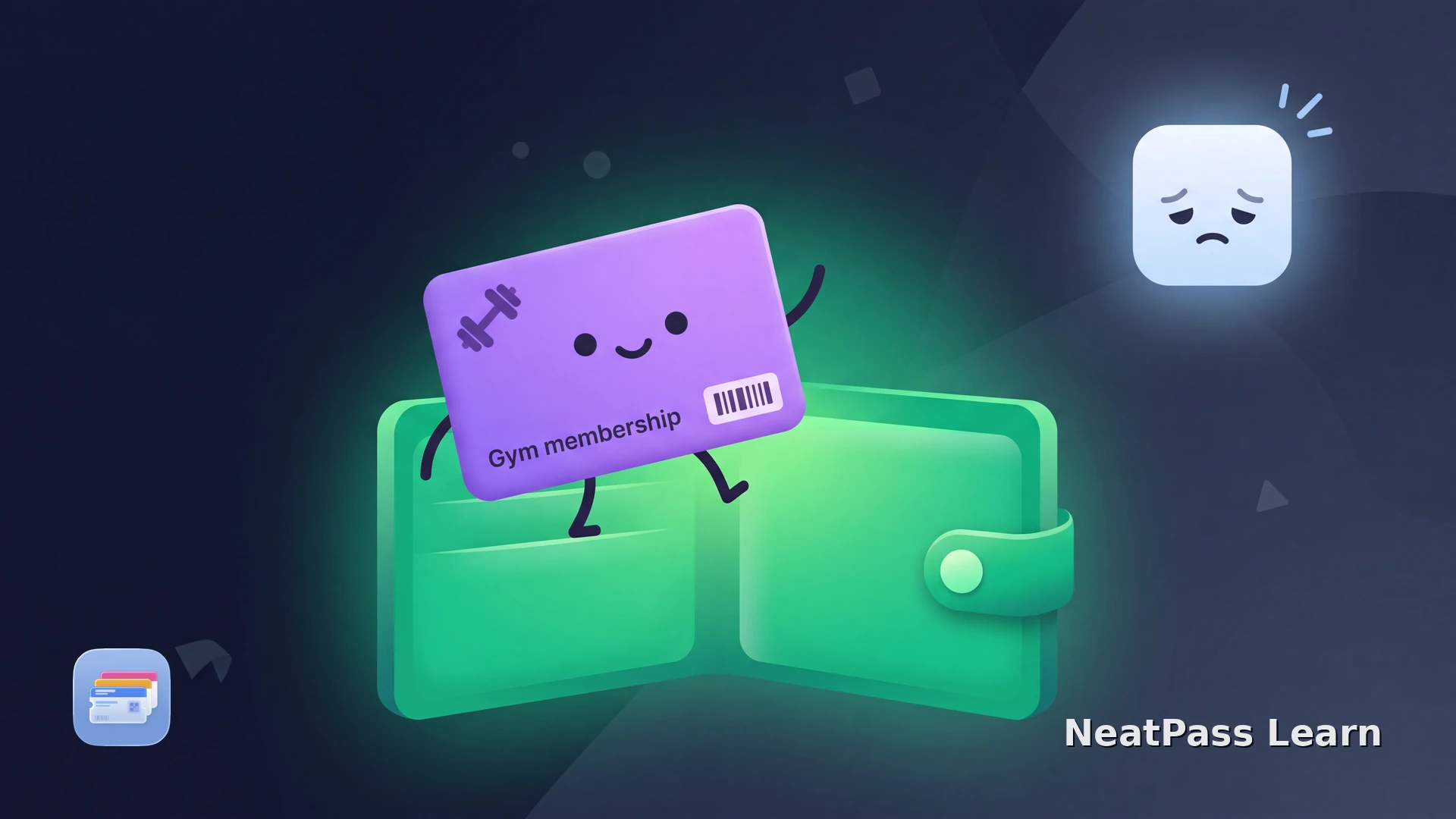
Planet Fitness has no official way to add your membership to Apple Wallet. Every check-in means opening the Planet Fitness app, waiting for it to load, and finding the key tag screen. Here is how to get that member barcode into Apple Wallet instead.
Why Planet Fitness Has No Wallet Button
The Planet Fitness app shows a digital key tag with your member barcode, but there is no Add to Apple Wallet button anywhere inside it. Your membership lives in the app, and the app is the only place the barcode appears.
That is inconvenient at the front desk. The app can be slow on gym Wi-Fi, an update can log you out right when you need to scan, and a low battery can leave you without any way in.
App load time
The app has to launch and sync before the barcode appears, which is time spent standing at the scanner.
No Wallet button
Planet Fitness never added native Apple Wallet support, so there is no one-tap way to save the card.
Login prompts
App updates and new devices can force a fresh login right when you are trying to check in.
Offline gaps
A weak signal inside the club can stop the app from loading your barcode at all.
Put your Planet Fitness card in Wallet
NeatPass makes it easy to convert any ticket, pass, or loyalty card to Apple Wallet.
Add the Barcode Yourself
Your Planet Fitness key tag is a standard barcode tied to your member number. NeatPass reads that barcode and builds a real Apple Wallet pass from it, so the exact number that scans at the front desk sits one swipe away on your Lock Screen.
Same barcode, same result
How to Add Your Planet Fitness Card to Apple Wallet
Open the barcode
Capture it
Import into NeatPass
Name the pass
Add to Apple Wallet
Scan at the club
Make it yours
What You Get
A Wallet pass changes how check-in feels every visit.
Faster check-in
Double-click, swipe, scan. No app launch, no sync, no login screen.
Works offline
The barcode lives on your device, so dead Wi-Fi in the club does not matter.
Lock Screen access
An optional location reminder can surface the pass as you arrive at the gym.
Same barcode
The exact member number is preserved, so it scans just like the app.
Private by design
No accounts and no cloud uploads. Your card data stays on your iPhone.
On your wrist
The pass syncs to Apple Watch, so you can scan in without your phone.
Want the details? The pass works offline, takes seconds to add to Wallet, and keeps your data on device, which the privacy FAQ explains in full.
Common Questions
Save your gym card in seconds
DownloadYour Membership, One Swipe Away
Planet Fitness keeps your barcode locked in its app, but the barcode itself is yours to use. Save it once and check-in becomes a single swipe instead of a wait for the app to load.
Pin the pass to your Lock Screen with a Wallet widget so it is ready before you reach the front desk.