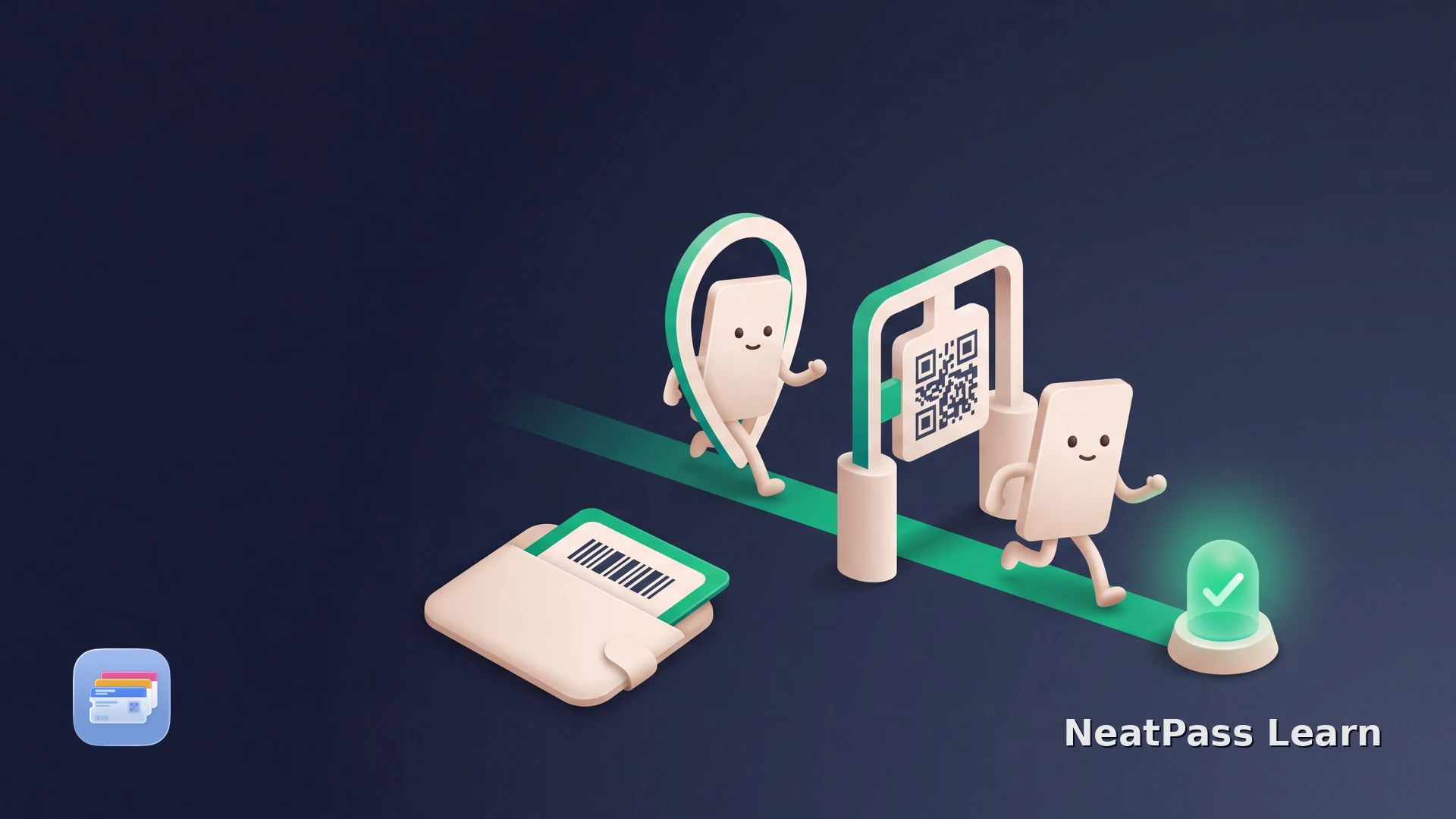
Urban Sports Club check-in is more than showing a membership card. Open the live app at the venue, allow location access when requested, select the activity, scan the partner QR code, and confirm the green check-in state. A separate venue barcode can still be a useful Wallet shortcut.
How Urban Sports Club check-in works
At partner venues, Urban Sports Club check-in can require a live app session, location permission, choosing the activity, scanning the partner QR code, and confirming the green result.
Apple's official Add to Apple Wallet button is issuer-gated, and Urban Sports Club has no separate pass that replaces this live check-in. Keep the official app for the venue QR scan, location check, activity selection, and green confirmation.
Live app check-in
The check-in starts in the Urban Sports Club app at the partner venue.
Venue and activity checks
Location permission, partner QR scanning, and activity selection can be part of the flow.
Live venue access
The live flow shows a green confirmation state with the venue, activity, date, and time.
Separate a member barcode from check-in
Save a separate venue barcode
If a club uses a separate static barcode for membership lookup or entry, NeatPass can preserve that visible code in a Wallet pass. Use it for that venue-specific purpose and keep the official app open for the live check-in.
If a venue gives you a separate barcode, use a NeatPass import method to capture it clearly. Ask the venue which code is for membership lookup and which steps still need to happen in the Urban Sports Club app.
Check whether your club has a separate barcode
NeatPass makes it easy to convert any ticket, pass, or loyalty card to Apple Wallet.
Step by step: keep the live flow intact
Open Urban Sports Club at the venue
Complete the live requirements
Ask about a separate member barcode
Import and label the barcode
Use Wallet as a shortcut only
Keep the source and the live app
Use NeatPass for the separate barcode
When the venue provides a separate stable barcode, capture it in NeatPass, label it clearly, and use the resulting Wallet pass for that barcode. Complete the Urban Sports Club live check-in in the official app.
Quick access to a static code
Show a tested venue barcode from Wallet when the venue uses one separately.
Same barcode data
A compatible scanner receives the visible member code captured from the source.
Clear venue labels
Name a pass by club so it is easy to select alongside other cards.
Original source retained
Keep the source available while you verify what the venue actually scans.
For display or scanning problems, see the NeatPass Wallet troubleshooting guide and use NeatPass pass editing for a clearer venue label.
Keep live check-in in the Urban Sports Club app
Urban Sports Club check-in can depend on a live partner QR scan, location check, activity selection, and a green confirmation with current venue details. Use the app for that live flow and the Wallet pass for a separate stable member barcode.
Urban Sports Club and its partners can change the app flow. Follow the current in-app instructions at each visit.
Use the NeatPass pass only for the separate static member barcode, and keep the official app as the check-in record.
Frequently asked questions
Save a separate venue barcode to Wallet
DownloadKeep the live check-in, save only the static extra
Complete the live partner flow in the Urban Sports Club app, including location, activity selection, QR scanning, and the current green confirmation. If the venue also gives you a separate stable barcode, NeatPass can make that code quicker to reach in Wallet.
Use the separate pass for the venue's stated membership or entry purpose, and keep the official app for every live check-in.
Continue with related guides