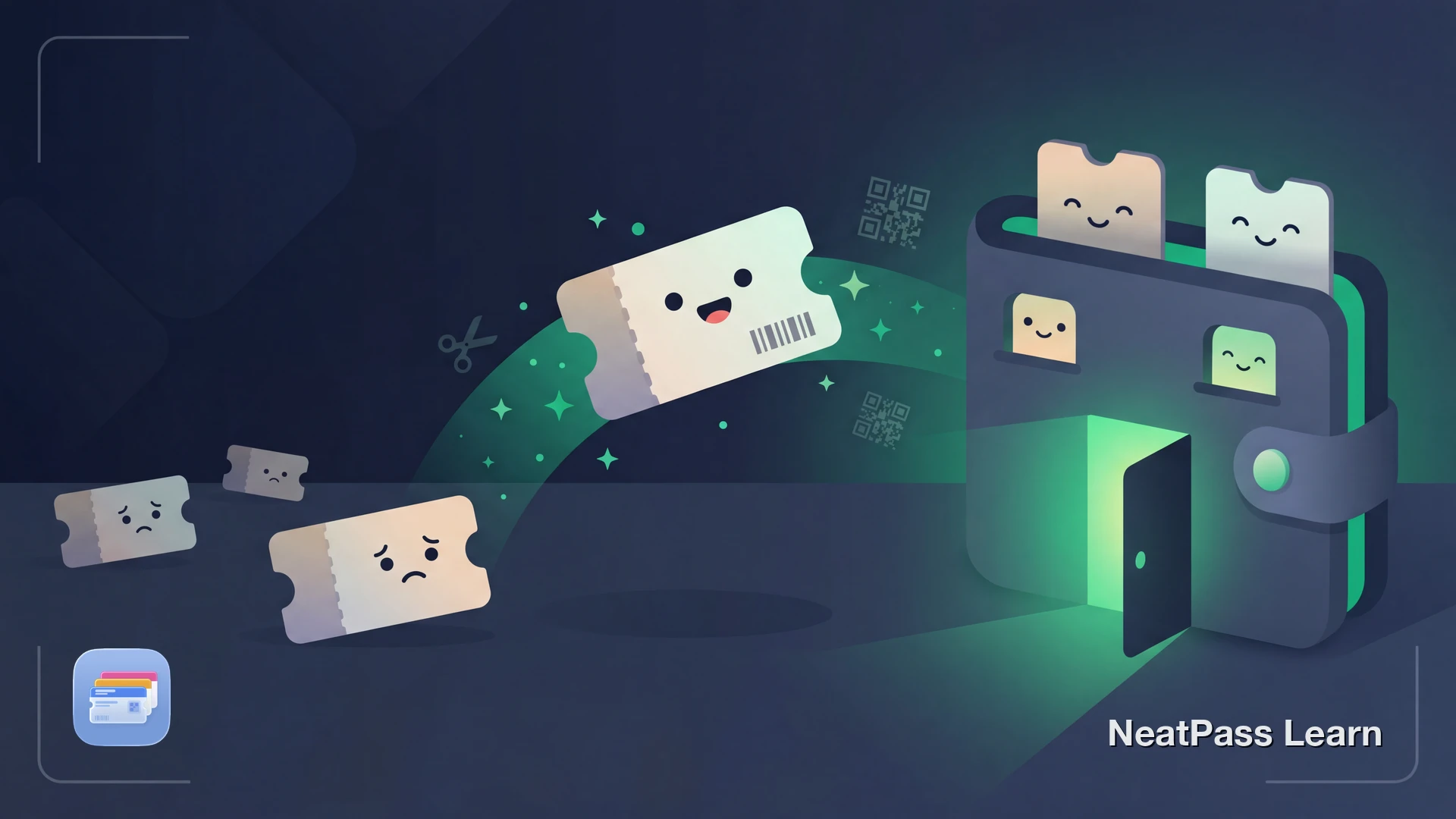
Most coupons cannot be added to Apple Wallet. You get a coupon in an email, a store app, or on paper, but there is no "Add to Apple Wallet" button. At checkout you end up scrolling through screenshots, searching your inbox, or fumbling with a faded printout.
Apple Wallet supports coupons as a pass type, but the merchant has to build that integration. Very few do. The result: your coupons live scattered across emails, apps, and drawers instead of in one accessible place.
Why Most Coupons Have No Wallet Support
Apple provides a coupon pass type in its PassKit framework, but each retailer needs to implement it individually. Most don't bother. That leaves you with these problems.
Buried in email
That 20% off coupon from last week? Lost somewhere in your inbox
Expires before you remember
Paper coupons and promo emails expire while sitting forgotten
No quick access at checkout
No double-click to show your coupon from the lock screen
Screenshots fail at registers
Barcode too small, wrong brightness, or cashier can't scan it
Even when stores do add a "Add to Apple Wallet" button, it often fails. Users report getting "Safari can't download this file" errors or the loading indicator spinning forever. Apple's own support advice? Contact the merchant. That is not a solution when you have a coupon that expires tomorrow.
Keep your coupons in Wallet
NeatPass makes it easy to convert any ticket, pass, or loyalty card to Apple Wallet.
Turn Any Coupon Into a Wallet Pass
For coupons without native Wallet support, there is a reliable workaround. Screenshot or photograph the coupon barcode, then convert it into a native Apple Wallet pass with NeatPass.
NeatPass uses on-device AI to analyze your entire screenshot. It detects the barcode, reads surrounding text like the store name and discount, and auto-fills pass details. The barcode contains the same data as your original coupon, so it scans correctly at checkout.
Barcode compatibility
Step-by-Step: Coupon to Apple Wallet
Find your coupon
Screenshot or photograph the barcode
Import into NeatPass
AI reads your coupon
Customize your pass
Add to Apple Wallet
Pro tip
Why Coupons Work Better in Apple Wallet
Once your coupons live in Apple Wallet, you get features that email coupons and store apps cannot provide.
Instant lock screen access
Double-click the side button to show your coupon at checkout
Works offline
No internet needed. Barcodes display without any connection
All coupons in one place
No more searching emails, apps, or pockets for the right coupon
Auto-brightness for scanning
Screen brightness adjusts automatically so scanners read the code
No login required
No store account or password needed to show your coupon
Location alerts
Set a location so your coupon appears on the lock screen near the store
Learn more about offline mode and why local storage matters. You can also add lock screen widgets for even faster access. For details on how NeatPass handles your data, see the privacy FAQ.
Why not just screenshot the coupon?
Frequently Asked Questions
Get your coupons in Wallet
DownloadYour Coupons, Always at Checkout
Coupons are meant to save you money, not get lost in email threads or expire in a kitchen drawer. With your coupons in Apple Wallet, they are always one double-click away when you reach the register.
No more searching your inbox. No more pulling up the wrong app. No more forgetting you had a coupon until after you paid. Just tap and save.