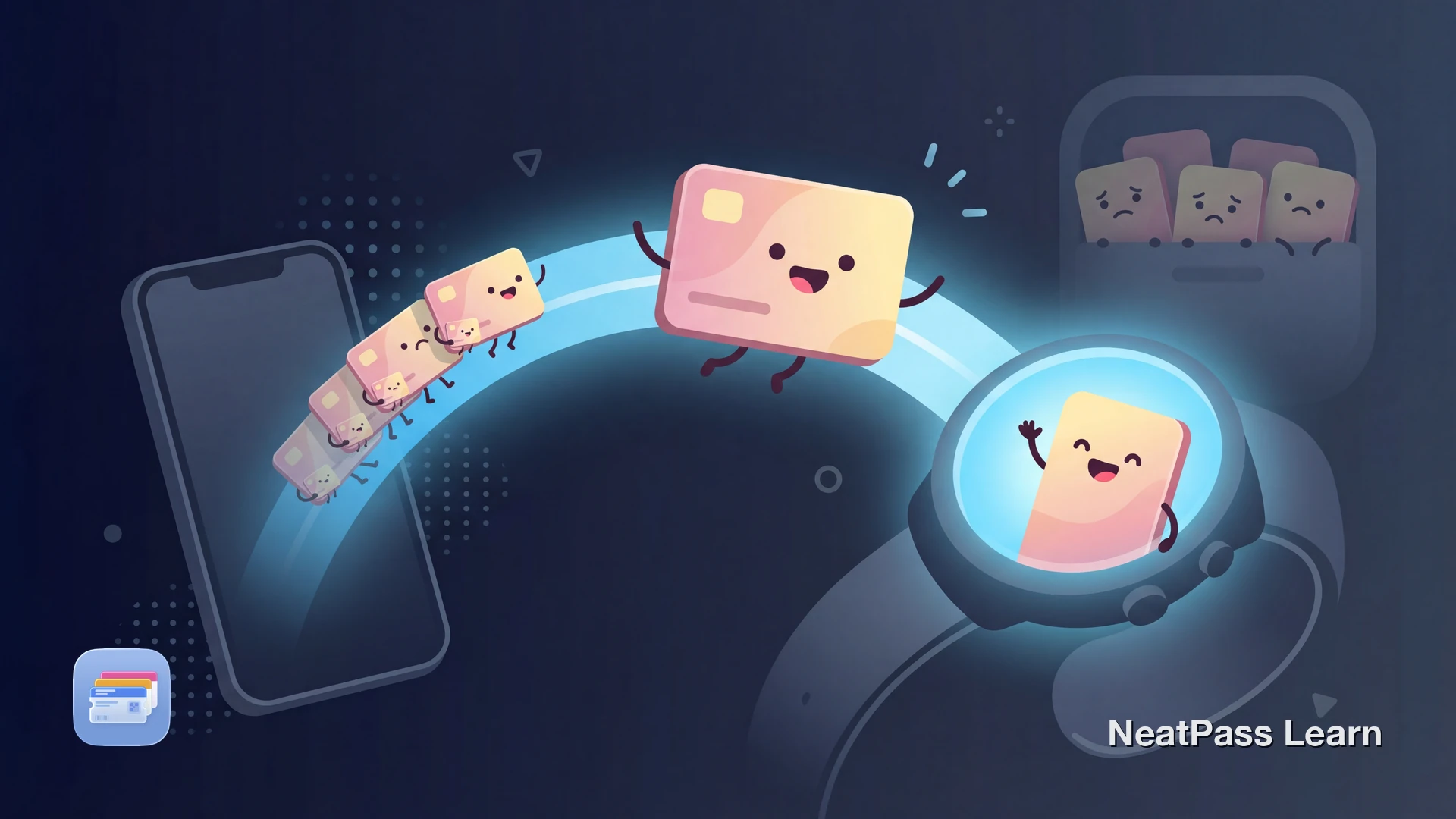
Your Apple Watch can do more than tell time and track workouts. Many Apple Wallet passes on your iPhone, including boarding passes, event tickets, loyalty cards, and transit cards, can appear right on your wrist.
Here is how to set up pass syncing, access passes from your Watch, and make the most of wrist-based wallet features.
How Passes Sync to Apple Watch
When you add a supported pass to Apple Wallet on your iPhone, it can also appear on your paired Apple Watch. The Watch app mirrors your iPhone's Wallet for supported passes when the setting is enabled.
Automatic mirroring
Supported passes added on iPhone can appear on Apple Watch shortly afterward
Real-time updates
For passes that support updates, gate changes and seat updates can sync to both devices
Direct add on Watch
You can also add passes from emails or messages directly on Apple Watch
Check your sync setting
How to Show Passes on Apple Watch
There are several ways to pull up a pass on your wrist. The fastest method depends on your situation.
Double-click the side button
Use the Smart Stack
Tap a notification
For contactless passes like transit cards, digital keys, or student ID cards, you do not even need to open anything. Just hold your watch near the reader and it vibrates to confirm.
Which Passes Work on Apple Watch
Many common Apple Wallet pass types work on Apple Watch. Here are the main categories.
Boarding passes
Airline boarding passes sync automatically. Scan the barcode from your wrist at the gate.
Event tickets
Concert tickets, movie tickets, and sports tickets display their barcodes on the watch screen.
Loyalty and store cards
Show your loyalty card barcode at checkout right from your wrist. No phone needed.
Transit cards
Tap through fare gates with your Apple Watch using Express Transit. Works without waking the screen or unlocking.
Apple Watch displays QR codes, Aztec codes, and PDF417 barcodes. Rectangular barcodes are automatically rotated to portrait for a better fit. Code 128 barcodes require a 2D fallback to display on Apple Watch. See the full list of supported barcode formats.
Get your passes on Apple Watch
NeatPass makes it easy to convert any ticket, pass, or loyalty card to Apple Wallet.
Setting Up Pass Sync
If your passes are not showing on Apple Watch, follow these steps to enable syncing.
Open the Watch app
Go to Wallet & Apple Pay
Restart both devices
Still not syncing?
Smart Pass Suggestions on Your Wrist
watchOS does not just store your passes. It proactively surfaces the right pass at the right time, so you spend less time scrolling.
Location-based suggestions
Your loyalty card appears in the Smart Stack when you arrive at the store
Time-based suggestions
Boarding passes surface near your departure time, event tickets before showtime
Automatic updates
Gate changes, delays, and seat reassignments push to your Watch in real time
NeatPass also supports lock screen widgets for one-tap access to your most-used passes on iPhone.
Express Transit on Apple Watch
Express Transit is the fastest way to use transit cards on Apple Watch. You do not need to wake the screen, authenticate, or open any app. Just tap your wrist on the reader.
Open Settings on Apple Watch
Select your transit card
Tap and go
On Apple Watch, similar contactless presentation also works for supported car keys, hotel keys, and employee badges where available.
Tips for Using Passes at Venues
Get the best scan every time
- Raise your wrist early: Open the pass before you reach the scanner to avoid holding up the line
- Angle the screen: Tilt your wrist so the barcode faces the scanner directly. The watch screen is smaller than a phone, so positioning matters
- Increase brightness: Swipe up on the watch face and raise the brightness slider if the scanner has trouble reading the barcode
- Keep it steady: Hold your wrist still for a second or two while the scanner reads the code
- Have a backup: If a venue scanner cannot read the watch, double-click on your iPhone as a fallback
NeatPass Passes on Apple Watch
Since NeatPass creates native .pkpass files, compatible passes can sync to Apple Watch the same way other Wallet passes do. There is no separate NeatPass setup on the watch. Availability still depends on the pass type and barcode support on Apple Watch.
Passes work fully offline on both iPhone and Apple Watch, with no internet connection required. To get started, see how to add passes to Wallet.
Pass appearance on Watch
Limitations to Know About
While most passes work well on Apple Watch, there are a few things to keep in mind.
Payment cards are separate
Credit and debit cards must be added to Apple Watch individually. They do not sync with 'Mirror my iPhone'.
Sync depends on connection
Your iPhone and Apple Watch need a Bluetooth or Wi-Fi connection for passes to sync. Once synced, passes work offline.
Small screen for barcodes
Some older or poorly calibrated scanners may struggle with the smaller barcode on Apple Watch. Your iPhone is always a fallback.
For details on how your pass data is handled, see the privacy FAQ.
Frequently Asked Questions
Create passes for your wrist
DownloadYour Passes, Always Within Reach
Apple Watch turns Apple Wallet into a hands-free experience. Whether you are scanning a boarding pass at the gate, tapping through a transit turnstile, or showing a loyalty card at checkout, your passes are always just a wrist raise away.
The key is making sure your passes are in Apple Wallet in the first place. For cards and tickets that do not offer native Wallet support, NeatPass can turn supported barcode-based cards into a proper .pkpass file that works on both your iPhone and Apple Watch.