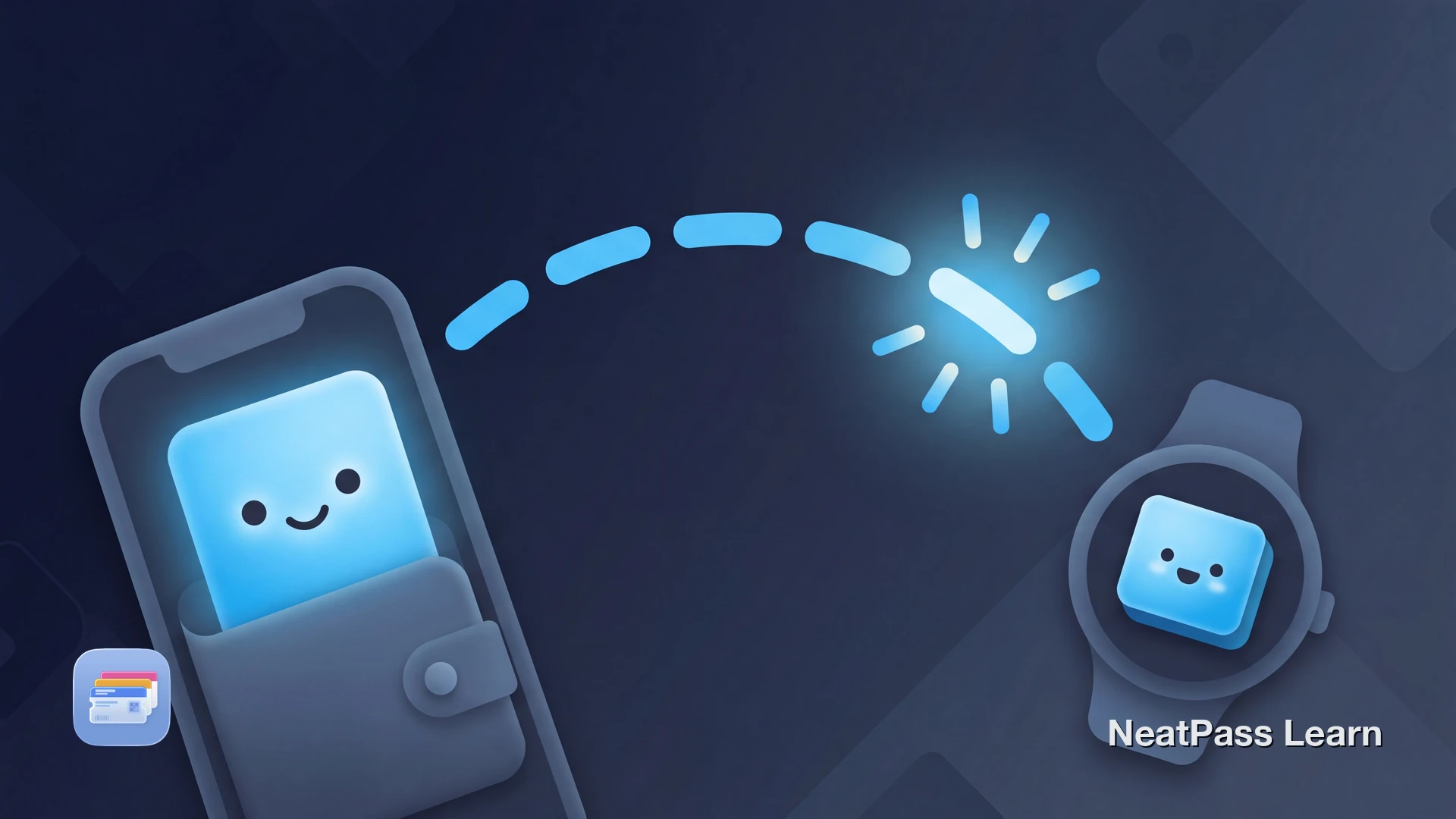
A pass shows up in Apple Wallet on the iPhone but is missing on the Apple Watch at the exact moment you need to scan it. The boarding gate, the gym door, or the checkout counter is not the place to discover that the two devices are out of step.
Apple says Wallet passes sync to a paired Apple Watch automatically, so most of the time this is a refresh or a setup issue, not a permanent limitation. For the steps to get passes onto the watch in the first place, see the guide on getting Apple Wallet passes on Apple Watch.
How Passes Reach the Watch
Wallet does not need a special action for most passes. When the iPhone and Apple Watch are paired and set up, supported passes are meant to appear on both.
Automatic sync
Apple states that passes added on the iPhone are automatically added to a paired Apple Watch, and pass changes update on both devices.
Changes follow through
When a pass updates, like a new boarding gate, the change is meant to appear on the watch as well as the iPhone without a manual step.
Supported pass types
Boarding passes, event tickets, coupons, store and loyalty cards, and student IDs are the kinds of passes that typically sync to the watch.
Not everything syncs
Apple notes that not all passes are supported. Some are kept on the iPhone by the issuer and never reach the watch.
If a supported pass is on the iPhone but not the Apple Watch, the checks below usually bring it across.
Fix It: Step by Step
Work through these in order. Most missing passes come back after one of the first few checks.
Check Mirror my iPhone
Confirm the same Apple ID
Restart both devices
Re-add the pass
Update iOS and watchOS
Unpair and re-pair
One change at a time
Some Passes Just Will Not Sync
A pass can be missing from the watch by design, not by error. Apple notes that not all passes are supported on Apple Watch, and the issuer decides how a pass behaves.
Airlines are the most common example. Some do not support the watch at all, some need the pass added separately on the watch, and some require tapping a link sent to the watch through the airline app, an email, or a text. Users have also reported on watchOS 11 that some non-payment passes added on the iPhone did not appear on an Apple Watch SE, with sending the pass through Messages as a workaround. When the issuer keeps a pass on the iPhone, no setting on your side changes that.
Where NeatPass Fits
A pass made with <strong>NeatPass</strong> is a standard generic PassKit Wallet pass. That means it syncs to a paired Apple Watch the same way a boarding pass or an event ticket does, the pass type that reliably crosses over, not an app-locked issuer pass that may be kept on the iPhone on purpose.
NeatPass cannot fix an Apple-side sync bug, and where Apple or an issuer makes a pass iPhone-only, NeatPass cannot change that. What it can do is turn a static barcode or stored card into a clean, standard Wallet pass that has the best chance of appearing on both the iPhone and the watch.
To get started, see adding to Wallet, import methods, supported barcodes, and offline mode.
For quick access at the scanner and privacy details, read lock screen widgets and the privacy FAQ.
Keep passes on both devices
NeatPass makes it easy to convert any ticket, pass, or loyalty card to Apple Wallet.
Frequently Asked Questions
Passes that travel with you
DownloadPasses Where You Need Them
Most of the time a missing pass on the watch is a refresh away. Confirm the same Apple ID, re-toggle Mirror my iPhone, restart both devices, and re-add the pass from the iPhone. When a pass is iPhone-only by the issuer, that is a boundary on their side, not something a setting changes.
Because a NeatPass pass is a standard generic Wallet pass, it behaves like a boarding pass or ticket when it syncs to the watch, giving a static card the best chance of showing up wherever you need to scan it.