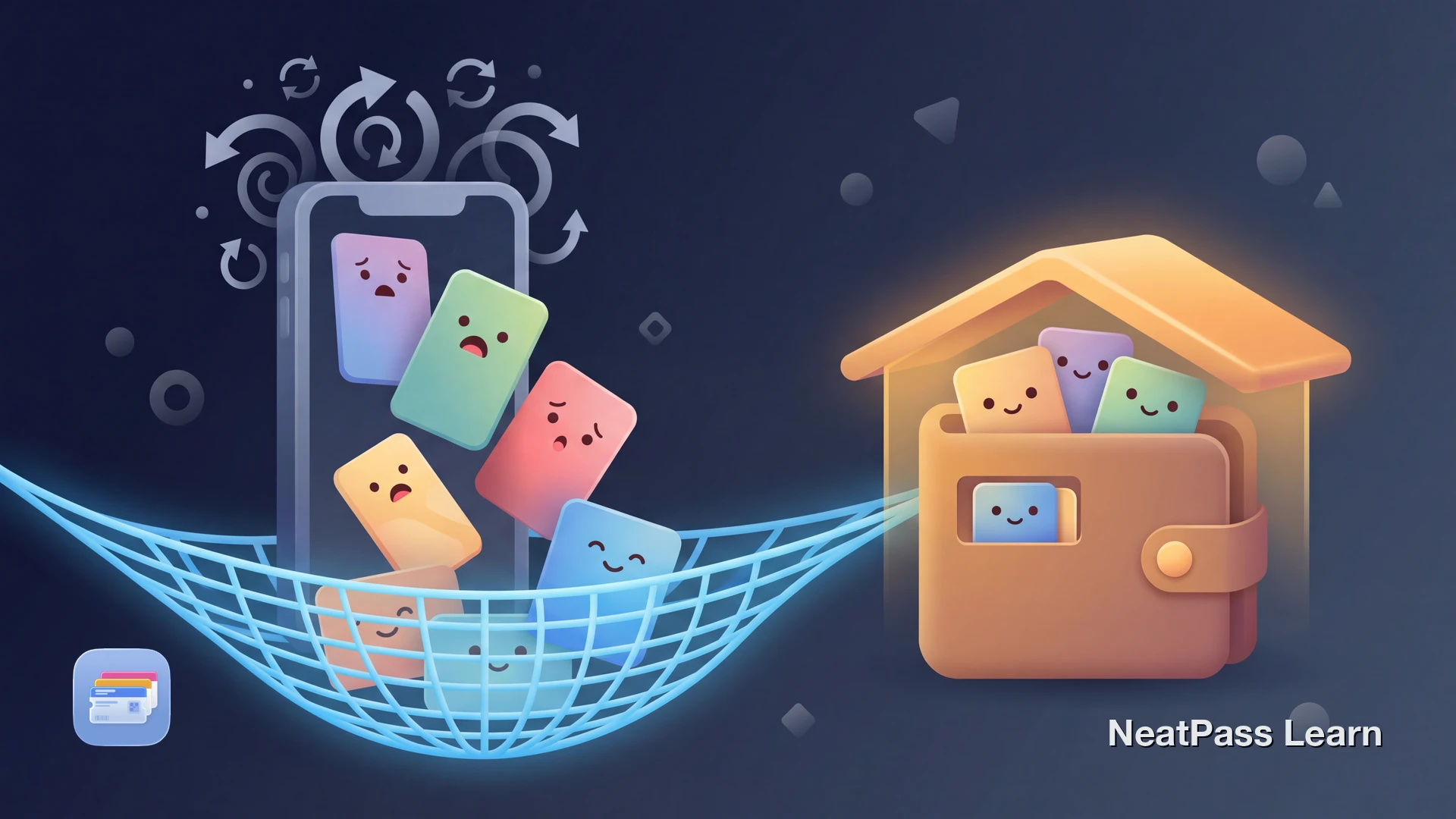
You updated your iPhone and now some of your Apple Wallet passes are missing. Boarding passes, loyalty cards, or event tickets may no longer appear where you expect them.
If Wallet was enabled in iCloud and the data finished syncing, some passes may still be available through iCloud. Otherwise, you may need to re-add them from the issuer or an original file.
Why Passes Disappear After iOS Updates
Apple lists Wallet as an iCloud data category. After an update, first check whether Wallet is enabled in iCloud, whether the pass moved to the eligible Expired list, and whether the issuer still offers it.
Sync disruption
If Wallet iCloud data did not finish syncing, a pass may not become available again after an update or device change.
iCloud availability
A pass may be available through iCloud only when Wallet was enabled and its data finished syncing.
Expiry flag confusion
Eligible expired passes can be moved from the main view to Wallet's Expired list.
Issuer access
Some passes must be re-added from the issuer's app, email, website, or original .pkpass file.
Apple documents how to view eligible expired passes and how to enable Wallet in iCloud, but those steps do not guarantee recovery of a missing pass.
Checks to Try for Missing Passes
Try these checks in order. Their success depends on whether the pass was eligible for the Expired list, finished syncing, or remains available from its issuer.
1. Check the Expired List
- Open the Wallet app on your iPhone.
- Tap the <strong>More</strong> button.
- Tap <strong>Expired</strong> to view eligible expired passes.
- Open the pass and tap <strong>Unhide</strong> if Wallet offers that option.
Only eligible expired passes appear here. This does not refresh Wallet or restore pass data that is missing or was never synced.
2. Check Wallet in iCloud
- Go to Settings > [Your Name] > iCloud > See All (or Saved to iCloud).
- Select Wallet and confirm that it is enabled.
- If it was already enabled, you can restart your iPhone and check Wallet again.
- Toggling Wallet off and back on is anecdotal, non-guaranteed troubleshooting and may not restore unsynced data.
3. Full Restart After Update
A simple restart can resolve many post-update sync issues. Make sure you do a full power cycle, not just a screen lock.
- Hold the side button and volume button to get the power slider.
- Slide to power off and let the iPhone shut down.
- Power the phone back on and open Wallet.
If passes still don't appear
Keep a pass available after an update
NeatPass makes it easy to convert any ticket, pass, or loyalty card to Apple Wallet.
What Apple Documents
Apple documents Wallet's iCloud setting, the eligible Expired list, and re-adding passes from issuers. It does not promise that a settings toggle will recover a missing pass.
Expired-pass access
Wallet can show eligible expired passes under More > Expired and may offer an Unhide action.
Wallet in iCloud
Wallet is an iCloud data category, but only data that finished syncing can be available afterward.
Passes are third-party data
If a pass is unavailable, the issuer's app, email, website, or original file may let you add it again.
Understanding how your data is stored is key to preventing this issue. See the data management guide for details on how NeatPass handles pass storage differently.
How NeatPass Protects Against This
NeatPass takes a fundamentally different approach to pass storage. Instead of relying solely on Apple Wallet's sync, NeatPass stores your complete pass data locally on your device, independent of Apple Wallet's database. With optional iCloud Sync enabled, your library also backs up across devices.
Independent local storage
Your passes are stored in NeatPass's own library on your device, independent of Apple Wallet's sync system. Even if Wallet loses track of a pass, NeatPass still has it.
Original files preserved
NeatPass keeps the original PDFs, screenshots, and source files you used to create each pass. You can recreate a pass from the source when it is available.
Survives app deletion
A pass already added to Wallet is managed separately and may remain after NeatPass is deleted, but deleting the app is not a backup or recovery method.
On-device processing
Pass content is processed on device; only a cryptographic hash is sent to the Wallet signing service, and optional sync uses your Apple iCloud.
You can access your originals through the view original feature. NeatPass offers multiple ways to get cards into your Wallet through its import methods.
Works without internet too
How to Prepare Before Your Next iOS Update
Take these steps before installing any iOS update to minimize the risk of losing passes:
- Open Settings > [Your Name] > iCloud > See All (or Saved to iCloud) and verify Wallet is enabled.
- If you use NeatPass, open the app and check that iCloud Sync shows a green status indicator.
- Keep original ticket PDFs, emails, issuer links, and .pkpass files; screenshots may not preserve dynamic or rotating codes.
- After the update, confirm Wallet is enabled in iCloud and check the issuer before assuming a pass can be recovered.
NeatPass processes pass content on device and sends only a cryptographic hash to the Wallet signing service; optional sync uses your Apple iCloud. Read the privacy FAQ to learn how your data stays private.
Frequently Asked Questions
Protect your passes from update issues
DownloadKeep Original Sources Available
If a pass is missing after an update, check Wallet's eligible Expired list, confirm Wallet is enabled in iCloud, and return to the issuer or original file if necessary. None of these paths guarantees that unsynced data can be recovered.
NeatPass keeps supported pass data on device and can sync it through optional Apple iCloud. Enable sync and let it complete before an update, while keeping original ticket files and issuer links as a fallback.