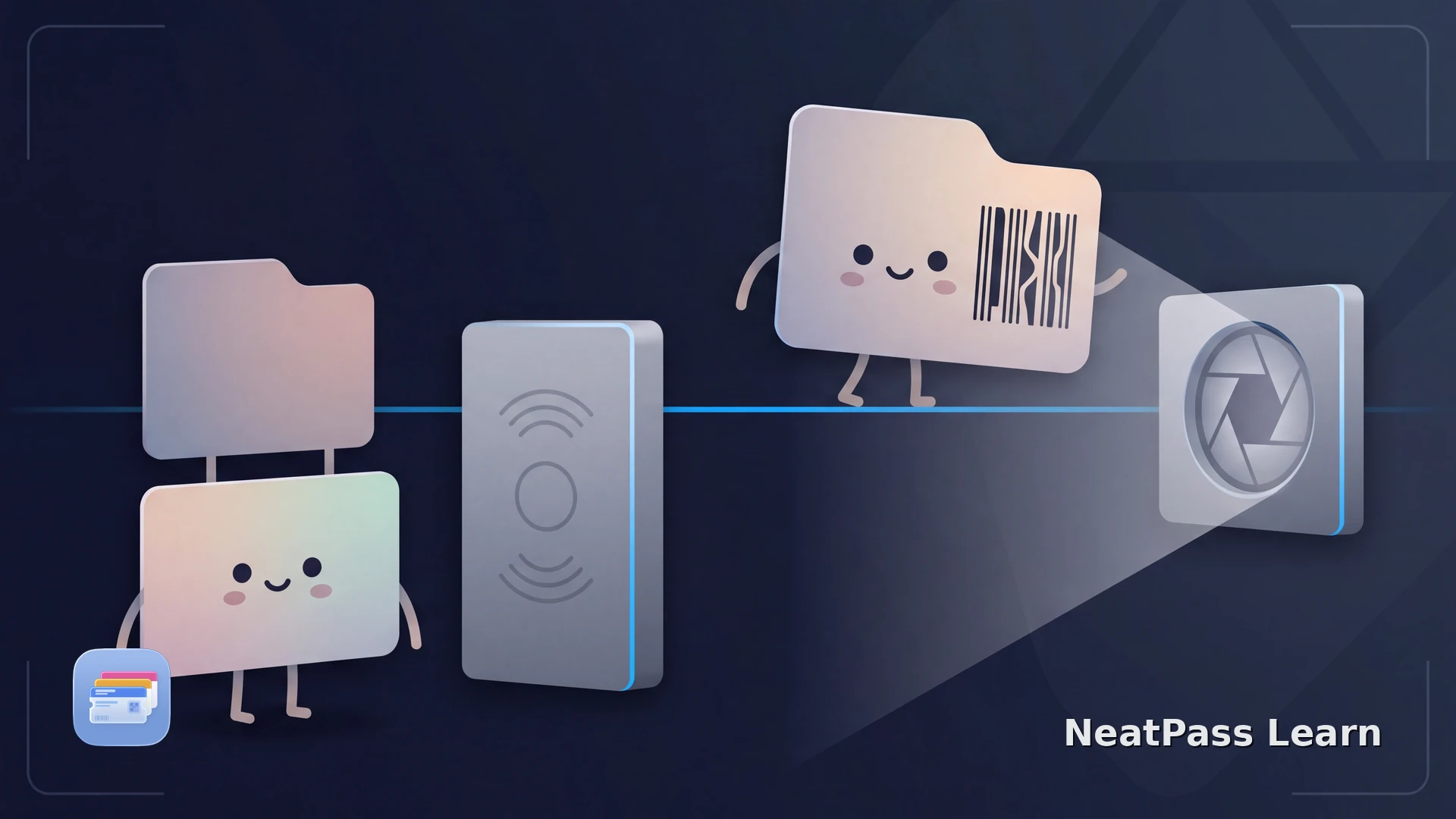
A Wallet pass does not tell you to tap merely because it lives on an iPhone. Some passes show a barcode or QR code for an optical scanner. Others contain an issuer-provided contactless credential that communicates when the top of the iPhone is held near a compatible reader.
Look at the pass and follow the issuer's instructions. NeatPass creates standard barcode passes from compatible static sources, so a visible code is presented to a scanner. For contactless use, follow the issuer's Wallet pass or app.
How to Tell Whether to Tap or Scan
Open the pass
Check the code and instructions
Follow contactless instructions
When the Pass Should Be Scanned
On a barcode-only pass, the visible code is read from the screen. Aim it at the scanner window or show it to the attendant. The top edge of the iPhone has no special role in this optical interaction, and pressing the phone against the reader can hide the code from its camera.
When the Pass Should Be Tapped
A contactless pass uses an issuer-configured NFC interaction. Apple instructs you to hold the top of the iPhone near the compatible pass reader until a checkmark or Done appears. The reader, issuer, and pass must all support that path.
Contactless does not automatically mean Express Mode. The Express Mode guide covers the separate cases where eligible cards, passes, or keys can work without the normal authentication step.
The issuer decides the reading method
Create a scan-ready pass from a compatible static barcode
NeatPass creates a scan-ready Wallet pass from a compatible static source with a supported barcode.
Use NeatPass for Compatible Static Barcodes
NeatPass extracts compatible barcode data from a static source and places it in a standard Wallet pass. A compatible source supplies the barcode for optical scanning. Contactless credentials and other issuer-managed or changing access methods stay with the issuer, so use the issuer's pass or app when the venue requires them.
Keep the Issuer Original Available
NeatPass keeps an imported source alongside the pass. Use NeatPass guide to viewing the original when staff request the PDF, image, or source file instead of the Wallet version.
After confirming that the source is a compatible static barcode, follow the NeatPass add-to-Wallet steps. Do not convert a code that the issuer rotates or binds to its own app.
If an optical reader rejects the visible code, use the barcode scanning troubleshooting guide and return to the issuer original rather than trying the NFC area of the phone.
Frequently Asked Questions
Create a scan-ready pass from a compatible source
DownloadShow the Code or Present the Credential
The issuer's instructions tell you what to do. A barcode-only pass faces an optical scanner. A supported issuer pass may offer contactless use alongside a visible code. NeatPass creates the static barcode path, while the issuer's pass or app handles contactless access.