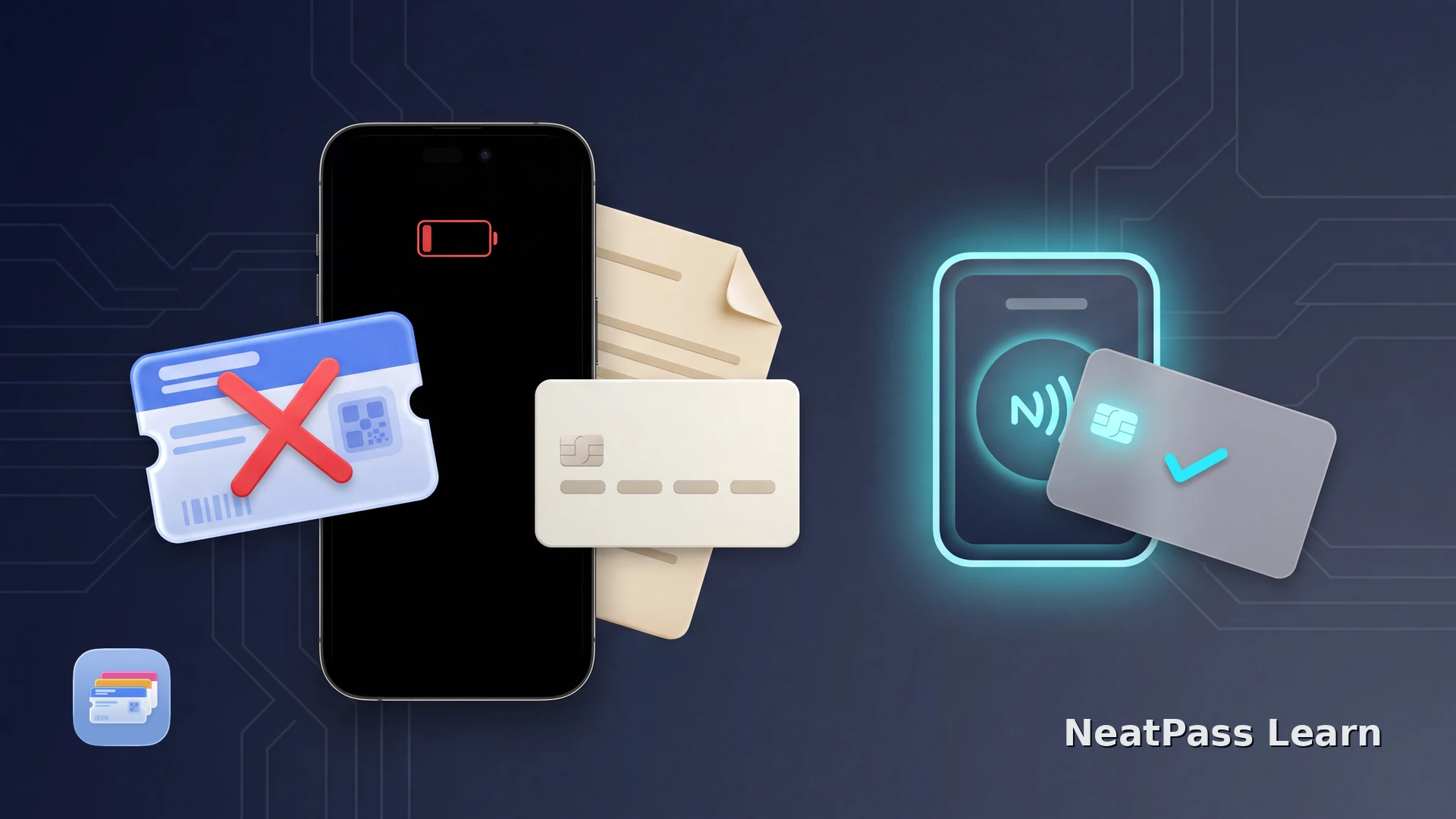
A flat iPhone battery does not make every Apple Wallet pass usable. Apple's Power Reserve can keep eligible Express Mode items available for up to five hours, but an ordinary barcode pass still needs a screen. If a loyalty, membership, or event pass created with NeatPass is on your phone, plan a physical card or an accessible copy of the original before the battery runs out.
The important distinction is how the pass communicates. Eligible Express Mode contactless cards, passes, and keys can use a compatible terminal without showing the pass on screen, including through Power Reserve in some cases. A QR code, PDF417, or other visual barcode must be displayed on the iPhone, so it cannot use the same low-power path.
What Apple Power Reserve Actually Covers
Apple's Power Reserve is part of Express Mode. It is designed for a limited group of eligible NFC cards, passes, and keys, not for every item stored in Wallet.
Compatible NFC items
Eligible NFC cards, passes, and keys can communicate with a compatible reader without waking or unlocking the iPhone. Eligibility depends on the issuer and the reader.
Up to five hours
On supported iPhones, Express Mode items can remain available for up to five hours after the device shuts down because the battery is empty.
Not after a manual shutdown
Power Reserve is not available when you intentionally switch the iPhone off with the shutdown control. Charging and restarting are then required.
Power Reserve is not a barcode battery
The full list of NFC exceptions is explained in the NeatPass guide to Apple Express Mode.
Why a Barcode Pass Needs the Screen
A barcode pass is an image or encoded pattern that a scanner reads from the iPhone display. Wallet can store that pass locally and show it without an internet connection, but the phone still has to power the screen and present the code.
NeatPass preserves the barcode data when it creates a Wallet pass, so the pass can scan like the source while the iPhone is on. Keep the physical card or original document available when the display may be unavailable.
Check the NeatPass supported barcode formats before converting a card, especially if the issuer displays a code that changes over time.
Keep a static barcode pass ready in Apple Wallet
NeatPass makes it easy to convert any ticket, pass, or loyalty card to Apple Wallet.
Prepare Before the Battery Is Empty
A small backup plan keeps a dead battery from blocking access. Set it up while the pass and its original document are still available.
Identify the pass type
Keep the source available
Charge before important access
NeatPass keeps the source document alongside a pass. The NeatPass guide to viewing the original shows where to find it when you need to compare or recover a card.
A saved pass can still be useful without reception. Read the NeatPass offline mode guide to understand which locally stored information remains available.
When the Battery Is Nearly Empty
If the iPhone is still on, open the pass before the screen becomes unreliable. The following order keeps the code visible and gives you time to switch to a backup.
Open Wallet now
Increase the chance of a scan
Use the original if needed
For a stable source file, follow the NeatPass Add to Apple Wallet steps after importing the barcode. Keep the original beside the new pass.
Where NeatPass Fits
NeatPass is useful for static loyalty cards, membership cards, and other source documents that contain a barcode. The conversion happens on the device, the original remains available, and the resulting pass works offline while the iPhone can display it.
Frequently Asked Questions
Create a barcode pass before your next trip
DownloadA Charged Phone and a Real Backup
Power Reserve is a useful Apple feature, but it solves a narrow NFC problem. Barcode passes in Wallet remain fast and useful offline while the iPhone is powered and the screen can show the code. A physical card or original document still matters when the battery is gone.