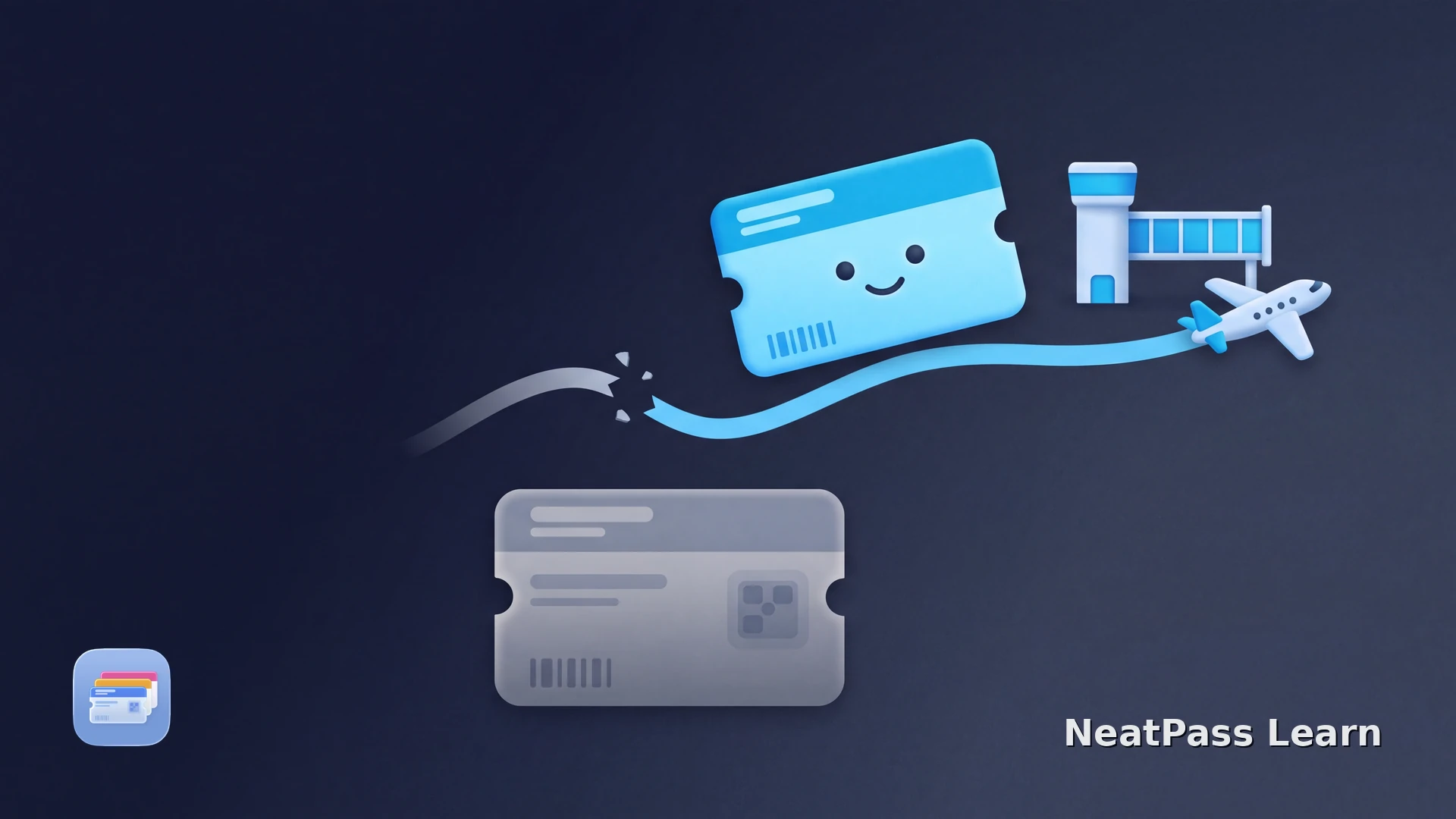
A cancelled flight changes your itinerary, even when the old boarding pass is still visible in Apple Wallet. Do not rely on yesterday's barcode after the airline cancels or rebooks the flight.
First get the disrupted itinerary resolved and obtain a newly issued boarding pass. Only then should you import a static PDF or image into NeatPass. Treat the imported Wallet pass as a snapshot of that current source, and return to the airline for any later itinerary change.
Why the old Wallet pass is no longer enough
Apple Wallet can display a pass after the airline has changed the reservation. Some issuer passes can receive updates, but that depends on the airline's implementation. A Wallet pass created from a PDF, photo, or screenshot has no live connection to the reservation.
- Shows the cancelled flight or old segment
- May keep a barcode that no longer matches the trip
- Does not prove that you were rebooked
- Matches the confirmed replacement itinerary
- Contains the current passenger and flight details
- Can be presented where the airline and airport accept electronic boarding passes
Keep the old pass only as a reference
Get a new official boarding pass
Use the airline's disruption flow before editing anything in Wallet. Confirm the replacement itinerary with the airline or booking provider, then retrieve the current boarding pass through the airline's app, website, kiosk, or desk when available.
Open the disruption notice
Confirm the new itinerary
Retrieve the new boarding pass
Compare before you travel
When the airline has a Wallet button, use its native flow. For a static file, follow the NeatPass add-to-Wallet guide for the import steps.
When NeatPass can help after rebooking
NeatPass can organize a newly issued static boarding pass when the airline provides a PDF or image without a Wallet button. It preserves the source barcode in a new Wallet pass; keep the airline app or source document available for live disruption updates.
Fresh static source
Import only the PDF, photo, or screenshot issued after the replacement itinerary is confirmed.
Offline access
The finished pass can open at the airport without a live airline session.
Barcode preserved
NeatPass keeps the barcode data from the new source so the scanner reads that credential.
Original retained
The new airline document stays beside the Wallet pass for comparison and backup.
Start with an NeatPass import-methods guide for the new file, then review it before adding.
Save the fresh boarding pass in Wallet
NeatPass makes it easy to convert any ticket, pass, or loyalty card to Apple Wallet.
Import only the replacement pass
Wait until the airline has issued the new static pass. Then compare the document with your replacement itinerary before creating a second Wallet card.
Save the fresh source
Open it in NeatPass
Review and add
A static pass does not receive rebooking updates
Keep a clear backup during disruption
Travel disruption can involve several agents and itinerary versions. Keep the current airline PDF or image beside the Wallet copy, and use the NeatPass original-document guide to find it quickly.
The current Wallet pass can be useful in a weak-signal terminal, but it does not replace any airport or airline requirement. Read the NeatPass offline-mode guide before you travel.
Passenger-rights note
Cancellation and rebooking rights depend on your country or region, ticket, booking channel, and the cause of the disruption. This guide provides practical information, not legal advice. Check the airline or travel agency and the official passenger-rights authority for your itinerary. A Wallet copy never overrides their instructions.
Frequently Asked Questions
Keep the new boarding pass ready
DownloadReplace the Pass, Not the Itinerary
If you plan to fly on a replacement, you need a confirmed replacement and a newly issued boarding pass. Once that fresh static source exists, NeatPass can keep its barcode in Wallet and leave the original beside it, while airline changes remain the airline's responsibility.