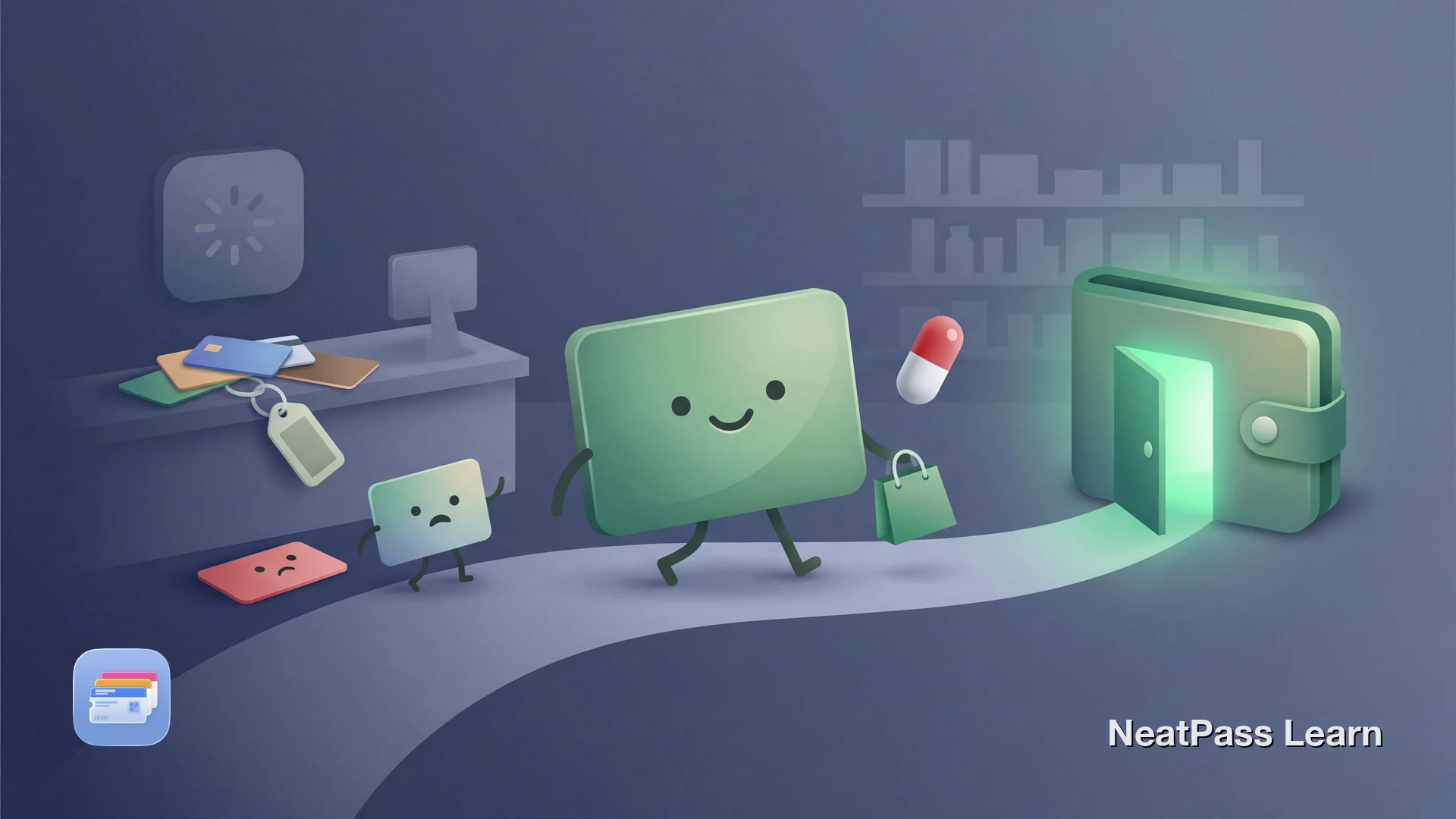
CVS still offers an in-app Apple Wallet flow for ExtraCare, but a separate Wallet copy from your physical card can be a useful backup. If you already have the physical card or keychain tag, you can scan that barcode and keep an independent Wallet pass ready at checkout.
Official Wallet Option or Separate Backup
CVS documents an in-app Apple Wallet option for ExtraCare through the CVS app. If you want a separate Wallet copy that does not depend on that app flow, scanning the barcode from your physical card or keychain tag is a practical alternative.
Why a separate Wallet copy can still be useful:
Official in-app option
CVS supports adding your ExtraCare card from the app with the Apple Wallet button
Physical card fallback
A printed ExtraCare barcode gives you another source for creating a Wallet pass
Independent Wallet copy
A separate pass can stay available even if you are not using the CVS app at checkout
Fast access in Wallet
Wallet gives you a simple full-screen barcode view when you need to scan quickly
The good news? Your physical ExtraCare card or keychain tag gives you another barcode source that can be turned into a separate Wallet pass.
Your Physical Card Still Works
CVS issues ExtraCare cards and keychain tags with printed barcodes tied to your membership. A third-party Wallet pass can reuse that printed barcode as a convenient checkout backup.
You can scan this barcode directly into Apple Wallet using a third-party app. NeatPass supports multiple import methods including camera scanning, photo import, and manual barcode entry.
Ready to add your CVS card to Wallet?
NeatPass makes it easy to convert any ticket, pass, or loyalty card to Apple Wallet.
Create a Separate Wallet Copy from the Physical Card
The simplest approach is to scan your physical ExtraCare card or keychain tag with NeatPass. It uses on-device AI to read your card's barcode and create a native Apple Wallet pass. At staffed registers and many ExtraCare Coupon Centers, that pass can work as a convenient backup to the official CVS option.
How it works
Step-by-Step: ExtraCare Card to Apple Wallet
Find your ExtraCare card or keychain tag
Open NeatPass
Scan the barcode
AI creates your pass
Add to Apple Wallet
Pro tip
Benefits of ExtraCare in Apple Wallet
Once your ExtraCare card lives in Apple Wallet, you get a second way to access it quickly at checkout.
Instant lock screen access
Double-click side button to show your ExtraCare barcode at checkout
Works offline
No internet needed - your barcode is stored locally on your device
Location-aware
Card can appear automatically when you arrive at a CVS store
Clean Wallet display
Wallet presents the barcode in a simple full-screen view for scanning
Independent of CVS app
Works even if the CVS app is updating, logged out, or removed
Faster than the app
One tap from lock screen instead of navigating through the CVS app
Your pass works completely offline with no internet connection needed. Access it from your lock screen widgets for even faster checkout. For details on how NeatPass handles your data, see the privacy FAQ.
Frequently Asked Questions
Get your CVS card in Wallet
DownloadYour ExtraCare Card in Wallet
Even if you use the official CVS Wallet flow, your physical card's barcode can still give you a practical backup. Scan it with NeatPass and you get a native Wallet pass with fast access, offline support, and optional location-based suggestions near CVS stores.
Ready to get started? Check this guide on adding cards to Apple Wallet for a detailed walkthrough.