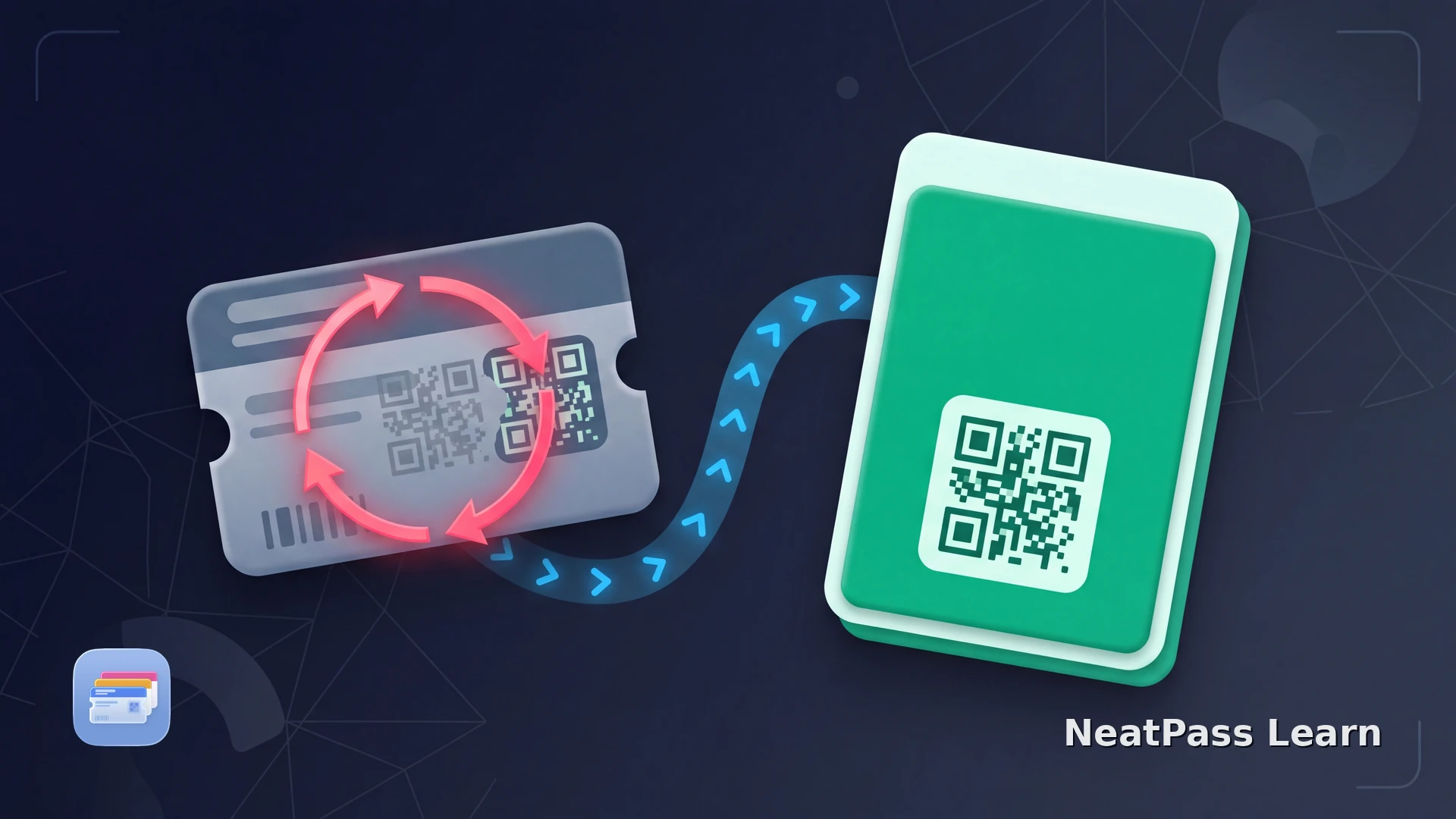
A rotating QR code changes on a schedule or after a refresh, so a screenshot can stop working before you reach the gate. Use the issuer's live ticket view for that security system.
A countdown, moving pattern, refresh action, or screenshot warning identifies the live issuer path. When the ticket instead has one stable barcode in a supported format and static copies are accepted, NeatPass supports 18 barcode formats and can create a convenient Wallet pass with the same barcode data. NFC entry and issuer-managed updates remain in the supported issuer flow.
First identify the barcode
The barcode behavior tells you which path to take:
- Rotating: the code changes, animates, or has a countdown. Ticketmaster SafeTix is a common example, with a moving barcode that refreshes about every 15 seconds.
- Static: the same code remains visible in a PDF, image, or ticket screen. A scanner receives the same barcode data when the pass is displayed.
- Status-controlled: the code may be hidden, unavailable, or invalidated after a ticket is sold, transferred, or canceled, or while it is still being delivered. Exact rules vary by issuer, so check the issuer or order status before troubleshooting the phone.
Keep rotating tickets in the live issuer view
Use the issuer for live ticket security
Ticketmaster's SafeTix and AXS Mobile ID both use issuer-controlled, rotating barcodes. AXS says tickets display in its app on event day whether or not you have Wi-Fi. The Ticketmaster troubleshooting guide explains what to check when a moving barcode will not scan. The AXS Apple Wallet guide covers the separate Mobile ID and transfer flow.
If an official pass is missing, unavailable, or invalidated, start with the NeatPass Wallet issue checklist and the ticket's current order status.
When NeatPass is the right tool
NeatPass gives an accepted static ticket a clear, offline-friendly place in Wallet while preserving the barcode data from the source.
Confirm that the barcode stays the same
Import the static source
Add the pass to Wallet
See the NeatPass supported barcode guide for the current format list.
Ready to migrate your cards?
NeatPass makes it easy to convert any ticket, pass, or loyalty card to Apple Wallet.
Before you arrive at the venue
Test the exact ticket you plan to show and keep its original source available. If the issuer places it on hold or replaces it, use the current ticket in the issuer account.
For a static pass, read about NeatPass offline mode.
Frequently asked questions
More event-ticket guidance
For the broader decision tree, read the guide to event tickets in Apple Wallet.
For a non-rotating screenshot that will not scan, see the screenshot troubleshooting guide.
Ready to migrate your cards?
Download