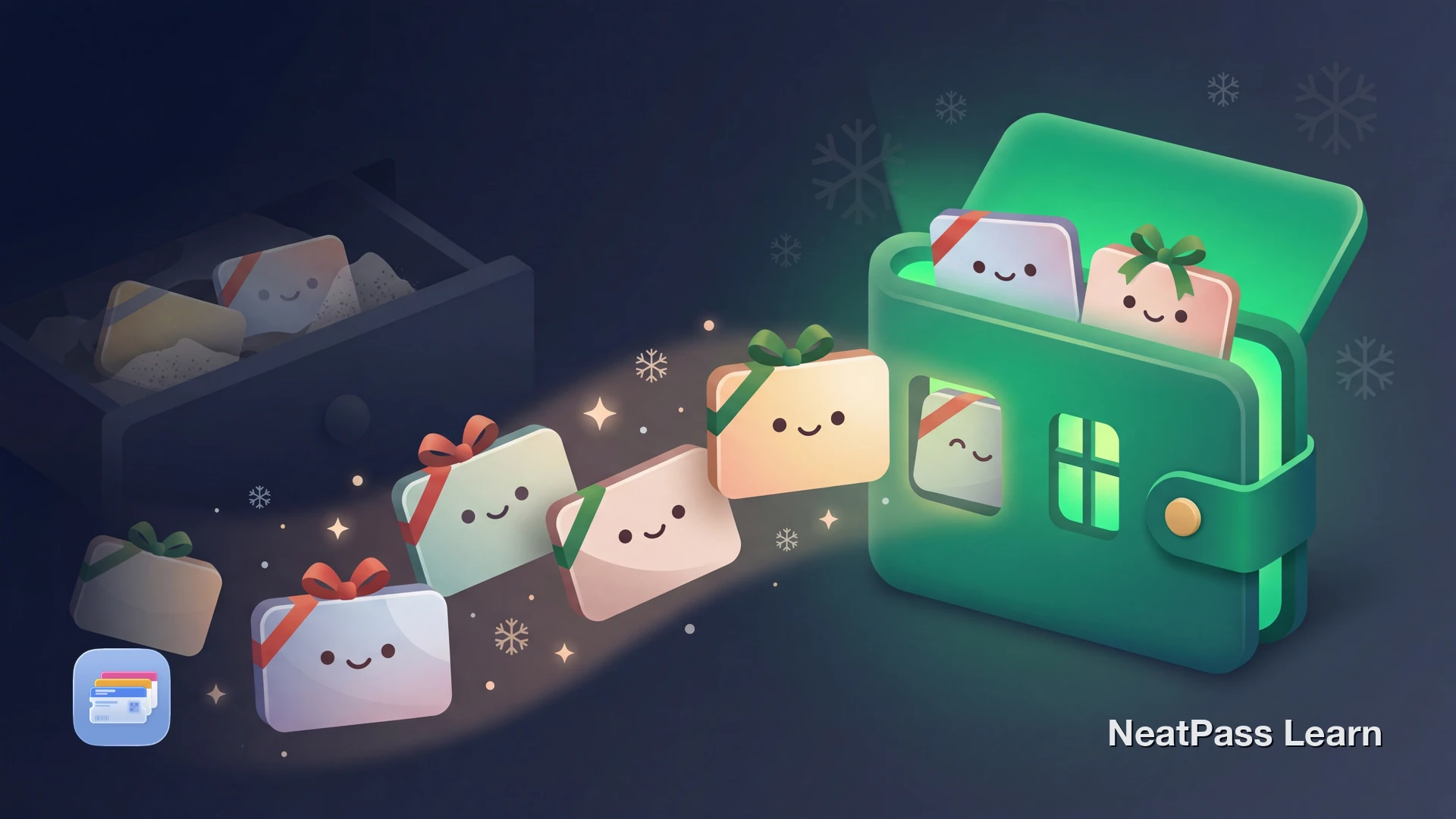
Every holiday season brings a wave of gift cards. From Black Friday hauls to stocking stuffers, many people end up juggling gift cards across different stores, emails, and apps. Most of those cards never make it to Apple Wallet on their own, so they end up buried and forgotten.
The Holiday Gift Card Problem
Gift cards remain a popular holiday gift, and they pile up quickly across stores, inboxes, and apps.
The problem starts after the wrapping paper is cleared. Gift cards arrive as physical cards, email codes, app balances, and printed receipts. There is no single place to keep track of them all.
Bankrate reported in 2024 that 43% of U.S. adults had at least one unused gift card, voucher, or store credit, with an average unused value of $244. Forgotten balances add up quickly when cards are scattered across different places.
Scattered everywhere
Physical cards in drawers, email codes in your inbox, balances in retailer apps
Easy to forget
Many people have lost money from a gift card misstep
No central dashboard
Each store has its own app or website to check balances
Holiday rush chaos
During checkout, the last thing you need is to hunt for a gift card code
Keep every gift card in your Wallet
NeatPass makes it easy to convert any ticket, pass, or loyalty card to Apple Wallet.
Why Apple Wallet for Holiday Gift Cards?
Apple Wallet gives you one place for the gift cards you choose to convert. Instead of opening several retailer apps or searching old emails, you can keep compatible barcode-based cards in one easier-to-reach place.
The catch: most retailers do not offer a native "Add to Apple Wallet" button for their gift cards. Some retailers do, but many retail gift cards still have no built-in Wallet support.
How NeatPass Solves This
NeatPass can convert many gift cards with a visible supported barcode into a native Apple Wallet pass. Take a screenshot of the email, snap a photo of the physical card, or import from your clipboard. On-device AI reads the image, extracts the barcode, and helps prefill the pass details.
The process is usually quick once your barcode is clear and visible. By the time you finish unwrapping gifts, the compatible cards you care about most can already be in Wallet. See all available import methods.
Step-by-Step: Holiday Gift Cards to Wallet
Gather your gift cards
Screenshot or photograph each one
Import into NeatPass
AI reads your image
Label and customize
Add to Apple Wallet
Holiday batch tip
Staying Organized Through the Season
The holiday season stretches from Black Friday through January sales. Gift cards keep arriving, and balances keep changing. A few habits help you stay on top of things.
Add cards immediately
As soon as you receive a gift card, add it to Wallet. Don't wait until you need it at the store.
Update balances after each use
For manually created or NeatPass-created Wallet passes, update the balance in the notes field after every purchase.
Use descriptive names
Include the amount and gifter in the pass name so you can find cards quickly during checkout.
Delete spent cards
Once a gift card balance hits zero, remove it from Wallet to keep things clean.
Your gift cards work completely offline once they are in Wallet. That means you do not need to reopen the original retailer app every time you want to present the barcode.
Your gift cards stay private
Works with many common gift card barcodes
Frequently Asked Questions
All your holiday gift cards in one place
DownloadEvery Gift Card, One Tap Away
The holiday season is hectic enough without hunting for gift card emails or fumbling with retailer apps at checkout. With your compatible gift cards in Apple Wallet, it becomes easier to see what you have and present it quickly.
Once they are set up, they are easier to reach through the season. Fewer apps to reopen, fewer passwords to remember, and fewer cards buried in drawers or inboxes.