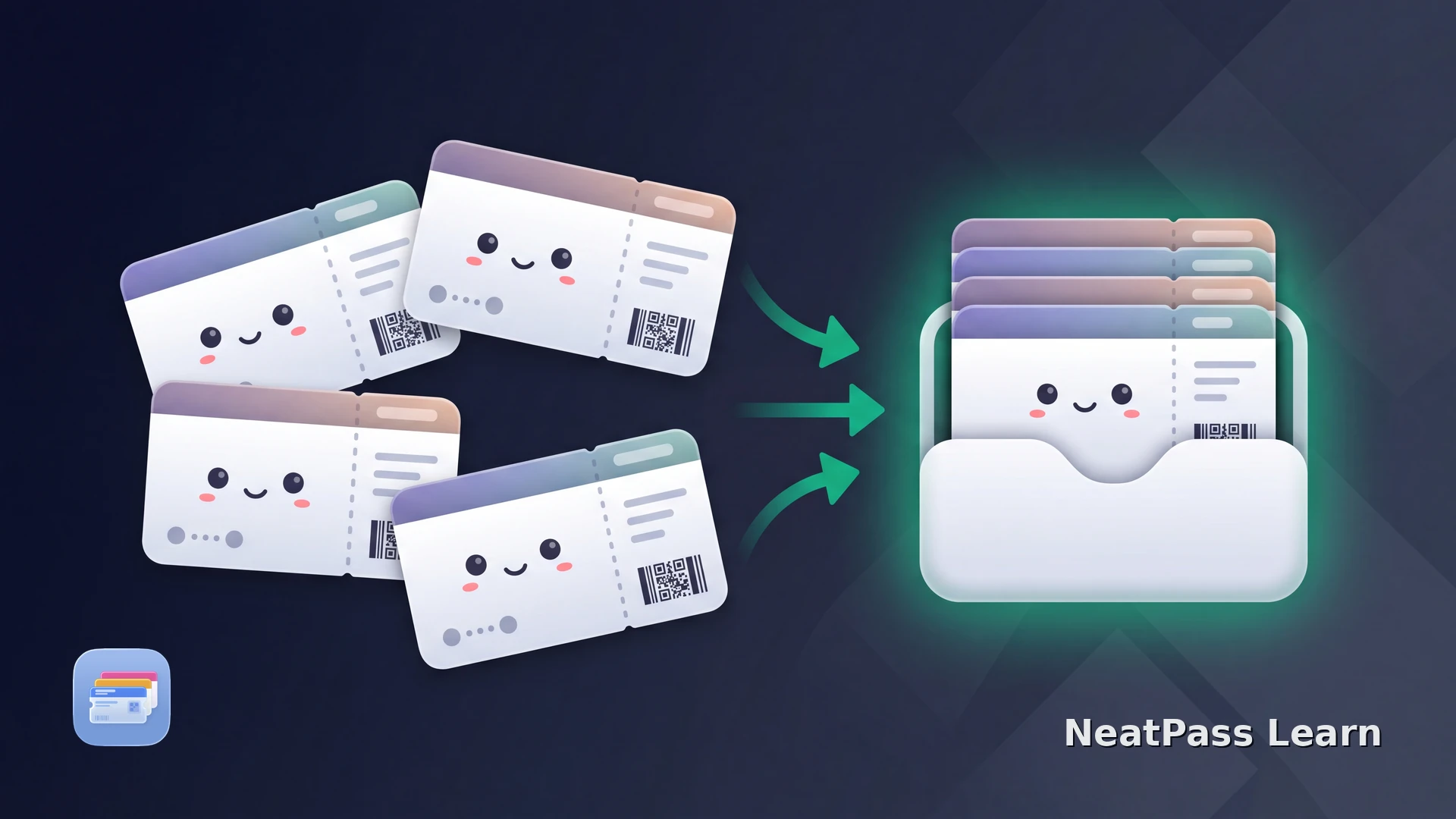
One booking can produce several boarding passes: one for each passenger, and one for each leg of a connection. The useful goal is not a generic travel folder. It is a clear set of current flight passes that you can identify and open quickly.
Apple Wallet keeps the individual passes in one place. Related issuer passes may appear together when the issuer supplies matching grouping metadata, pass type, and pass type identifier, but separate airline or NeatPass passes are not guaranteed to share a Wallet stack. NeatPass helps when the source arrives as separate PDFs, images, or screenshots.
Organize passengers and connections
Treat every boarding pass as a specific combination of passenger, flight, date, and leg. That prevents two common mistakes: adding an old pass after a rebooking, or presenting the wrong passenger's barcode.
One pass per traveler
Keep each passenger's boarding pass separate instead of combining different tickets
Identify each pass
Use names in the NeatPass library to distinguish the first leg, connection, and return; Wallet grouping and display remain controlled by issuer metadata
Process a group
Select related sources together when the import flow allows multi-select and bulk processing
Export deliberately
Review the group before adding each pass to Wallet and keep the originals available
The NeatPass multi-select guide and NeatPass bulk Wallet add guide explain the batch controls.
This is a flight-pass workflow
Keep the official travel documents
When the airline provides several Wallet passes
If the airline offers Add to Apple Wallet for every passenger and leg, add those current passes directly from the airline source. Apple Wallet keeps each pass and may group related issuer passes when the issuer supplies matching grouping metadata, pass type, and pass type identifier. Check each pass after check-in instead of assuming one pass represents the whole reservation.
Prepare multiple boarding passes
NeatPass makes it easy to convert any ticket, pass, or loyalty card to Apple Wallet.
Add multiple boarding passes with NeatPass
Use the latest files or images from the booking. NeatPass can detect supported ticket and boarding-pass items in the imported files and create separate passes. Review each result and its barcode before export.
Collect the current sources
Select the group
Check each detected pass
Label by leg and passenger
Add the reviewed passes
For a readable NeatPass library, use the NeatPass rename-passes guide.
Keep every original
Frequently asked questions
A boarding-pass set you can trust
Collect the newest sources, process related passes together, then check and label every passenger and leg in NeatPass. Wallet keeps the passes in one place, but grouping and order depend on issuer metadata; the original documents remain close by.
For other travel-pass patterns, read travel passes in one place and the guide to boarding passes in Apple Wallet.
Organize your flight passes
Download