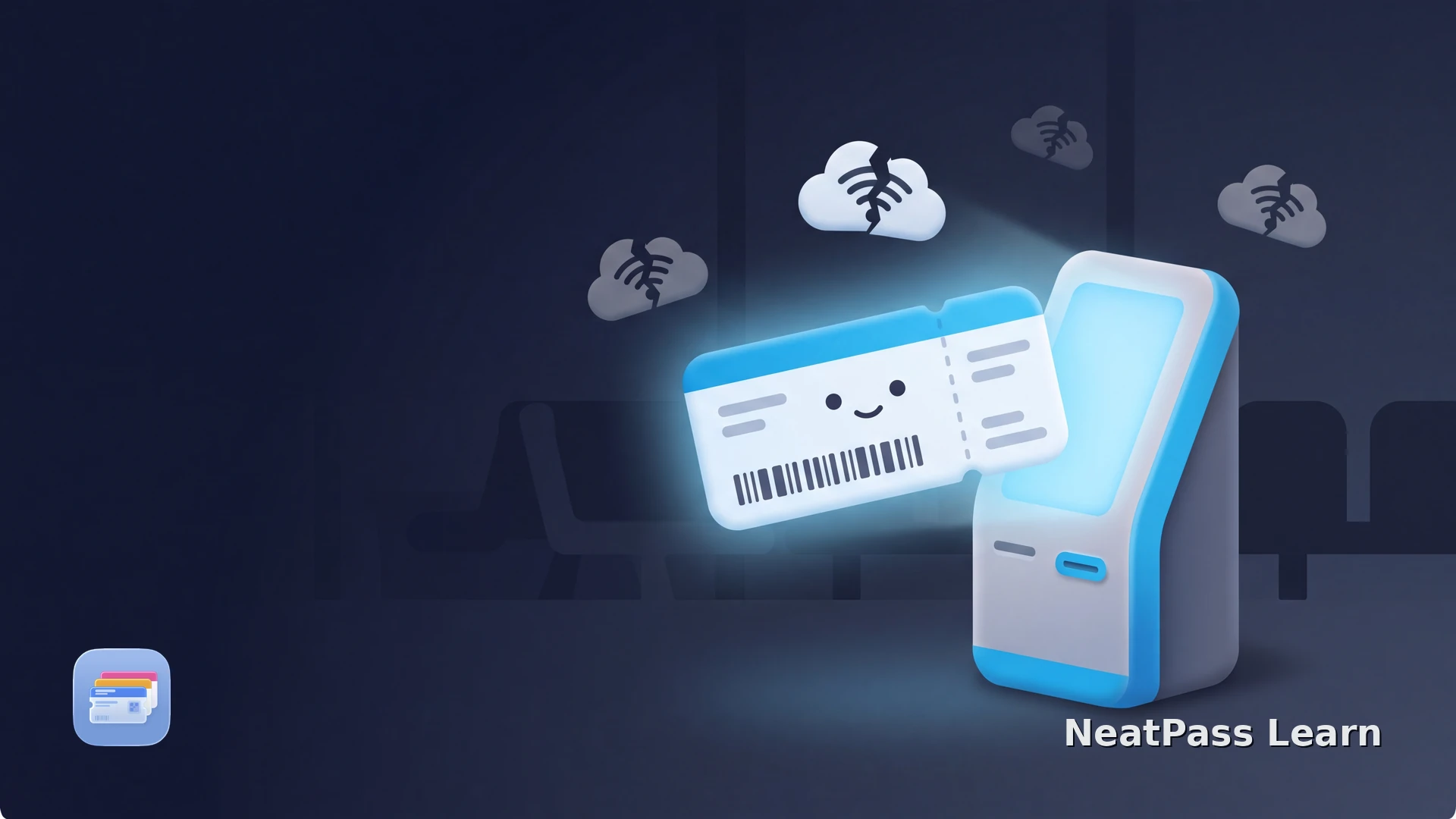
An airport is a bad place to discover that a boarding-pass app needs a network. Add the pass before leaving home, then check what remains available when the phone is offline.
Apple Wallet stores an added pass on the device. That makes a static barcode convenient at a checkpoint, but it does not turn a local copy into a live airline feed.
The offline boarding-pass checklist
Use this checklist before the airport. It separates what is stored in Wallet from what still depends on the issuer's app or servers.
Add before departure
Complete the issuer's Wallet flow or create a reviewed pass while you still have a connection
Open it once
Confirm the pass, route, date, and barcode are visible before switching to airplane mode
Keep a source copy
Retain the airline PDF, image, or app record for changes and document checks
Watch is optional
Supported passes can appear on a paired Apple Watch. Setup can start on iPhone, and some passes can be added on the Watch
For NeatPass's offline details, see the NeatPass offline-mode guide.
What offline access means here
Keep offline passes current before travel
Issuer-created passes can receive updates through the issuer's update channel. A NeatPass pass made from a current static source keeps that source's barcode and details available offline; check the airline source before travel whenever the itinerary may change.
Use the NeatPass live-flight-tracking help to understand the difference between issuer updates and a stored pass.
Prepare an offline boarding pass
NeatPass makes it easy to convert any ticket, pass, or loyalty card to Apple Wallet.
Prepare the pass before the airport
This flow works for an official issuer pass or a reviewed pass made from a supported static barcode.
Finish check-in and updates
Add or import the pass
Open the Wallet pass
Test the offline state
Pack the original
Keep the original boarding document
What about Apple Watch?
Apple can mirror supported Wallet passes to a paired Apple Watch. If a NeatPass pass made from a static source is supported there, it can be presented as the saved source; keep the airline source available for any later update or acceptance decision.
If the pass started as a PDF or image, the NeatPass import methods explain how to get it ready before adding it to Wallet.
Frequently asked questions
A calmer airport handoff
Prepare the pass while online, test the saved Wallet view, and carry the original document. That gives you quick access to the stored barcode without confusing offline convenience with live airline status.
For the broader pass model, read boarding passes in Apple Wallet and how offline wallet apps work.
Put your boarding pass in Wallet
Download