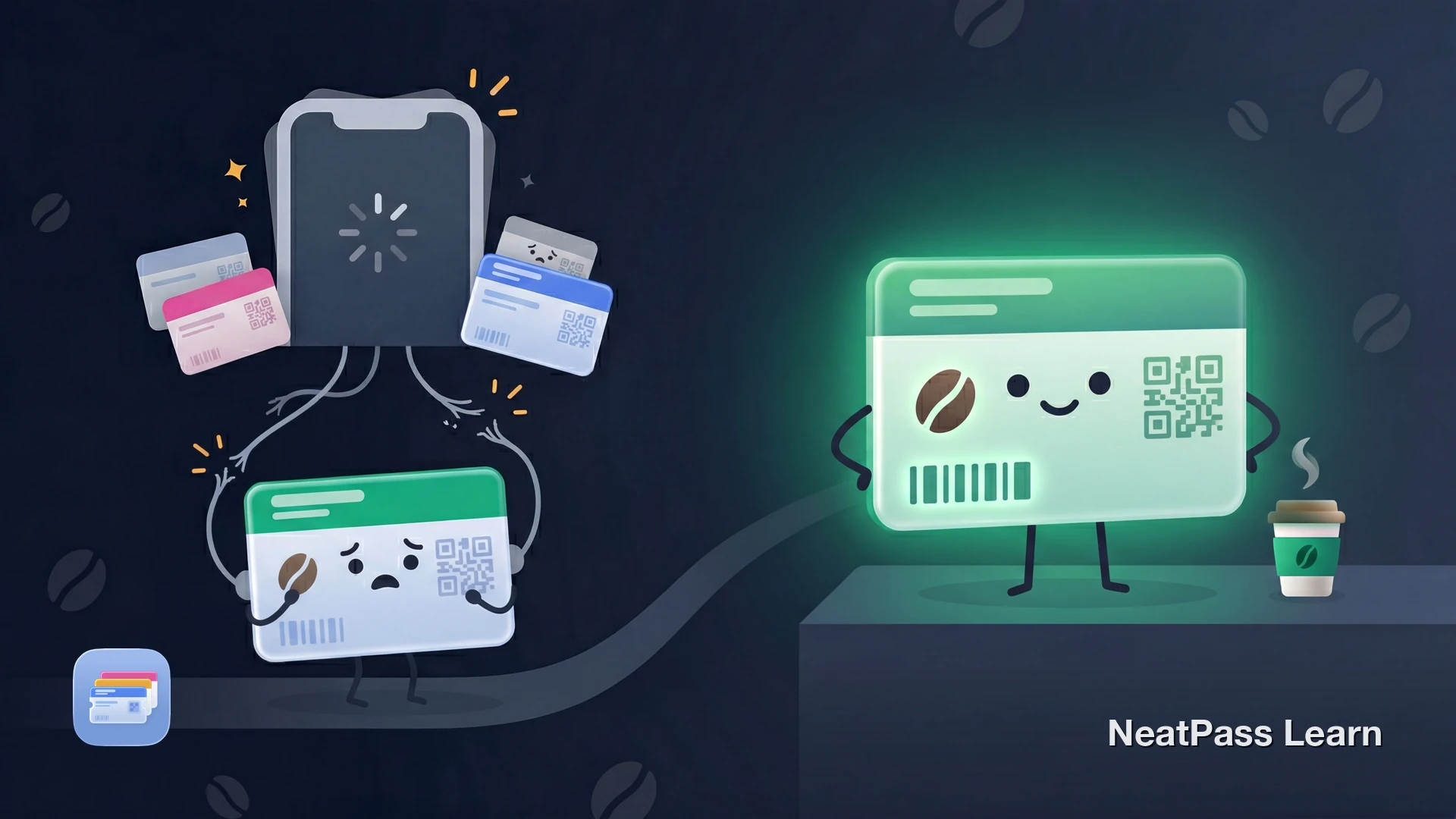
Starbucks Wallet support is region- and app-dependent. The UK Starbucks app documents an Add to Wallet option for Rewards codes, while the US app documents digital Starbucks Cards and member-barcode flows. Check your current app and card for Add to Apple Wallet; if it is unavailable for your market or card, there is a fallback.
A pass built from an eligible physical card's scannable barcode gives you a separate convenience copy of that barcode data in Wallet. It does not create Starbucks membership, balance, payment capability, or guaranteed acceptance, but it can be useful as a backup or a faster way to surface the barcode at the register where the issuer and store accept that code.
Why Some People Still Want a Separate Pass
Where available, Starbucks Rewards is centered on the Starbucks app, account management, and Starbucks Cards. The exact cards, balances, registration rules, and app features vary by country and issuer. If you mainly want quick barcode access at the register, a separate convenience copy in Wallet can be easier to surface and keep organized.
App-centered experience
Where offered, Starbucks handles digital cards, balances, and account settings through its own app and account system
More than a barcode
Depending on the market, the Starbucks flow includes balances, reloads, and account management, not just quick barcode presentation
Separate access can help
A separate convenience copy can be useful if you want an eligible barcode available without navigating Starbucks screens
Wallet organization
A locally stored barcode copy gives you another way to keep an eligible barcode alongside your other Wallet passes
If your physical Starbucks card has an eligible scannable barcode, you can scan that barcode and keep a separate Wallet copy as a convenience backup. Acceptance, membership, balance, and payment still depend on the issuer and store.
Apple Pay vs. Starbucks Card Barcode
You can pay at Starbucks with Apple Pay using NFC tap-to-pay where that payment method is accepted. But local Starbucks Rewards rules may treat Apple Pay differently from paying with a Starbucks Card or scanning your member barcode first. Scanning your Starbucks card barcode gives you a quick way to present the eligible scannable code tied to your Starbucks card, but it does not create payment capability or guarantee that every store will accept the copy.
Where the program is available, Starbucks Rewards may treat paying with a Starbucks Card differently from paying with Apple Pay or another mobile wallet. The rules vary by country, issuer, and participating store. If you prefer presenting an eligible barcode first, a separate Wallet copy can make that code easier to reach.
Payment vs. loyalty
Get your Starbucks barcode into Wallet
NeatPass makes it easy to convert any ticket, pass, or loyalty card to Apple Wallet.
A Separate Wallet Copy from Your Physical Card
If your physical Starbucks card has an eligible scannable barcode and you want a separate Wallet copy, you can scan that barcode with NeatPass. It uses on-device AI to read your card's barcode and create a convenience Apple Wallet pass. The copy works offline as a barcode view, but it does not create membership, balance, payment capability, or guaranteed acceptance, and it does not replace the local Starbucks app or card account.
How it works
Step-by-Step: Starbucks Card to Apple Wallet
Find your physical Starbucks card
Open NeatPass
Scan the barcode
AI creates your pass
Add to Apple Wallet
Pro tip
Benefits of a Separate Starbucks Wallet Pass
A pass built from an eligible physical card's barcode gives you a simpler barcode-first convenience option alongside the local Starbucks app and website. It does not replace issuer-controlled membership, balance, payment, or rewards features.
Instant lock screen access
Double-click the side button to show your barcode, no app loading needed
Works offline
No internet required, your barcode displays even in airplane mode
Auto-brightness for scanning
Screen brightens automatically so the register scanner reads your barcode cleanly
Separate from the app flow
Keeps a standalone barcode copy in Wallet even if you prefer not to open the Starbucks app every time
Same scannable card data
The copy preserves the scannable barcode data from the eligible card you imported
Fast barcode access
Skip the app loading screen and go straight to your barcode at the register where the issuer and store accept that code
Location-based reminders
Your convenience pass can appear on your lock screen when you arrive at a Starbucks location, where location features are supported
Learn more about offline mode and why local storage matters for your cards. For details on how NeatPass handles your data, see the privacy FAQ.
Even faster access
Frequently Asked Questions
Save your Starbucks barcode in Wallet
DownloadYour Starbucks Card, Always Ready
Starbucks Rewards and its card and barcode features vary by country and issuer. A separate Wallet copy can still be useful if you want quick access to an eligible scannable barcode at a participating register.
With NeatPass, an eligible Starbucks barcode can be one double-click away as an additional convenience option in Wallet. Learn how to add cards to Wallet and start your next coffee run with confidence.