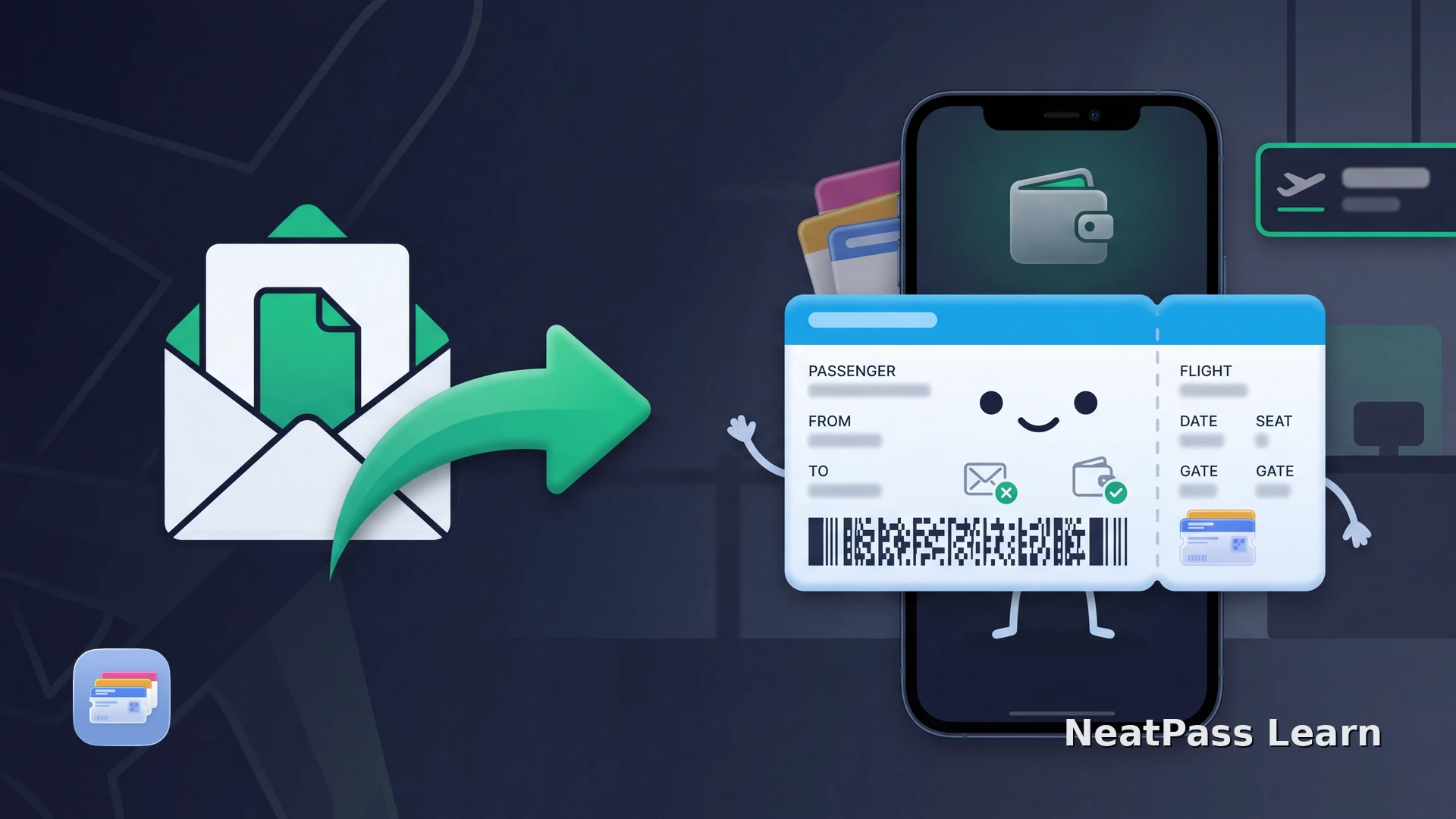
You have checked in for your Air New Zealand flight and want the boarding pass ready on your iPhone, beside the other passes for your trip. Start with the Air NZ app: it offers Add to Apple Wallet for eligible boarding passes and keeps the airline’s flight information close at hand.
If the official Wallet option is unavailable, NeatPass can turn a boarding pass with a supported static barcode into a Wallet pass from a PDF, photo, or screenshot. Use this fallback where the airline and your departure airport accept that digital copy. The steps below cover both routes and the acceptance check for Air NZ.
Get the boarding pass from Air NZ
Retrieve your booking in the Air NZ app with the booking reference and passenger surname. Online check-in normally opens 24 hours before departure. Completing check-in gives you the boarding pass to save; a booking confirmation or itinerary on its own is not a boarding pass.
Add the official pass to Apple Wallet
Open your booking
Complete check-in
Choose Add to Apple Wallet
Keep the current pass ready
If mobile passes are unavailable at your departure airport, use a home printout where accepted or collect a paper pass from a kiosk or check-in desk.
Use NeatPass when you have a static boarding pass
If you have an issued boarding pass as a PDF or image but no working Wallet button, NeatPass offers a way to keep its supported barcode and travel details together in Wallet. A static barcode stays the same rather than refreshing in the airline app.
Check acceptance before using a converted pass
Import the issued boarding pass
Review the flight details
Save it to Wallet before you travel
Keep the right pass ready for the journey
For example, on a connecting trip you may have separate boarding passes for each flight. Clear titles and a quick check of the flight number help you select the right one at the gate. The import guide and Wallet instructions walk through NeatPass’s controls if this is your first import.
NeatPass keeps the source with the pass through View Original, useful for checking a detail from the issued document. Once saved, the Wallet pass is available offline. Check the Air NZ app for changes during the trip, since an imported copy does not receive the airline’s live updates. The image is processed on your iPhone; see the privacy FAQ for details.
Turn a static pass into a Wallet pass with NeatPass
Import a PDF or image, review the details, and keep an accepted static pass ready in Apple Wallet.
Frequently asked questions
Ready for your Air NZ flight
Use Air NZ’s own Add to Apple Wallet option first. For a static pass that meets the acceptance check above, NeatPass gives you a practical fallback: import it, review the flight details, and save it before you leave. Keep the current airline information and the original pass easy to reach during your trip.